Applications and applicants
When is the applicant sent email communications by the KYC-Chain software?
Applicants receive automated emails when:
- They are invited to start the KYC process, or an application is created for them
- They click an expired invitation link while their application is still open (a new link is sent)
- They ask for a sign-in link to continue their application
- A manager requests additional items, or asks them to re-upload, re-answer or re-fill existing ones
- A manager unlocks the application for editing, or re-opens it
- A manager adds an external note
- The application is approved, rejected or cancelled
- A KYC Refresh is requested
- A new ID verification is requested
- They have an application that is waiting for their input (reminders, if enabled)
Managers can turn individual emails on or off and change their subjects in Settings → Email Management.
If you signed up online and haven't chosen a plan yet, these emails are limited to 10 in any 24 hours; only the sign-in link to continue an application is always sent. See Signed up online? Use the Getting Started page.
Please note that if risk scoring is enabled and any Pre-Checks are set to "Request" then the system may automatically request a re-upload of this requirement without any direct input from the manager.
How can I use dashboard filters to view all open or pending applications?
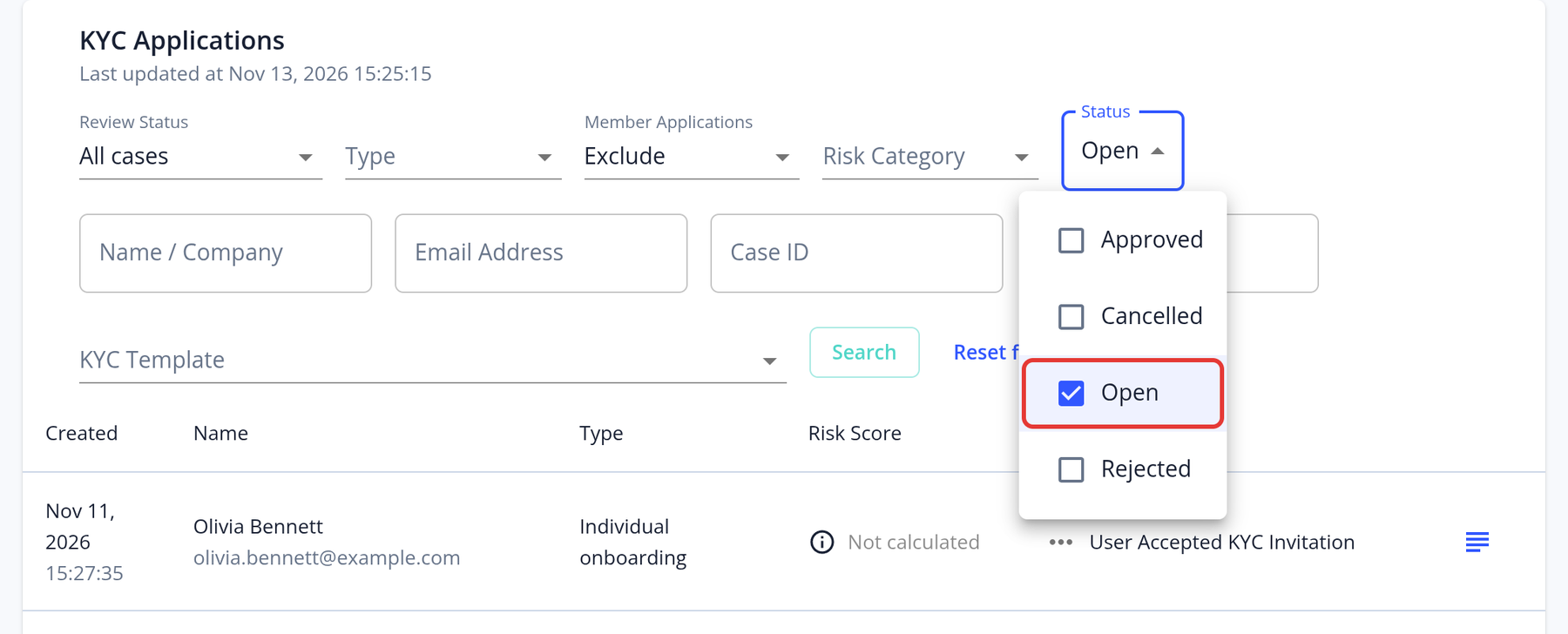
- On the Dashboard, open the Status filter.
- Select Open and clear Approved, Cancelled and Rejected. Open includes every application that isn't closed yet, whether it is waiting for the applicant or ready for review.
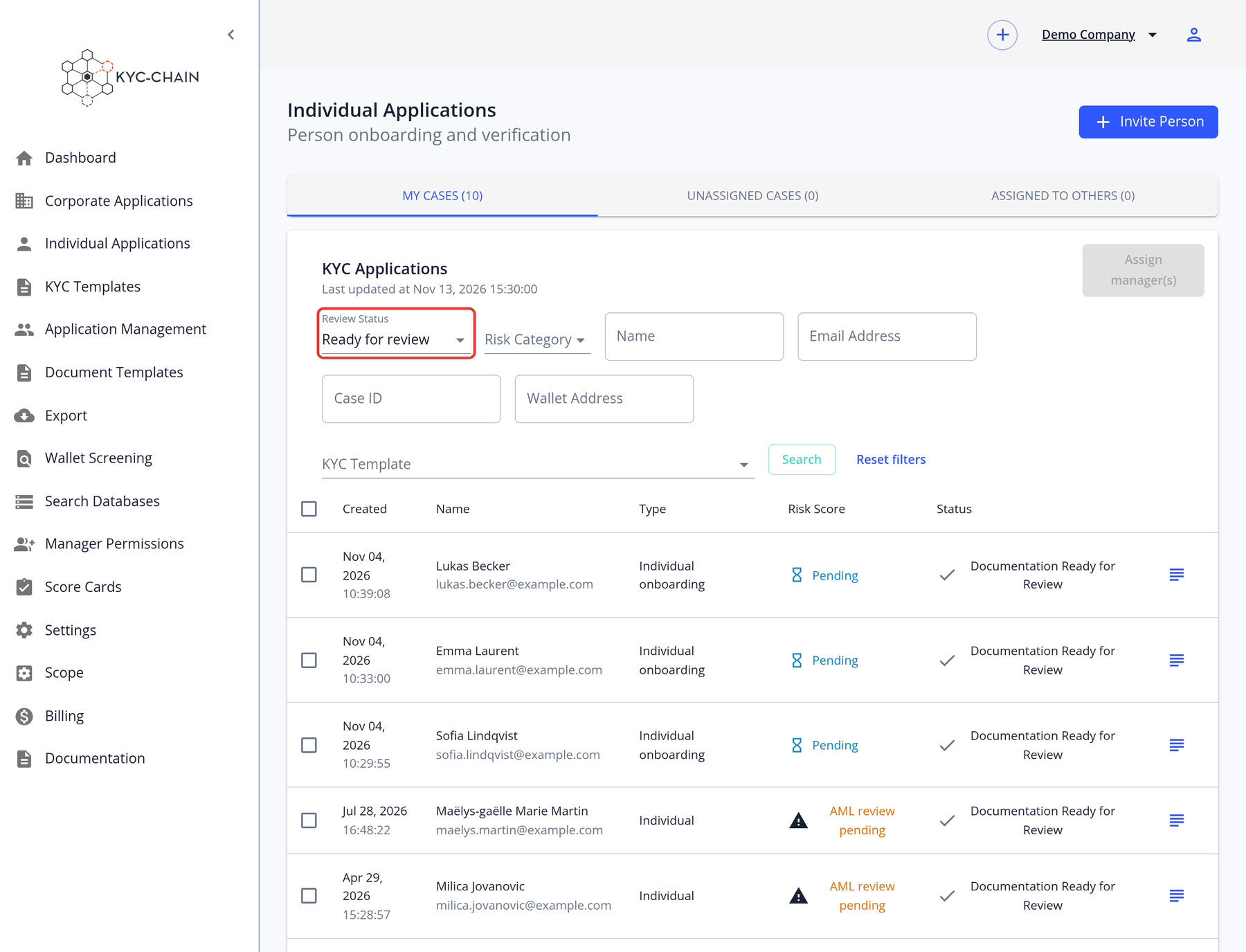
- To see only applications that are waiting for your review, set Review Status to Ready for review (shown when ongoing AML monitoring is enabled). Alternatively, open Individual Applications or Corporate Applications and turn on the Ready for Review switch.
The dashboard then displays only the applications that match your filters.
Why are applications not appearing on the main dashboard view, and where can all open applications be found?
Usually a filter is hiding them. Check the Status, Review Status, Risk Category, Labels, KYC Template and Member Applications filters. Member applications are excluded by default.
When is a KYC process ready for review?
You can see the status of all open applications on the Individual Applications and Corporate Applications pages. When an applicant (or manager) submits the application for review, the status changes to “Documentation Ready for Review”.
Why does an application remain in "In Progress" status after submission?
The status "In Progress" appears when a submitted application is opened for editing again: when a manager requests additional items from the applicant, clicks Unlock, or requests a KYC Refresh. Under normal circumstances, once an application is submitted, its status changes to "Documentation Ready for Review."
If there has been no request for additional information from the manager and the status still shows as "In Progress," this may indicate a technical issue. In such cases, we recommend reaching out to our support team so we can investigate and resolve it promptly.
Can applicants always edit their KYC application?
An applicant is free to edit their KYC process anytime before submission. As soon as the KYC process is submitted, applicants won’t be able to make any changes. A “processing” message will display when they log into the app. However, if a manager requests that they submit or resubmit any requirement, applicants will be able to edit the KYC process until they submit it again.
Several applications are incomplete. Applicants didn’t send all the documents or haven’t answered all the questions. What can I do?
Use the Reminders feature. Go to Settings → Reminders, tick Enabled, and set the Send Rate (days between reminders), the Limit (maximum number of reminders) and Ignore After Inactivity. Applicants whose application is waiting for their input then receive reminder emails. See Reminders for details.
Can an applicant submit several applications with the same email address?
Applicants can only have one active process open per email address per KYC template. If an applicant with the same email address has an open KYC Process with that template, the user won’t be able to apply again with the same email address.
Can clicking an invitation link multiple times cause login or access issues?
Usually not. An invitation link is valid for 48 hours, and it may stop working shortly after it is first used. If the applicant clicks an old or expired link while their application is still open, a new link is emailed to them automatically.
What should a user do if they encounter an "Invalid sign up link" or similar error during initial access?
If a user encounters an "Invalid sign up link" or a similar error during initial access, they should try the following steps:
-
Request a new link: If the link has expired or is no longer valid, request a new sign-up or invitation link from the sender or support team.
-
Clear browser cache or try a different browser: Sometimes, browser issues can interfere with link functionality.
-
Contact support: If the problem persists after trying the above steps, reach out to the platform's support team with a screenshot of the error message for further assistance.
Why am I encountering login errors or being redirected when attempting to access the Customer Portal?
Login errors or unexpected redirects when accessing the Customer Portal can occur for several reasons:
-
Incorrect or expired session: Your login session may have expired or become invalid. Try logging out completely and logging back in.
-
Multiple accounts or browser sessions: If you’re logged into multiple accounts or have several sessions open, the portal may redirect or behave unexpectedly. Close other tabs, clear your browser cache, or use an incognito window.
-
Insufficient permissions or incorrect link: You may be using a link that doesn’t match your account's access level or scope. Ensure you’re accessing the portal using the correct URL provided to you.
-
Browser compatibility issues: Some features may not work correctly in older browsers. Try updating your browser or switching to a different one (e.g., Chrome).
-
Access scope set to view-only or inactive: If your instance is set to a view-only or inactive state, you may be restricted from performing actions. Contact your administrator or support to confirm your access status.
If the issue continues, please contact the support team and include details such as the URL used, a screenshot of the error, and your account email.
How can the main account or contact email address be changed?
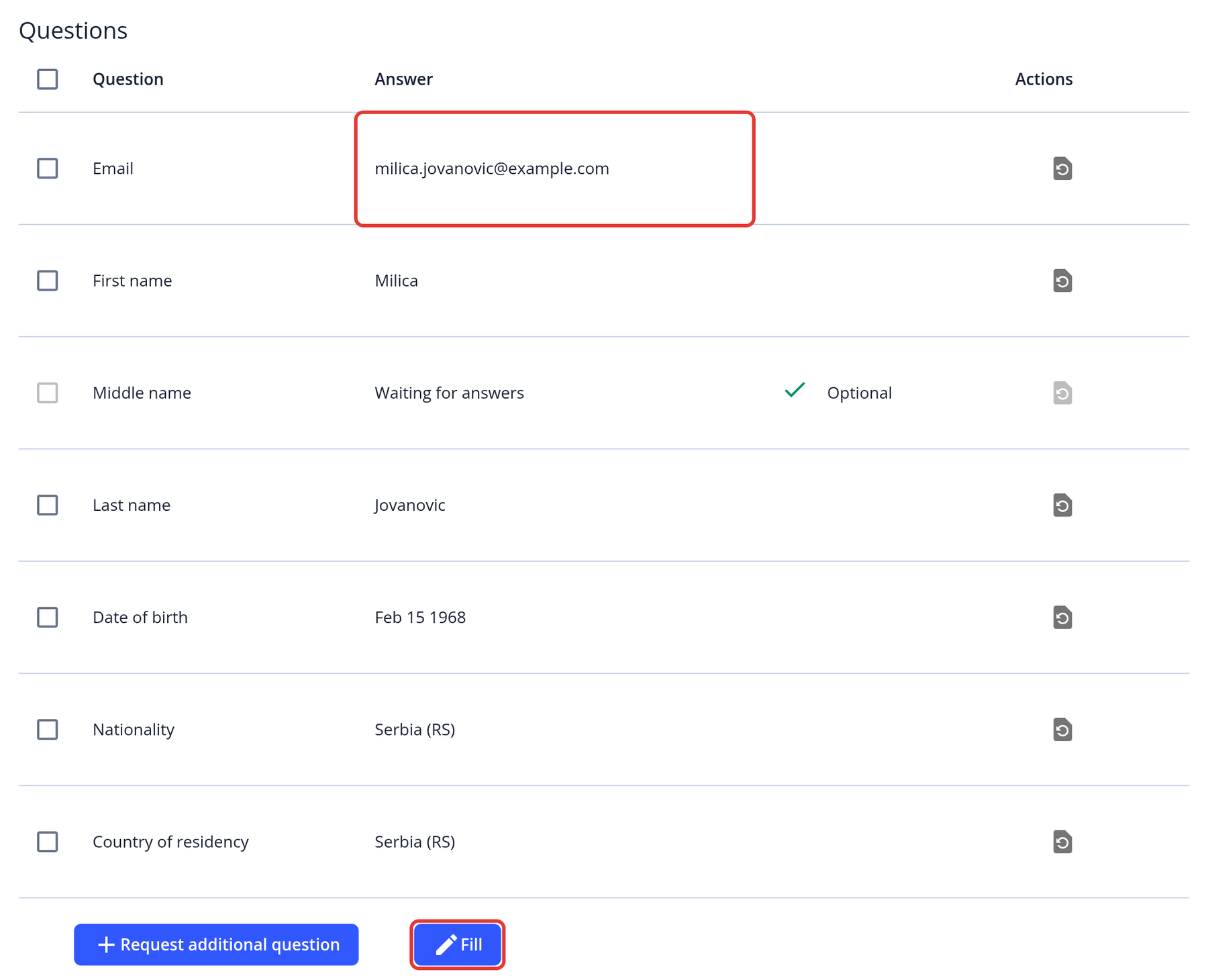
To change the email address that is technically linked to the application, please contact our support team. This update requires backend adjustments to ensure the application can be found using the new email address. However, if you only wish to update the contact email for communication purposes, you can do so on the Overview page using the Easy Fill feature, provided it is enabled for your account. For more information, please refer to the following screenshot:
How to recall a sent message?
If your question concerns "External Notes," you can view all sent External Notes on the Overview page at the very bottom of an application. If your question is not about sent "External Notes" but other messages, please create a support ticket and provide details about which messages you are referring to so we can assist you more effectively.
How to delete member application from the Corporate KYB?
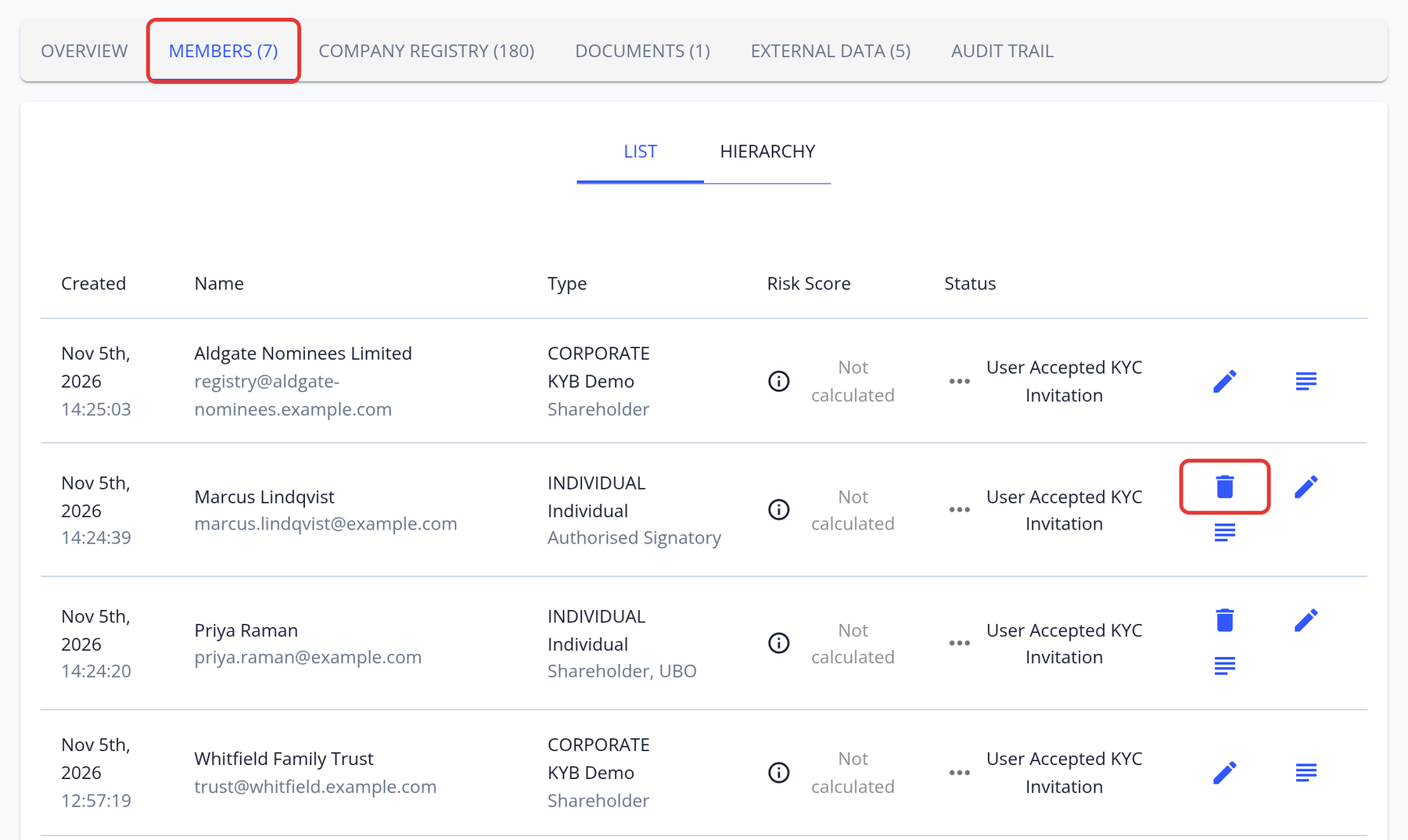
Open the corporate application, go to the Members tab and click the Delete member (trash) icon on the member's row. The icon is only shown when:
- Easy Fill is enabled for your instance,
- you are on the main corporate application, not on a member's own application,
- the member has no members of its own, and
- the member wasn't added through a member KYC link (a separate application the member completes themselves).
It isn't shown while you view an older snapshot from the Audit Trail.
How can I delete all data pertaining to an application?
Use the Application Management tool described in Application management.
How long does it typically take to complete the KYC application?
Most users complete the KYC process in 5–15 minutes, provided all required documents/information are readily available. Delays may occur if:
- Verification requires manual review,
- Supporting documents are unclear or incomplete,
- Third-party checks (e.g., government databases) are pending.
For real-time status, please check application dashboard.
File Size and Format Requirements for Document Uploads
- Accepted formats: PDF, JPG and PNG.
- Minimum image size: images must be at least 400 x 500 pixels.
- Maximum file size: files larger than 60 MB can't be uploaded.
- ID documents: for ID document verification, upload a clear photo of the physical document rather than a scan or a copy.
How can I generate a PDF report or a compliance report?
KYC-Chain provides several ways to report on applications:
- PDF report of an application: open the application and click PDF Report at the top of the page. The report includes the general information, forms, questions, documents, document orders, notes, external data, identity verification, ID verification, members and audit trail. To download the application's data and files instead, click the arrow next to PDF Report and choose Export ZIP.
- Wallet screening reports: download Standard or Enhanced wallet screening reports as PDFs from the application's Wallet Screening tab, or from the Wallet Screenings tab of the Wallet Screening page.
- CSV exports: export application data for one KYC template at a time from the Export page (see Export KYC Data). Billing events can be exported from Billing → Events.
- Audit trail: every application has an audit trail that records status changes, manager actions, document uploads and check results.
- API: reports can also be generated through the API (see How do I generate PDF reports using the API?).
If the PDF Report button isn't shown, the feature may not be enabled for your instance or your role. Please contact our Help Desk for assistance.
