Account, sign-in and managers
What steps should I take if a manager is unable to log in?
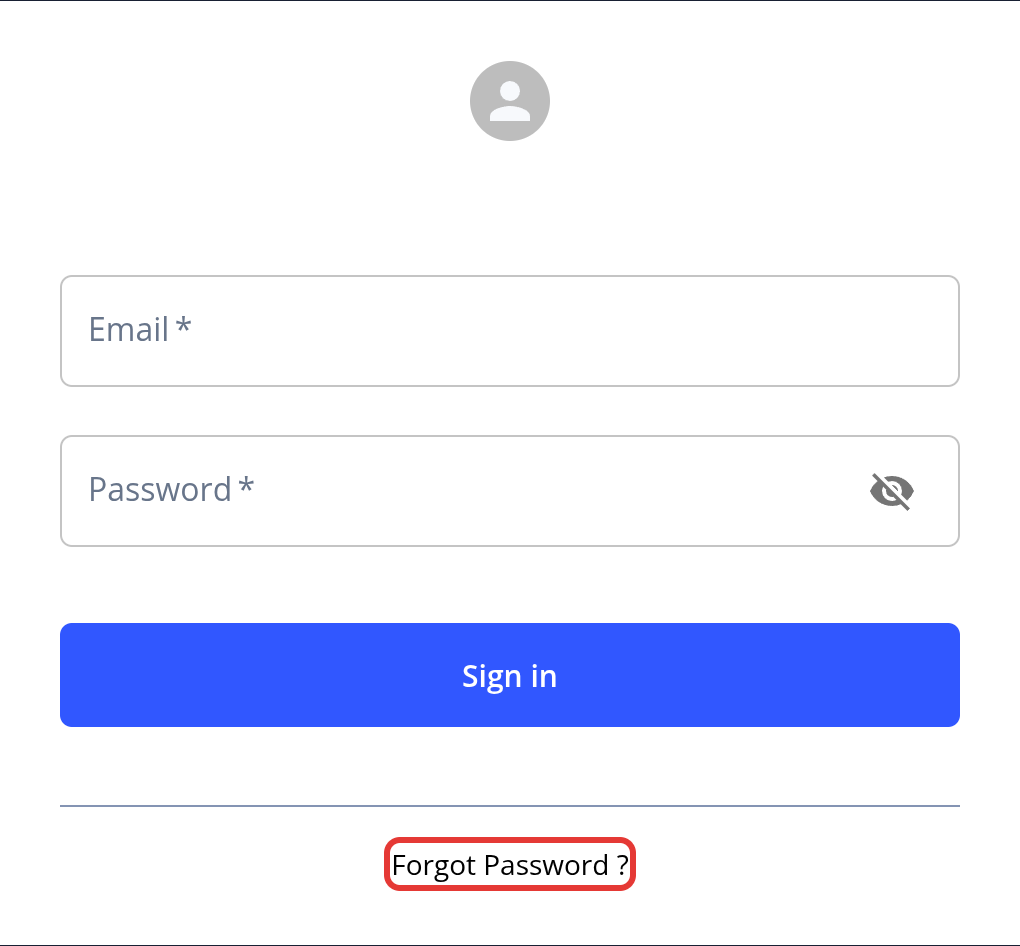
Please ensure that the manager is attempting to access the management portal, not the KYC portal, as these are two distinct platforms. The management portal URL should include /management/login. If you are on the correct page, the next step is to try resetting your password by clicking the "Forgot Password" button. You will receive an email with instructions—please follow them carefully. If you continue to experience issues accessing the management portal, please create a support ticket.
How do I set up my login credentials for first-time access after receiving an invitation?
When a new manager is added to the KYC management portal, they will automatically receive an invitation to set their password. The same applies to applicants, who will receive an invitation link to begin the KYC process.
New instances use a passwordless journey for applicants by default: applicants request a sign-in link by email instead of using a password. Enterprise customers can turn this on or off in Scope → Passwordless Flow.
How to Enable Two-Factor Authentication (2FA)
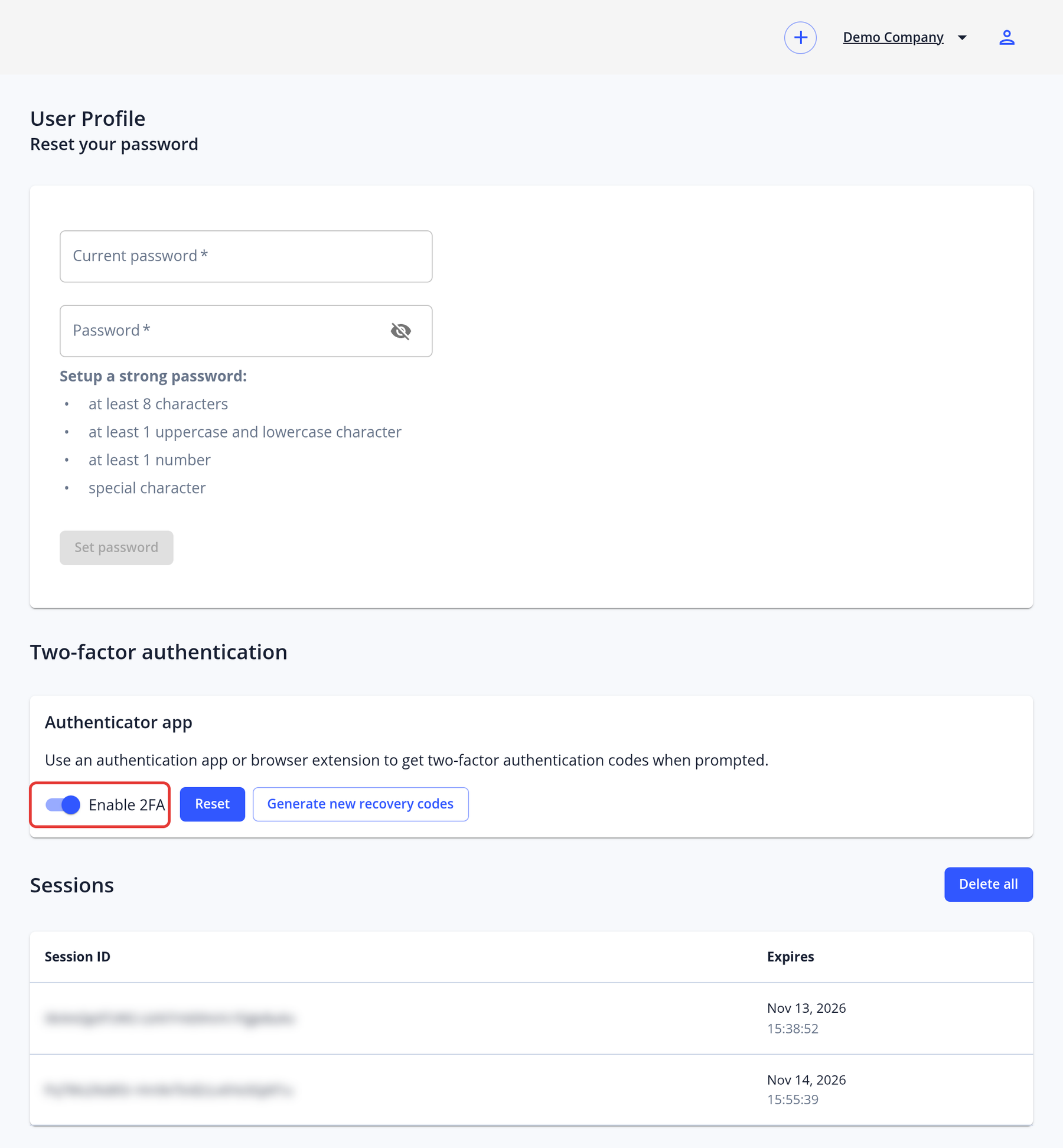
- Click the user icon in the top right corner and choose Profile.
- In the Two-factor authentication section, click Enable 2FA and confirm your password.
- Scan the QR code with your authentication app or browser extension, and enter the code to verify it.
- Save your recovery codes somewhere safe. They are only shown once.
See Your Profile and Account Security for details.
Can the minimum password length requirement for user accounts be customized?
No. Passwords must be at least 8 characters long and include an upper-case letter, a lower-case letter, a number and a special character. This policy can't be changed.
How to reactivate or deactivate a manager?
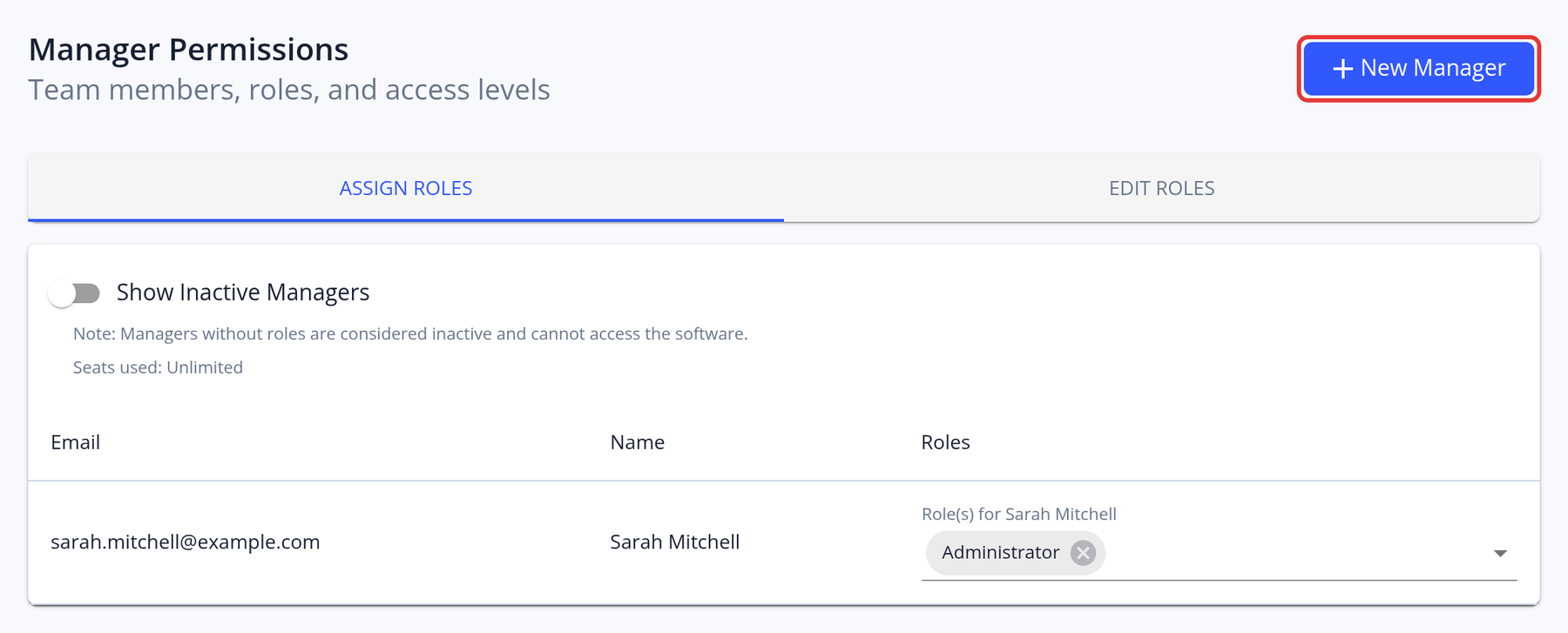
To deactivate a manager and remove their access to the platform, simply remove their assigned role. If you want to give access to an existing manager who was deactivated, toggle the "Show Inactive Managers" switch in the Manager Permissions section. This will display all inactive managers. Locate the manager you wish to reactivate and assign them a role; this will automatically reactivate their account and restore their access to the software.
What steps should be taken if a user cannot access expected features after a permission update?
If this occurs, please open a support ticket and provide the user's email address along with the list of permissions that have been updated. This will allow us to investigate the issue on our end.
Can a shared email address be used for account management or notifications?
Yes, shared email address can be used for accessing the account or receiving notifications.
How is remote access provided to the deployed instance for support or management?
Clients can access the management portal of the deployed instance remotely using their login credentials. For enhanced security, two-factor authentication (2FA) can be enabled. This ensures that only authorized users are able to manage or support the instance, regardless of their physical location.