Setup, going live and customization
How to access the demo or sandbox environment?
New instances start in test (sandbox) mode, so you can start testing straight away without being charged. To run real checks on real data, the instance must be switched to live mode:
- If you signed up online: choose a plan under Getting Started or Billing. Your instance switches to live mode as soon as the plan is active. Until then, emails to applicants are limited to 10 in any 24 hours (see Signed up online? Use the Getting Started page).
- If your instance was set up by our team: open a support ticket and we will switch it to live mode.
In live mode, each check is charged (see Billing). If you need a separate sandbox environment in addition to your live environment, please also open a support ticket. Our support team will get back to you as soon as possible.
What is the optimal process for coordinating a system reset and switch-over to production?
Key considerations and steps for moving from test to production in KYC-Chain:
Key Considerations:
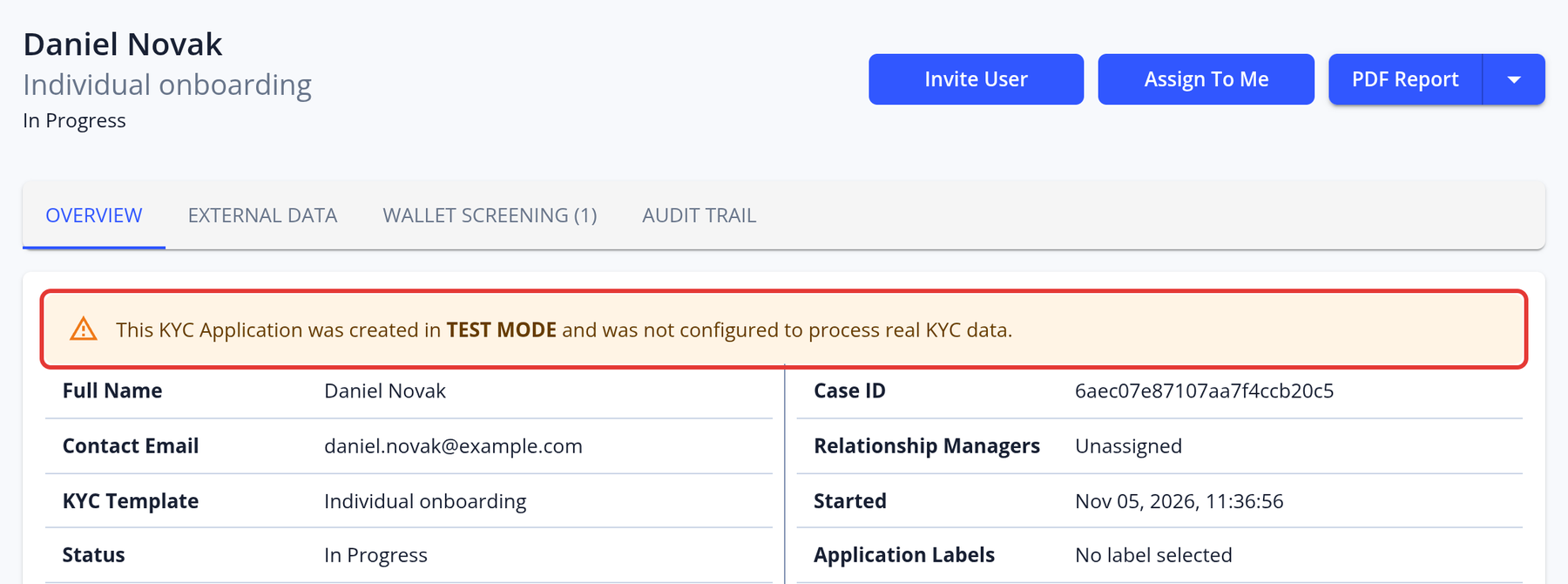
- Data Isolation: Keep test and real applicant data completely separate. Applications created in test mode are marked "TEST MODE".
- Configuration Review: Double-check all production settings, KYC templates, integrations, and notifications.
- Integration Updates: Use production API keys and endpoints for all external services.
- User Access: Grant live system access only to authorized personnel.
- Compliance: Ensure all regulatory and data retention settings are correct.
Steps to Go Live:
- Switch to live mode: If you signed up online, choose a plan under Getting Started or Billing. Your instance switches to live mode as soon as the plan is active. If your instance was set up by our team, contact support to enable live mode.
- Finalize Settings: Confirm all templates, branding, and user permissions are set up as needed for production.
- Update Integrations: Create API keys and webhook endpoints for production, and update your systems to use them.
- Test in Production: Run a few internal test applications to confirm workflows. Checks are charged in live mode.
- Go Live: Invite real applicants and monitor for any issues.
It is also recommended to document differences between test and production setups for your team.
Are new access links or credentials provided when transitioning to live mode?
No, the instance URL remains the same when transitioning from development to production mode. Your login credentials also remain unchanged, though passwords can be updated at any time. Additionally, Two-Factor Authentication (2FA) can be enabled for enhanced account security.
The main difference is in the scope status of the instance:
- In development mode, you can test the platform without being charged.
- In production mode, the instance becomes live, and usage is subject to billing based on your plan.
If you need help enabling 2FA or switching to production, feel free to contact the KYC-Chain support team.
How can applications originating from a development environment be distinguished?
Applications originating from a development environment are typically identified by clear warnings like "TEST MODE". For more information, please refer to the following screenshot:
What are the typical setup times for the platform?
If you signed up online, your account is ready right away: test it in the sandbox and go live by choosing a plan (see Signed up online? Use the Getting Started page). There is no setup fee.
For enterprise contracts, our team sets up your instance once we have the configuration details, such as:
- Company and project information
- Branding assets (logo, colors, etc.)
- User roles and access settings
- Preferred storage and email configurations
- Required KYC templates and workflows
The setup time depends on the project, for example API integrations, member-level KYC workflows or custom features, and is agreed with you. Some enterprise contracts include a setup fee.
How do I update my organization's logo and name?
Go to Scope in the left menu:
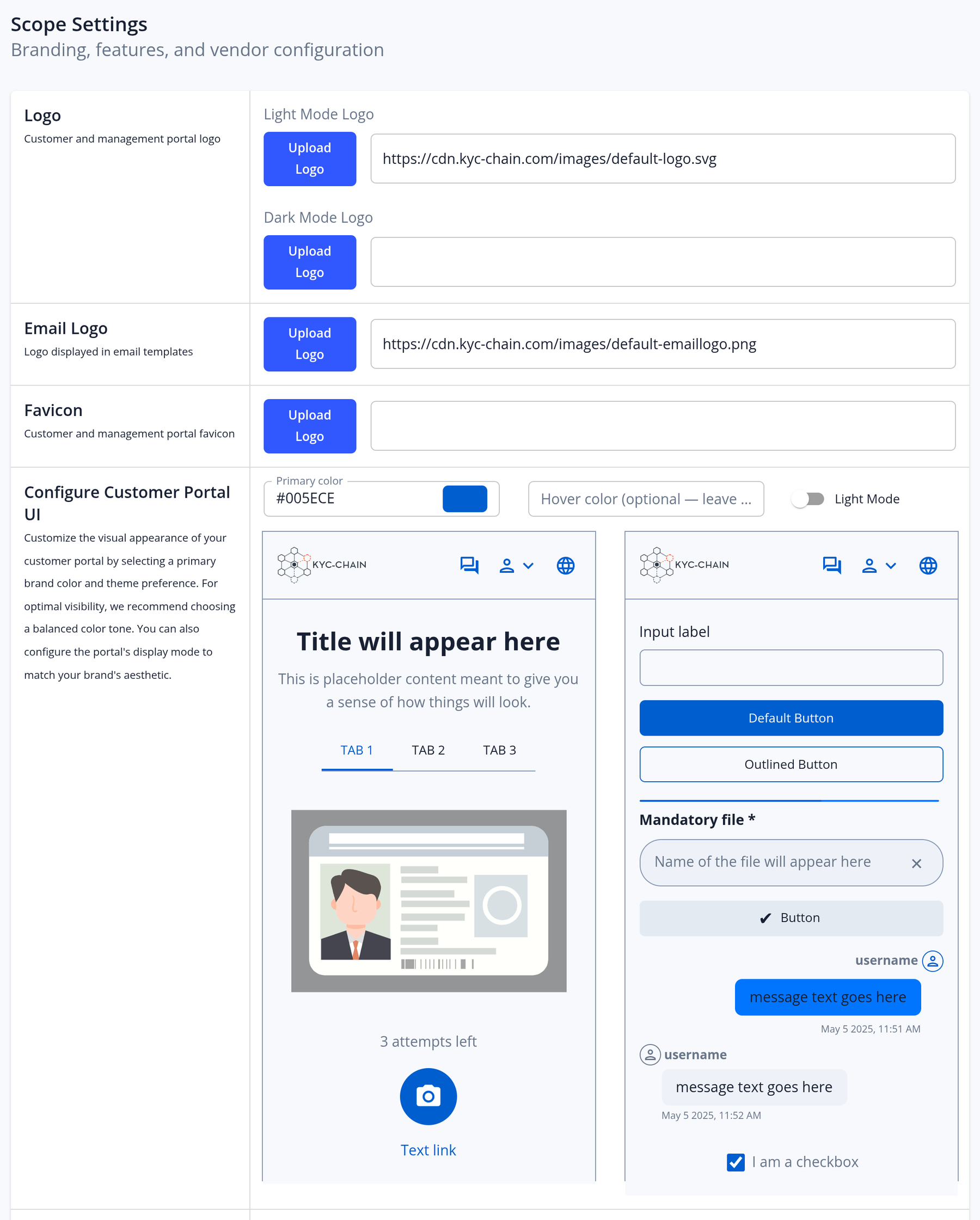
- Logo: upload a logo for light mode and one for dark mode. You can also upload a separate email logo and a favicon. Logos can be JPEG, PNG or SVG files up to 3 MB. A transparent PNG or an SVG looks best on both light and dark backgrounds.
- Name: edit the Instance Display Name in the Instance URLs section (at least 3 characters).
You need permission to edit the scope settings, which the Administrator role has. Please refer to the screenshot for more information.
How do I configure email sending from my custom domain in the KYC-Chain app?
The first step is to verify ownership of your domain. This is typically completed during client onboarding. If this step was not done, or if you would like to change the sending email address, please open a support ticket and provide the new email address or domain you wish to use for sending emails.
Can custom domain settings be modified after initial setup?
Yes. To change your custom domain settings, open a support ticket.
Why do onboarding invitation emails frequently go to the customer's spam folder?
Onboarding invitation emails often go to the customer's spam folder because the sending domain is not verified or DKIM (DomainKeys Identified Mail) is not configured.
When the domain isn’t verified, email providers may flag messages as suspicious. Without DKIM, emails can’t be authenticated and are more likely to be marked as spam. Other factors, like a poor sender reputation or missing DKIM records, can also contribute.
To improve deliverability, always verify your sending domain and set up DKIM records. This helps ensure your emails reach the inbox instead of the spam folder.
Can we edit the email templates sent to applicants?
Yes, the content and branding can be customized and edited at any moment. You will need to submit the request with the details to your account manager.
How can I access the public-facing portal?
The Customer/Applicant Portal is available at your unique instance URL: https://your-scope-name.app.kyc-chain.com
(Replace your-scope-name with your designated project identifier)
Does the KYC-Chain management app support multiple display languages, such as Simplified and Traditional Chinese?
The management app is available in English only. However, the customer portal can be shown in several languages, and you can translate your KYC templates so that applicants can switch between them (see How to Set Up Language Support for the Customer Portal).
What types of KYC verifications are supported?
The platform covers ID document, Selfie, biometric (Passive Liveness), Identity Data (first name, last name, DOB, address), AML screening, Blockchain Wallet screening and Business Verification.
What is the geographic coverage for KYC services?
KYC-Chain provides KYC/KYB services with broad global coverage. We support identity, document, and business verification across most countries and regions worldwide, leveraging a wide range of data sources, external databases, and international watchlists (Sanctions, PEP, Adverse Media). The specific coverage—such as available government registries, document types, and verification strength—can vary depending on the country or region.
See KYC and AML coverage by country for the checks available in each country. If you need more detail about a particular country or check, open a support ticket.
How can I verify that a feature is fully active?
You can verify whether a feature is active by reviewing the KYC template. Some features will be clearly marked as enabled or disabled, while others may display a message prompting you to contact the support team for activation.
For full clarity, we recommend reaching out to the support team directly to confirm which features are currently enabled on your instance.
How long do feature customization requests typically take to implement?
Customization timelines vary based on complexity, resources, and current development priorities. To provide an accurate estimate, we encourage opening a support ticket so we can evaluate your specific requirements case by case. We'll assess the scope and provide a tailored timeline promptly.