Billing
The Billing page shows your credit balance, your plan, every charged check and your payments. Open it from Billing in the left menu. You need the Access the Billing Dashboard permission, which the default Administrator role has.
The page has three tabs:
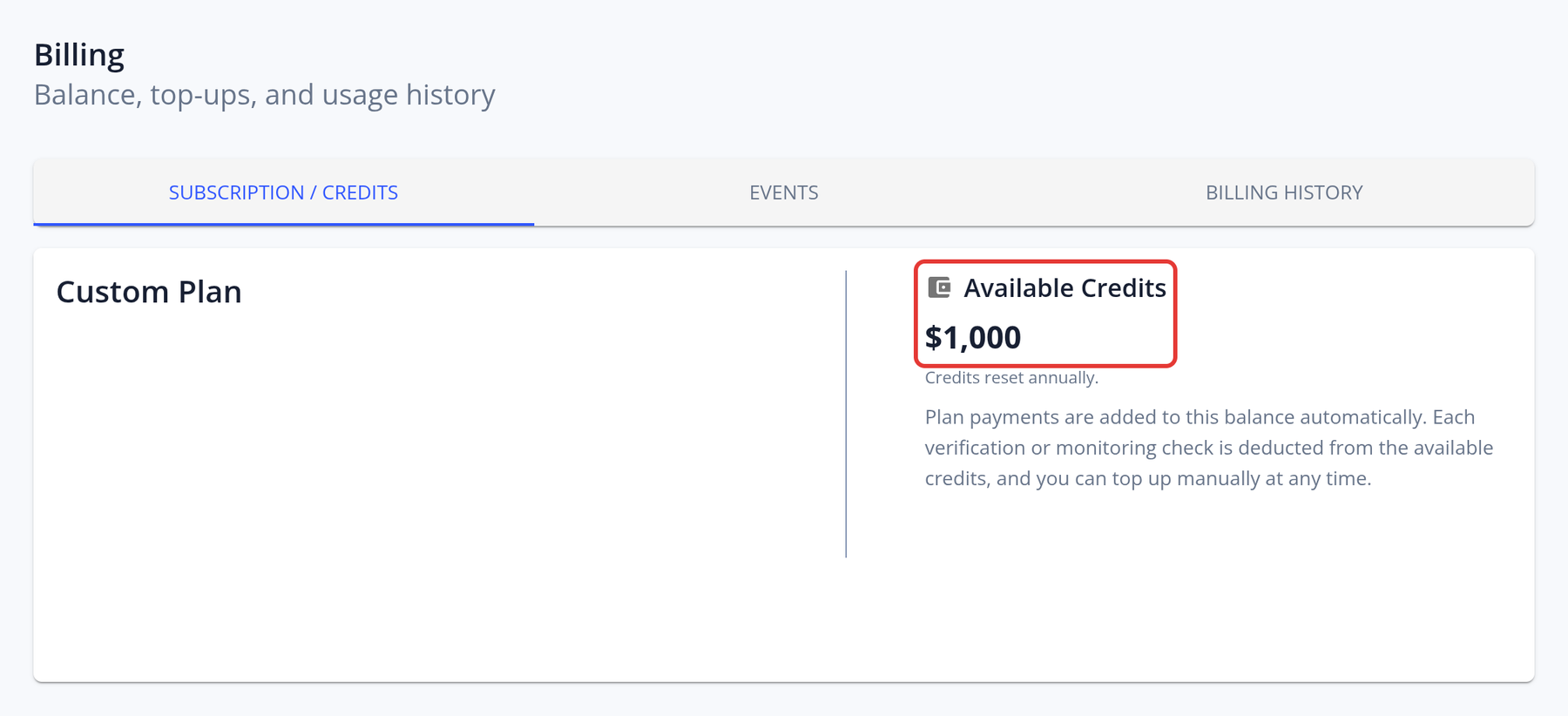
- Subscription / Credits: your available credits, your plan and your payment method.
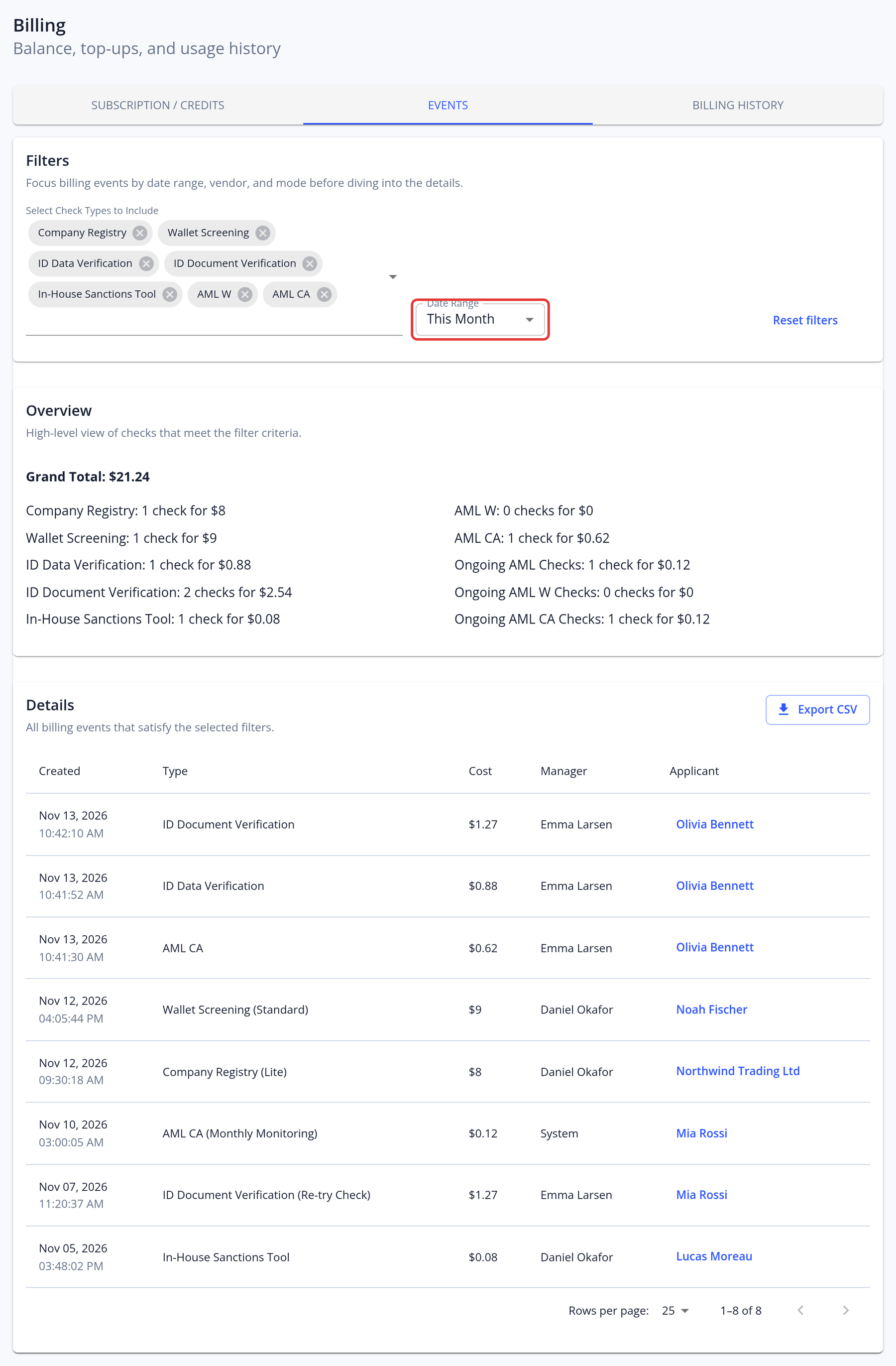
- Events: every charged check, with filters and a CSV export.
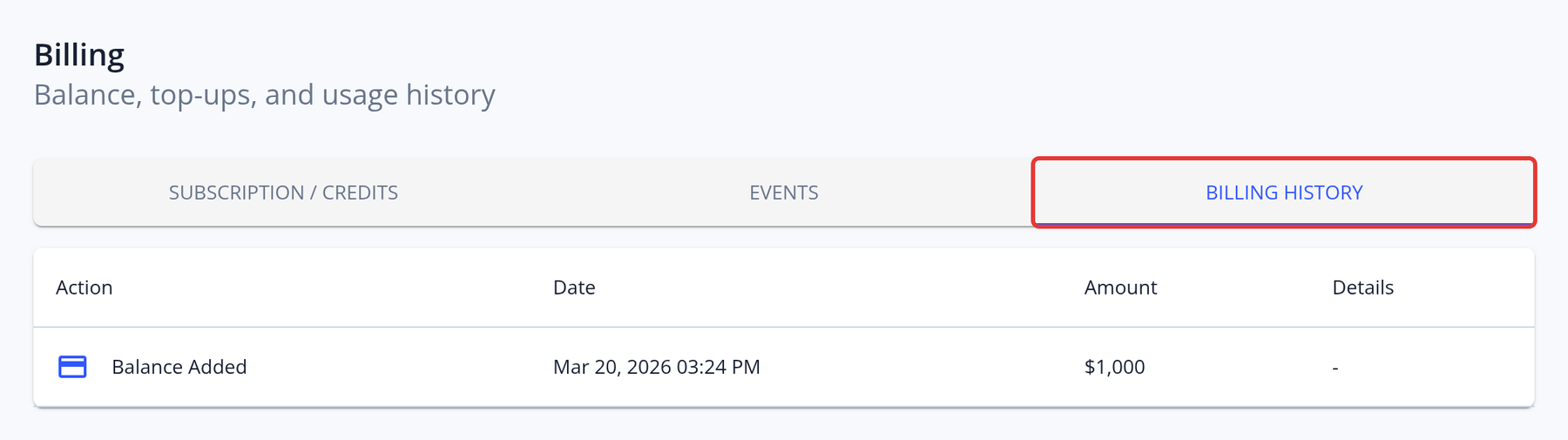
- Billing History: your payments and plan changes.
If your account was set up by our team with a custom contract, your prices and payment terms are in your contract, and some of the options below may not be shown.
When are checks charged?
Checks are charged when they run, not when an application is approved. For applications, that is usually when they are submitted. Approving or rejecting an application doesn't change what was charged.
Charged checks include:
- ID document verification and selfie checks. Each attempt is charged, and later attempts appear as "Re-try Check".
- ID data verification
- Sanctions, PEP and adverse media (AML) screening, including each Re-screen from the External Data tab
- Company registry searches and company document orders
- Wallet screening reports. Enhanced reports cost more than Standard reports. Downloading the PDF of a report you already fetched is free.
- Each ongoing AML monitoring check
Checks run in test mode are not charged and don't appear in your events. Prices depend on your plan or contract and are tiered by volume. The screenshots in this guide hide the amounts. Each KYC template shows an Estimated Billing Impact panel, so you can see the cost of a check before you enable it.
Can checks be held for manual review before they are charged? No. Checks run, and are charged, as soon as the application is submitted. Turning off automatic approval only changes who makes the decision, not when the checks run. To avoid the cost of a check, disable it in the KYC template. The Enforce Unique Name + DOB sybil check cancels duplicate applications before any checks run; the Enforce Unique MRZ check runs after the ID document verification, which is still charged.
How do I check my balance and charges?
On the Subscription / Credits tab, Available Credits shows your remaining balance. A red "Low balance" chip appears when the balance is low.
On the Events tab:
- Use Select Check Types to Include and Date Range (from Today to Last Year, or a custom range; the default is This Month) to filter the charges. Reset filters clears them.
- The overview shows the Grand Total and the number and cost of the checks of each type.
- The table lists each charge with its date, type, cost, manager and applicant. Click the applicant to open the application.
- Export CSV downloads the filtered events, including the event ID, service, check type, pricing tier, cost, remaining balance, manager and application ID.
If you use child scopes, their checks are charged to the main scope, and the events show which scope each check came from.
How do I top up my balance?
- Go to Billing → Subscription / Credits.
- Click Top-Up Credits.
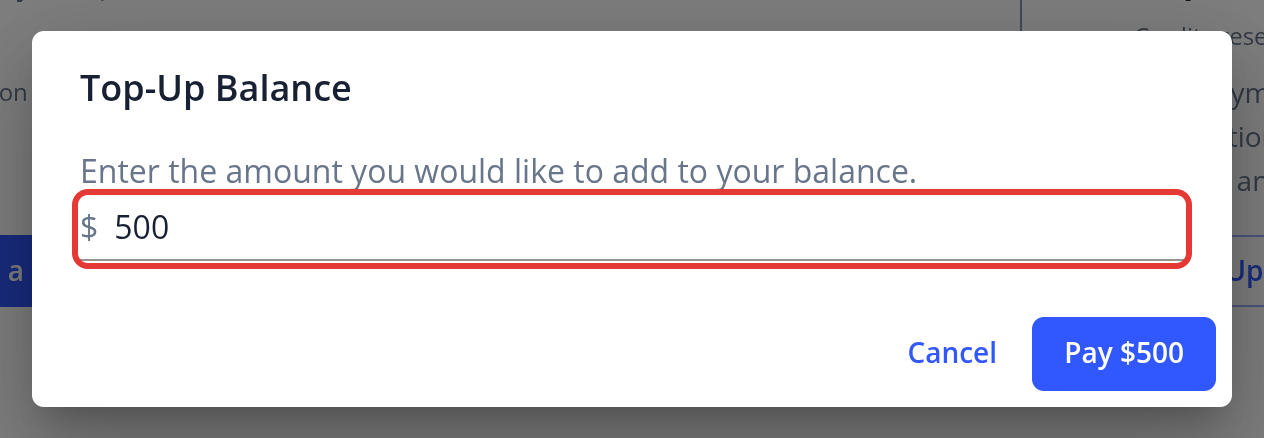
- Enter the amount. The dialog suggests the amount that brings your balance back to your previous full balance. The minimum is usually $100 and the maximum is $10,000.
- Click the Pay button and complete the payment on the secure Stripe checkout page.
Top-ups are paid by card, in USD. The card you use becomes your default card. If you don't see Top-Up Credits, or you want to pay by bank transfer, contact support.
How do I change my credit card?
Card details are managed in the secure billing portal of our payment provider, Stripe. It opens in a new tab.
- If you have a subscription plan: go to Billing → Subscription / Credits and click Manage Plan (Resolve Payment if a payment is overdue). Update your card in the billing portal, then return to KYC-Chain.
- If you have a prepaid account: the card you used for your most recent top-up is your default card. To change it, pay your next top-up with the new card, or contact support.
How do plans work?
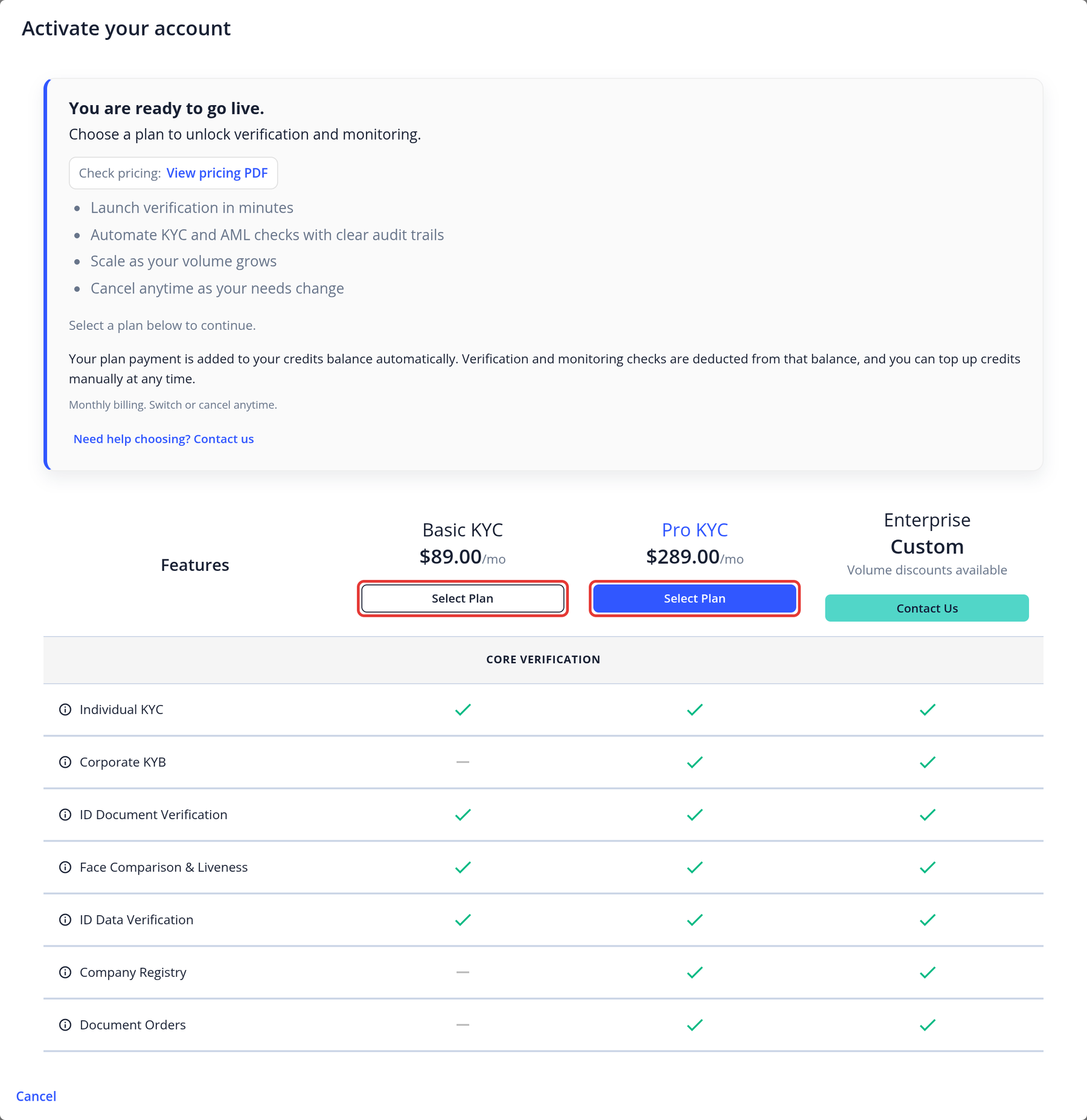
If you signed up online, you can choose a Basic or Pro plan, billed monthly. For an Enterprise plan, click Contact Us and send the Contact Enterprise Sales form.
- Choose a plan: go to Billing and click Select a Plan. In the Activate your account dialog, click Select Plan under Basic KYC or Pro KYC. Your plan payment is added to your credit balance. Activating a plan switches a sandbox instance to live mode.
- Change plan: click Change Plan. Upgrades take effect immediately, and you pay the prorated difference. Downgrades take effect at the end of the current billing period. You can't change plan while a payment is overdue.
- Cancel: open the billing portal with Manage Plan and cancel there. Your plan shows "Cancels at period end" until the period ends.
Plans and features
The table shows the main differences between the self-service plans. Enterprise plans and contracts set up by our team are configured individually.
| Feature | Basic | Pro |
|---|---|---|
| Individual applications (KYC) | Yes | Yes |
| Corporate applications (KYB) and members | No | Yes |
| ID document, selfie and liveness verification | Yes | Yes |
| ID data verification | Yes | Yes |
| AML screening | Yes | Yes |
| Wallet screening | Yes | Yes |
| Risk scoring | Individual only | Individual and corporate |
| Ongoing AML monitoring | No | Yes |
| Document expiry monitoring | No | Yes |
| Company registry search and document orders | No | Yes |
| Reminders | No | Yes |
| Email Management | No | Yes |
| Messages, PDF reports, export and application management | Yes | Yes |
| Customer portal branding | Yes | Yes |
| KYC Refresh | No | No |
| API keys and webhooks | No | No |
| Uploading existing ID photos and selfies instead of capturing them | No | No |
| Manager seats | 1 | 5 |
| Support response time | 24 hours | 12 hours |
For API access, KYC Refresh or more managers, contact us about an Enterprise plan.
Where can I find my payments and invoices?
The Billing History tab lists your payments and plan changes, with their date and amount. Invoices and receipts can't be downloaded in the app; they are sent to you by email. If you need a copy, contact support.
What happens when my balance runs low?
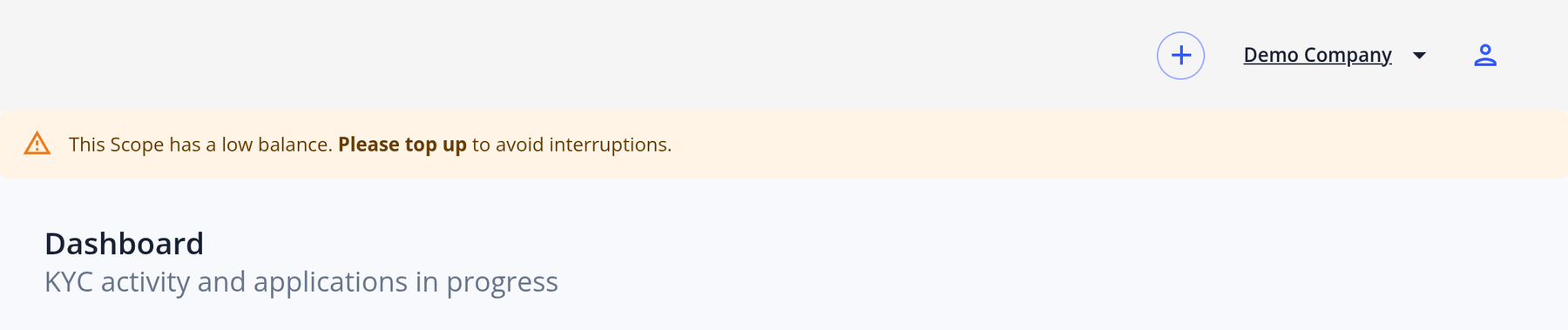
- A banner tells your managers: "This Scope has a low balance. Please top up to avoid interruptions." You may also receive low-balance alert emails.
- If your balance runs out, your instance can be switched to View Only. Managers can still view applications, but anything that creates or changes data, including new applications and checks, is blocked, and applicants see a "Service unavailable" message. A card top-up restores normal service.
- On subscription plans, the instance also becomes View Only when there is no active subscription, for example after a failed payment that hasn't been resolved. A banner asks you to choose a plan until the subscription is active again.
Automatic top-ups: your account can top up automatically from your saved card when the balance falls below a set percentage of your last full balance. Contact your account manager to enable automatic top-ups.
Account status and banners
Banners at the top of the management app show when your instance isn't fully active:
- Choose a subscription plan: shown to self-service accounts without an active plan, with a Choose plan button that opens Billing.
- Low balance: "This Scope has a low balance. Please top up to avoid interruptions." Shown to managers who can see billing.
- View Only: you can view data, but you can't create or change anything. Applicants see a "Service unavailable" message.
- Partially Active: some features may be disabled and some actions restricted.
- Disabled: managers can't sign in, API keys are refused, and no emails or webhooks are sent.
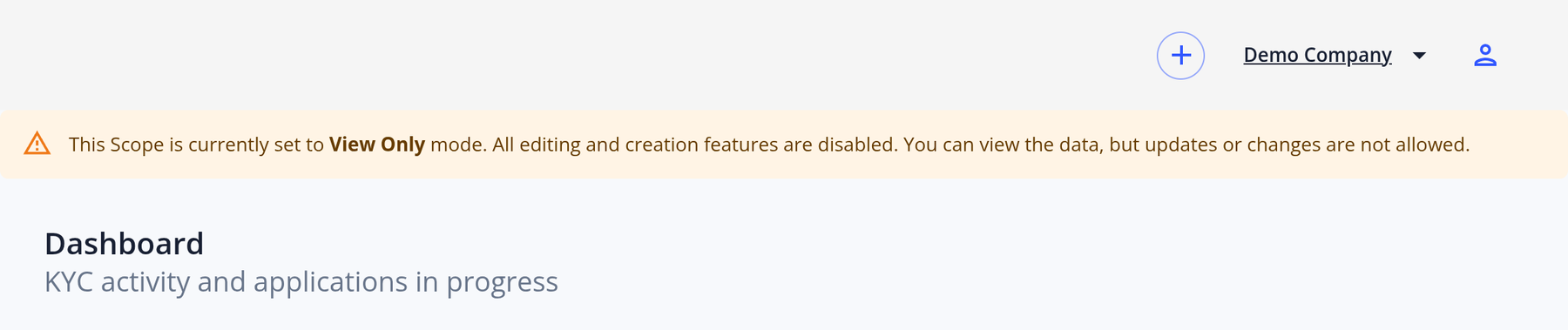
If your instance is View Only because of billing, top up or resolve your subscription payment under Billing. For any other status, contact support.
Terms & Conditions: If you haven't accepted KYC-Chain's current General Terms and Conditions, you are asked to accept them when you sign in. Tick I have read and agree to the General Terms and Conditions. and click Continue. Reject (Logout) signs you out.
Billing questions
How are charges applied for subsequent or duplicate searches?
Each check is charged every time it runs, including re-screens and repeated ID verification attempts. To avoid charges for duplicate applications, keep the sybil checks enabled: Enforce Unique Name + DOB cancels duplicate applications before any checks run. Enforce Unique MRZ runs after the ID document verification, which is still charged. See Sybil Checks.
How can I pause my KYC-Chain subscription or service?
There is no pause option in the app. On a self-service subscription plan, you can downgrade or cancel your plan in the billing portal (Billing → Manage Plan). For other accounts, or to keep your account during a temporary decrease or halt in KYC activity, email [email protected] with your project name. Our team will get back to you as soon as possible.
What does the "solution fee" cover?
For more information, please check your contract or reach out to your account manager.
How are users notified about the completion of service decommissioning, and what are the subsequent steps regarding billing?
Users are notified about the service decommissioning process via an official email from the support or account management team. This initial notification includes the exact date of decommissioning and important instructions for next steps.
Key points to note:
-
Data export deadline: Users are strongly advised to export all necessary data via the API before the specified decommissioning date, or to ask us for an export package. After this deadline, the instance and all associated data may be permanently deleted and unrecoverable.
-
Final invoice issuance: If applicable, a final invoice will be issued to cover any remaining usage up to the decommissioning date.
-
Billing termination: All billing related to the decommissioned service will be stopped as of the decommissioning date.
-
Refunds or adjustments (if applicable): Prorated refunds or billing adjustments may be processed, depending on the terms of the service agreement.
For any questions about billing, data export, or account status, users should contact the support team as early as possible to ensure a smooth transition and avoid data loss.