Your profile and account security
Click the user icon in the top-right corner and choose Profile to manage your account, or Sign Out to sign out.
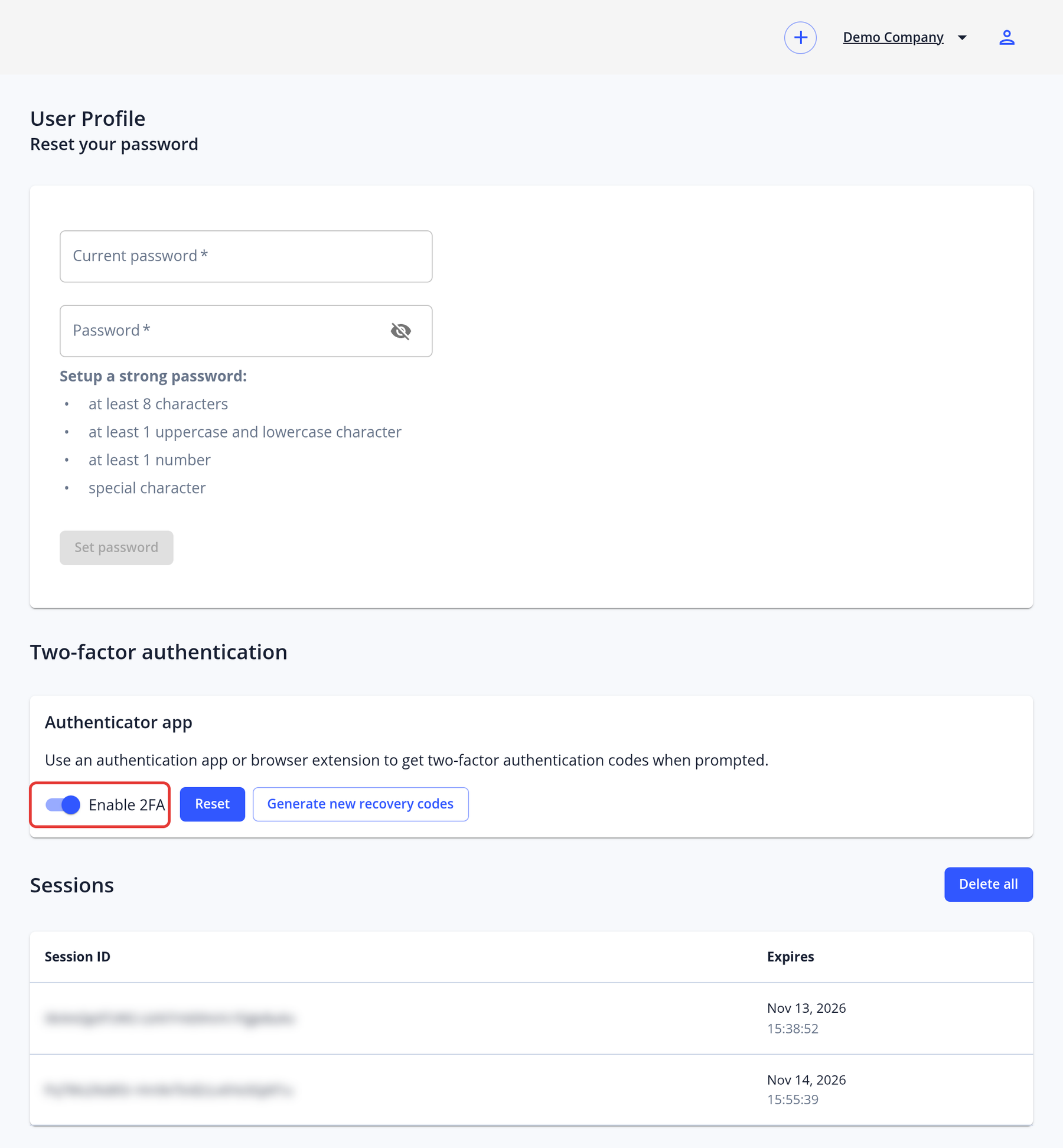
Password:
- Use Reset your password on the profile page to change your password. You need your current password.
- Passwords must be at least 8 characters long and include an upper-case letter, a lower-case letter, a number and a special character.
- If you forgot your password, click Forgot Password ? on the sign-in page to receive a reset email.
Two-factor authentication (2FA):
- In the Two-factor authentication section of your profile, click Enable 2FA.
- Confirm your current password.
- Scan the QR code with an authenticator app or browser extension. If you can't scan it, enter the setup key that is shown instead.
- Enter the code from the app to verify it.
- Save the Recovery codes somewhere safe, such as a password manager, with Copy or Download. They are only shown once. Each code can be used once instead of an app code, for example if you lose your phone. Generate new recovery codes replaces the old ones.
When 2FA is on, you enter a code from your app after your password when you sign in. The Authentication code or recovery code field also accepts a recovery code.
Your instance can require 2FA for all managers (set by our team). If it does and you haven't set up 2FA yet, you see Two-factor authentication required; click Go to profile to set it up.
Sessions: The Sessions list shows your active sign-ins and when they expire. Delete all signs you out on all devices.