Manager permissions
The Manager Permissions section in the KYC management application provides a centralized interface for managing and customizing access levels for managers. Its key features include:
1. Assign Roles: Managers can be assigned specific roles, such as "Administrator," to define their level of access and authority within the platform. Each manager’s role is displayed alongside their email and name for easy identification.
2. Edit Roles and Permissions: Administrators can not only adjust or remove roles but also edit permissions specific to each role. This ensures a tailored access control system that aligns with organizational requirements.
3. Manage Active and Inactive Managers: A toggle option allows administrators to view and manage both active and inactive managers, providing flexibility in handling current and past users.
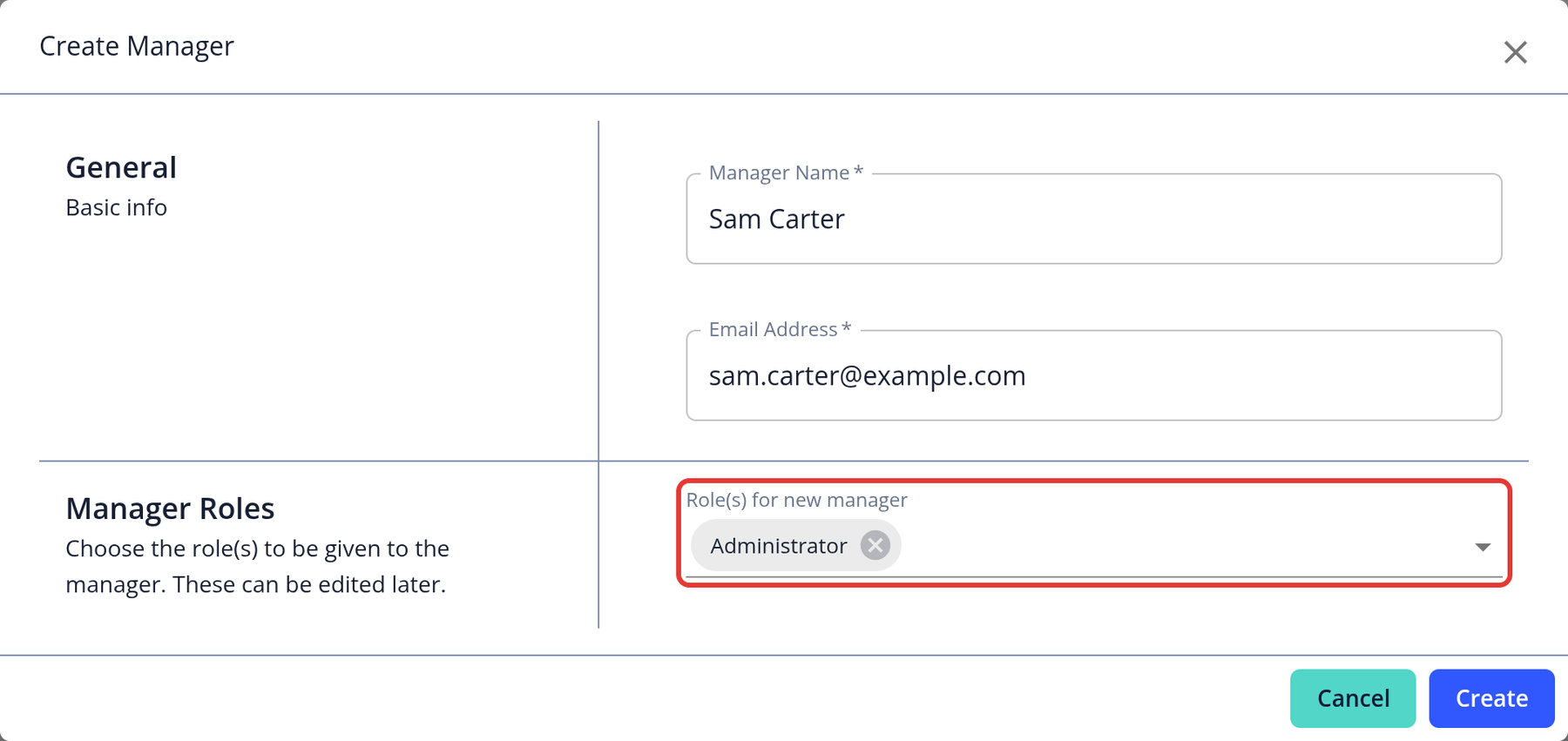
4. Add New Managers: The + New Manager button opens the Create Manager dialog, where you enter the manager's name and email address and choose one or more roles. Permissions belong to roles, so to change what a manager can do, edit their role in the Edit Roles tab. The built-in Administrator role can't be edited. The new manager receives an email to set their password.
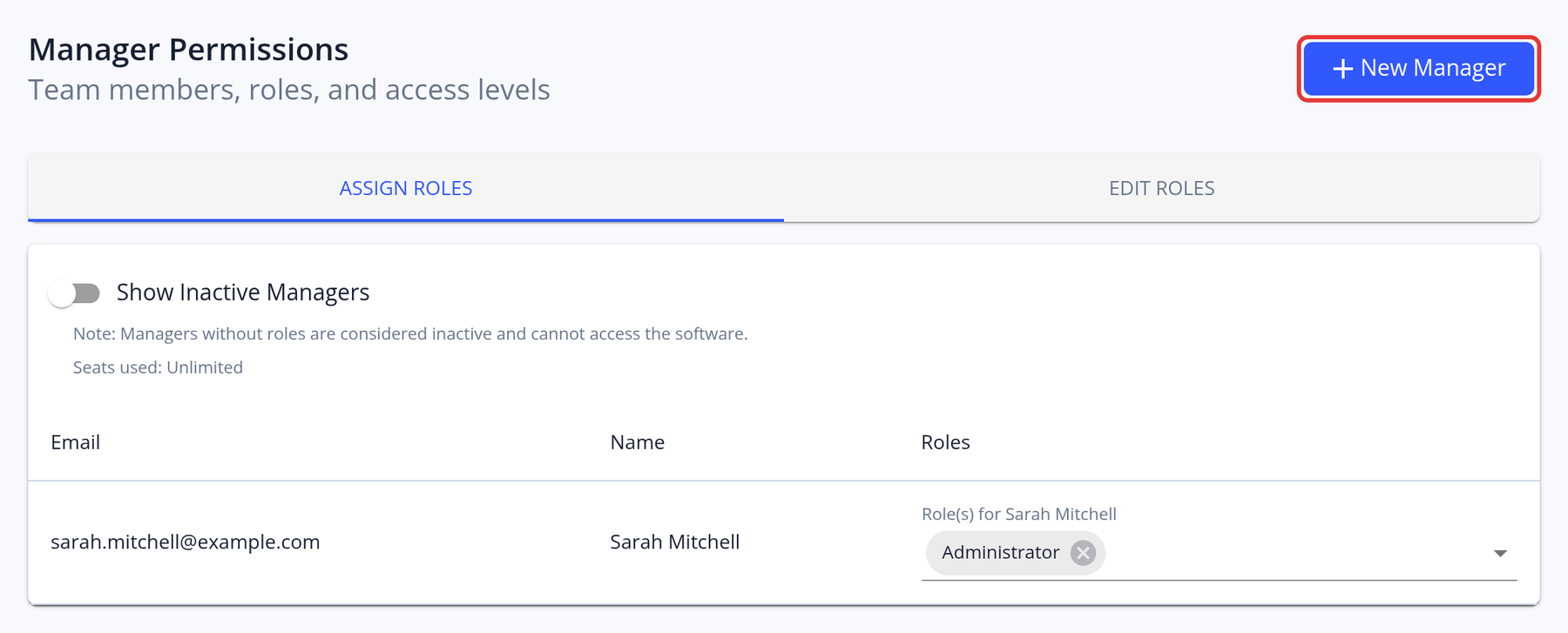
5. Seats: On the Basic and Pro plans, the number of managers is limited (Basic: 1, Pro: 5). Seats used: X of Y shows how many seats are taken (accounts without a limit show Seats used: Unlimited), and + New Manager is disabled when all seats are in use. To free a seat, deactivate a manager by removing their roles.
6. Roles: In the Edit Roles tab, click New Role to create a role and choose its permissions. You can rename roles, and delete roles that no manager uses. Some permissions depend on others and are added together. You can't remove your own access, and the built-in Administrator role can't be changed.
7. Add existing manager: In a child scope, Add existing manager gives a manager of the parent scope access to this scope (see Multiple Scopes and Multi-Approval).