Reviewing and approving
Checking if an application is ready for approval
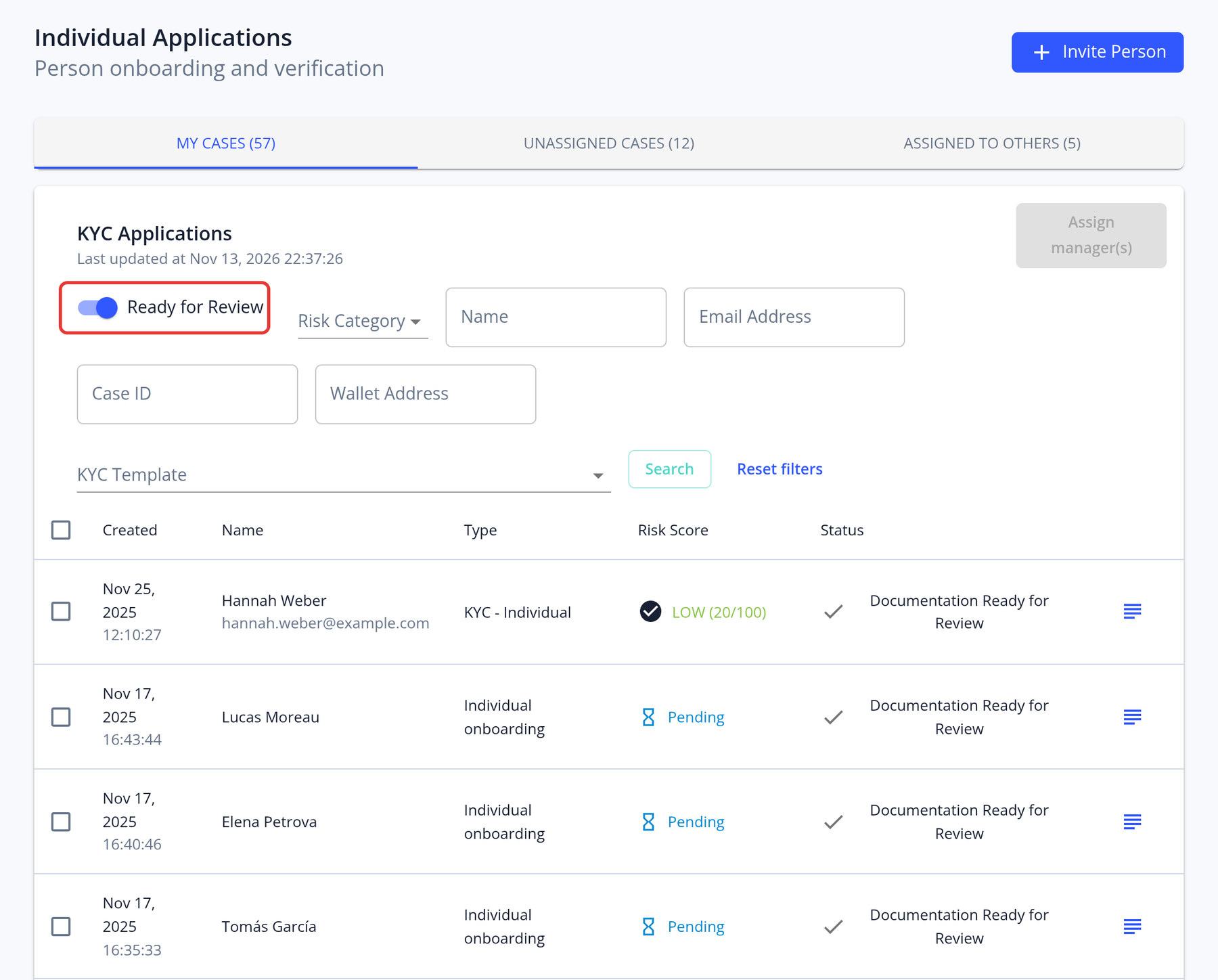
Managers can quickly find applications that are ready for review.
- Open Individual Applications or Corporate Applications in the left menu. A list of all open applications is shown.
- Applications ready for review have the status "Documentation Ready for Review".
- Click View and Modify to open the application and review the details the applicant provided.
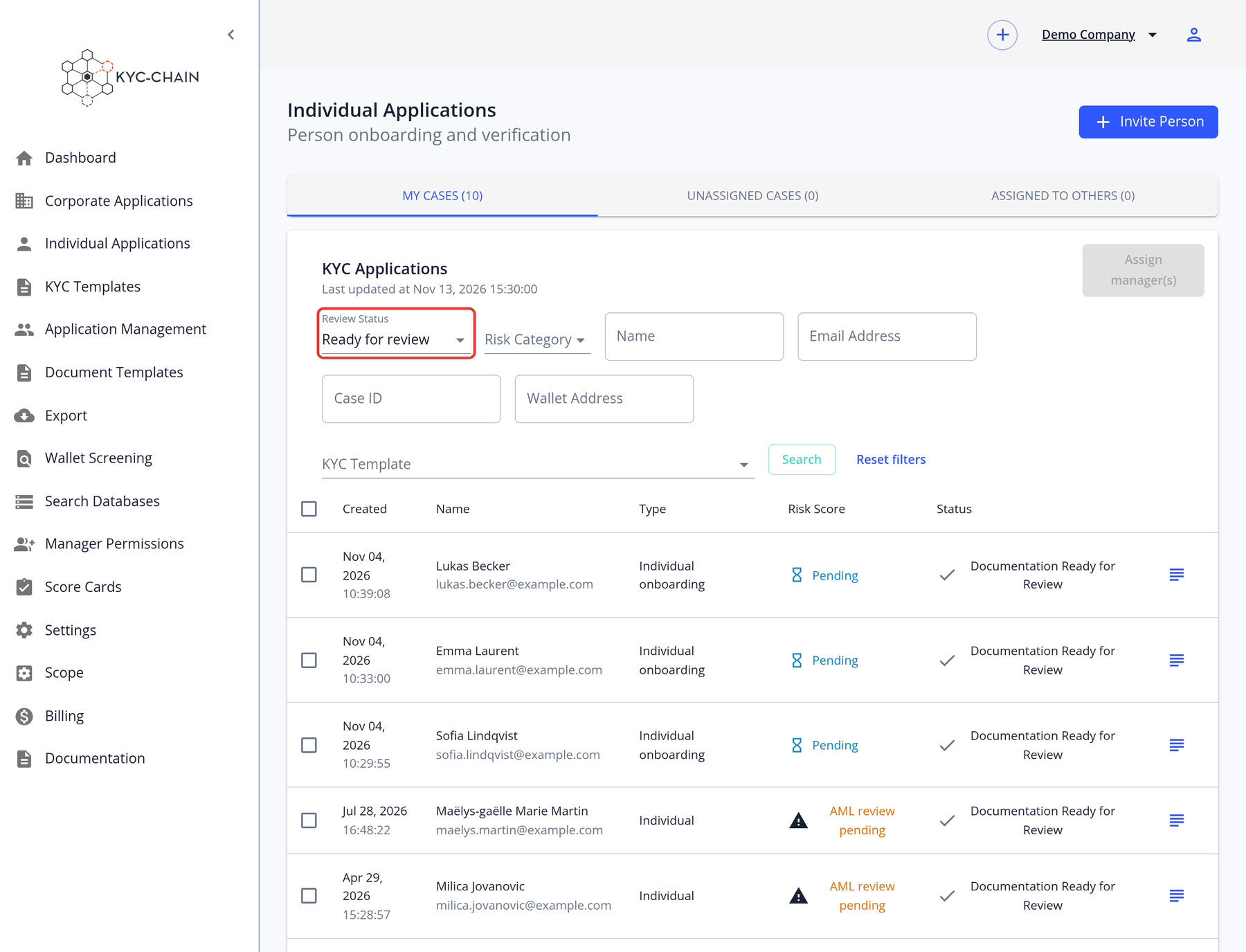
To show only applications that are ready for review, turn on the Ready for Review switch. If ongoing AML monitoring is enabled, use the Review Status filter and select Ready for review instead.
Assigning managers to applications
Managers can assign several applications at once, or assign them one by one. To assign in bulk:
- Open Individual Applications or Corporate Applications in the left menu.
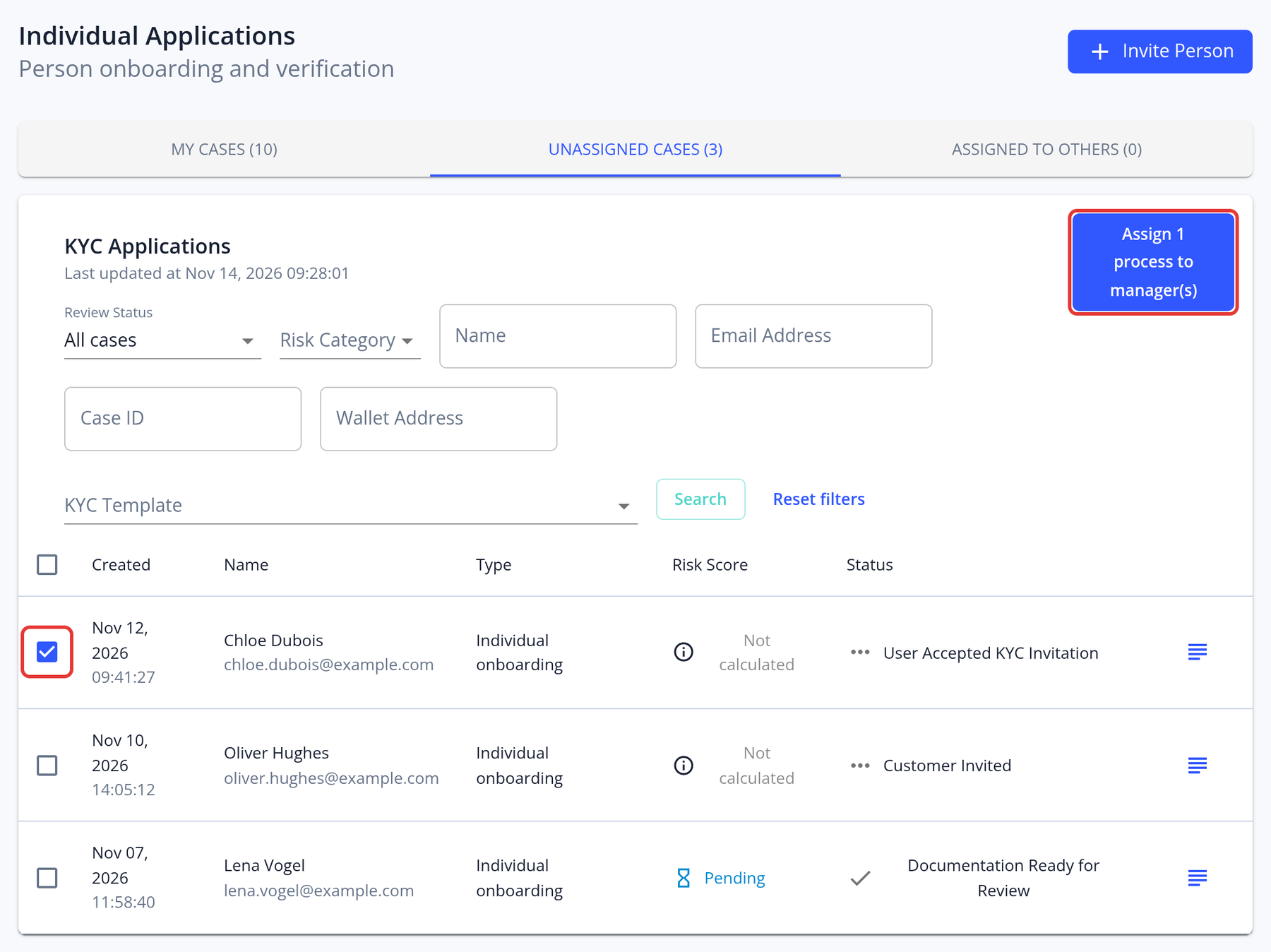
- Optionally, open the Unassigned Cases tab to see the applications that don't have a manager yet.
- Select the applications and click Assign N process(es) to manager(s).
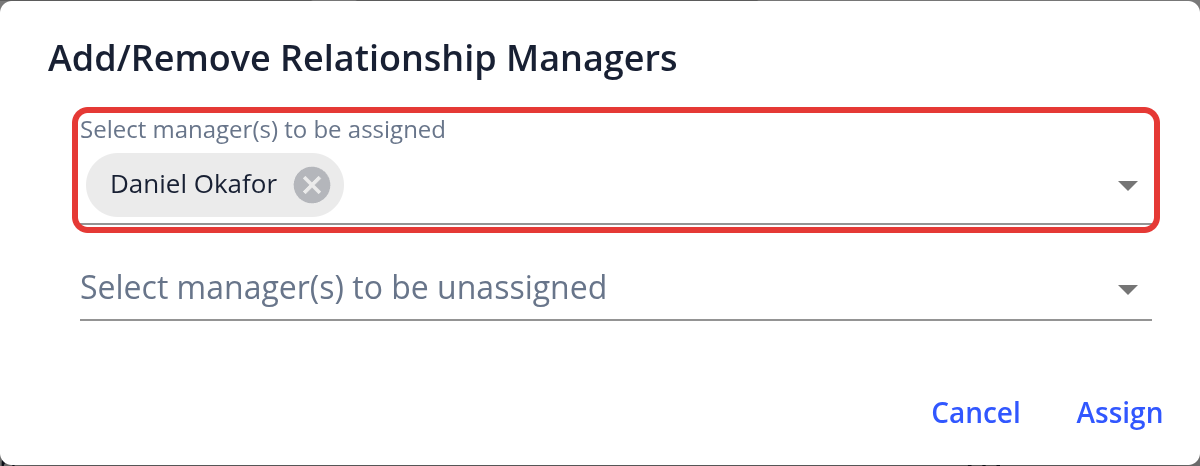
- In the Add/Remove Relationship Managers dialog, choose the managers to assign and/or unassign, then confirm.
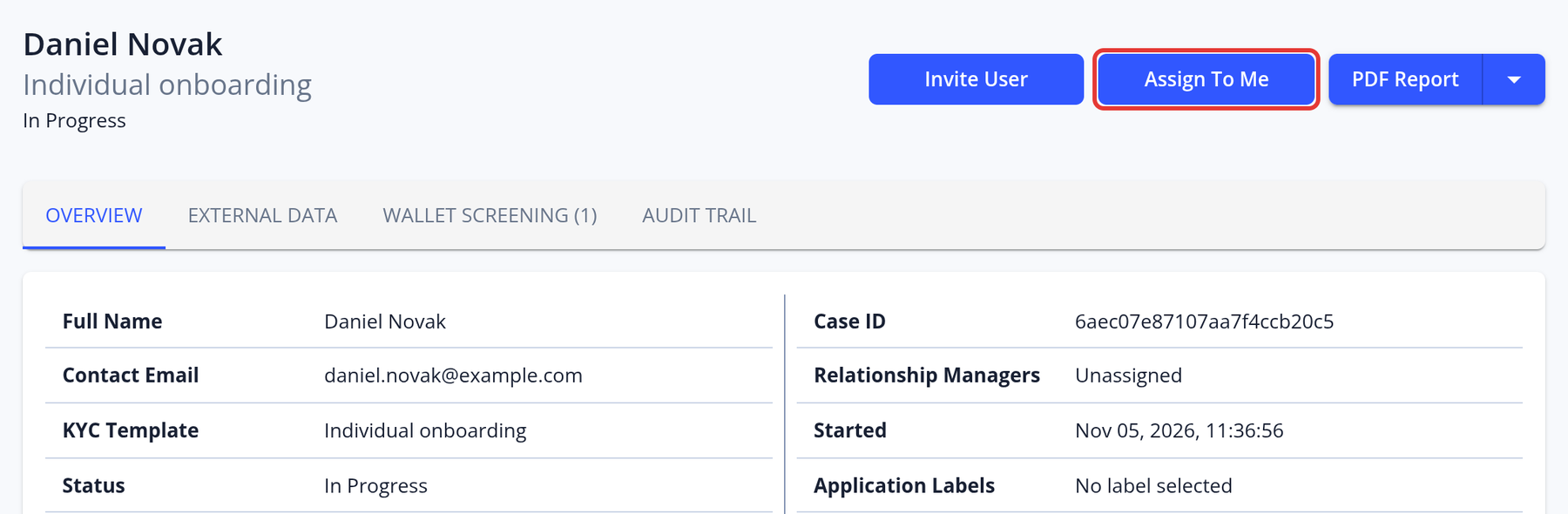
To assign yourself to one application, open it and click Assign To Me at the top of the page. The button is only shown when you are not assigned yet.
You can set up KYC templates to be automatically assigned to a specific manager by default. See How to set a default manager for new KYC Processes.
Checking cases assigned to you
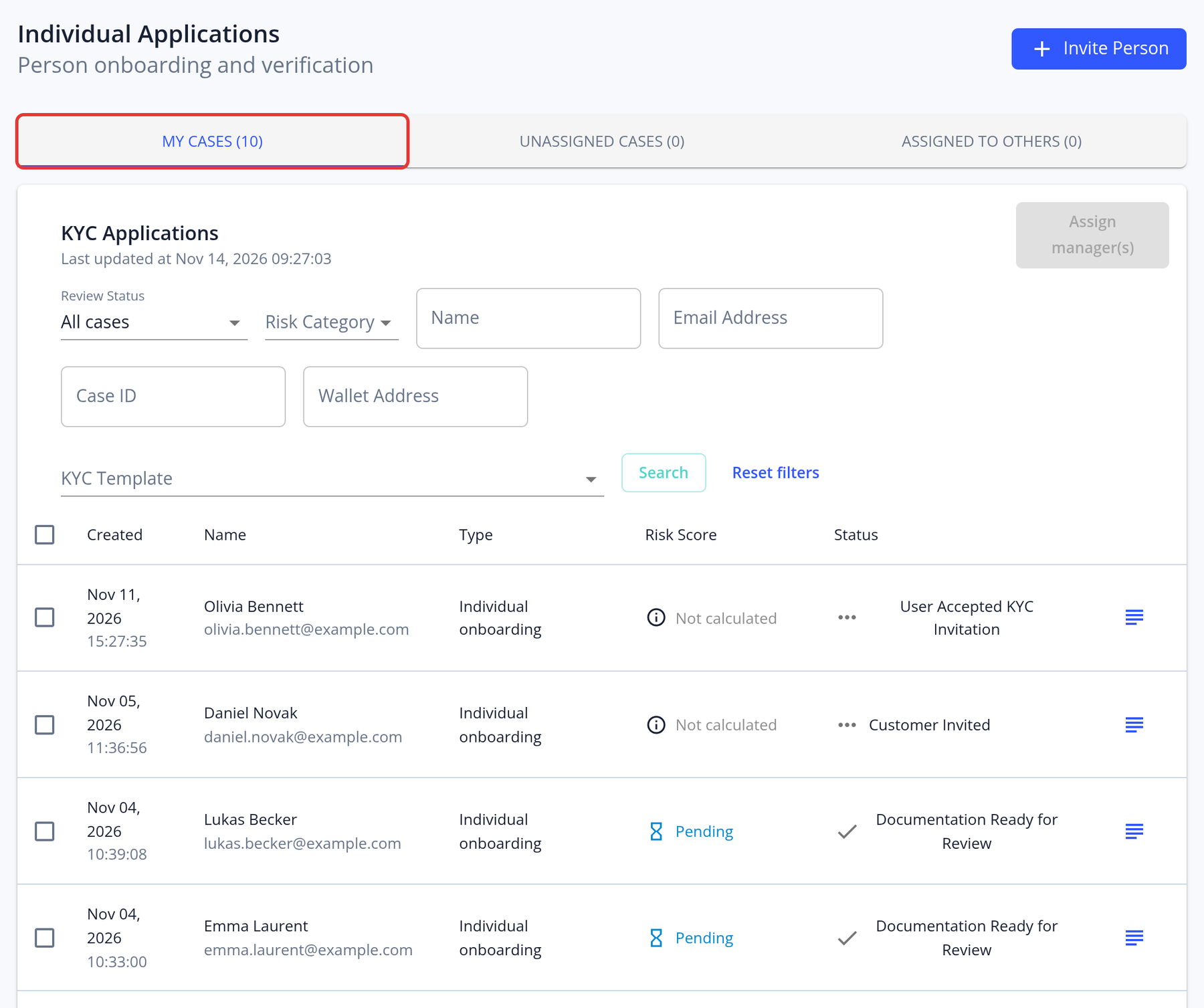
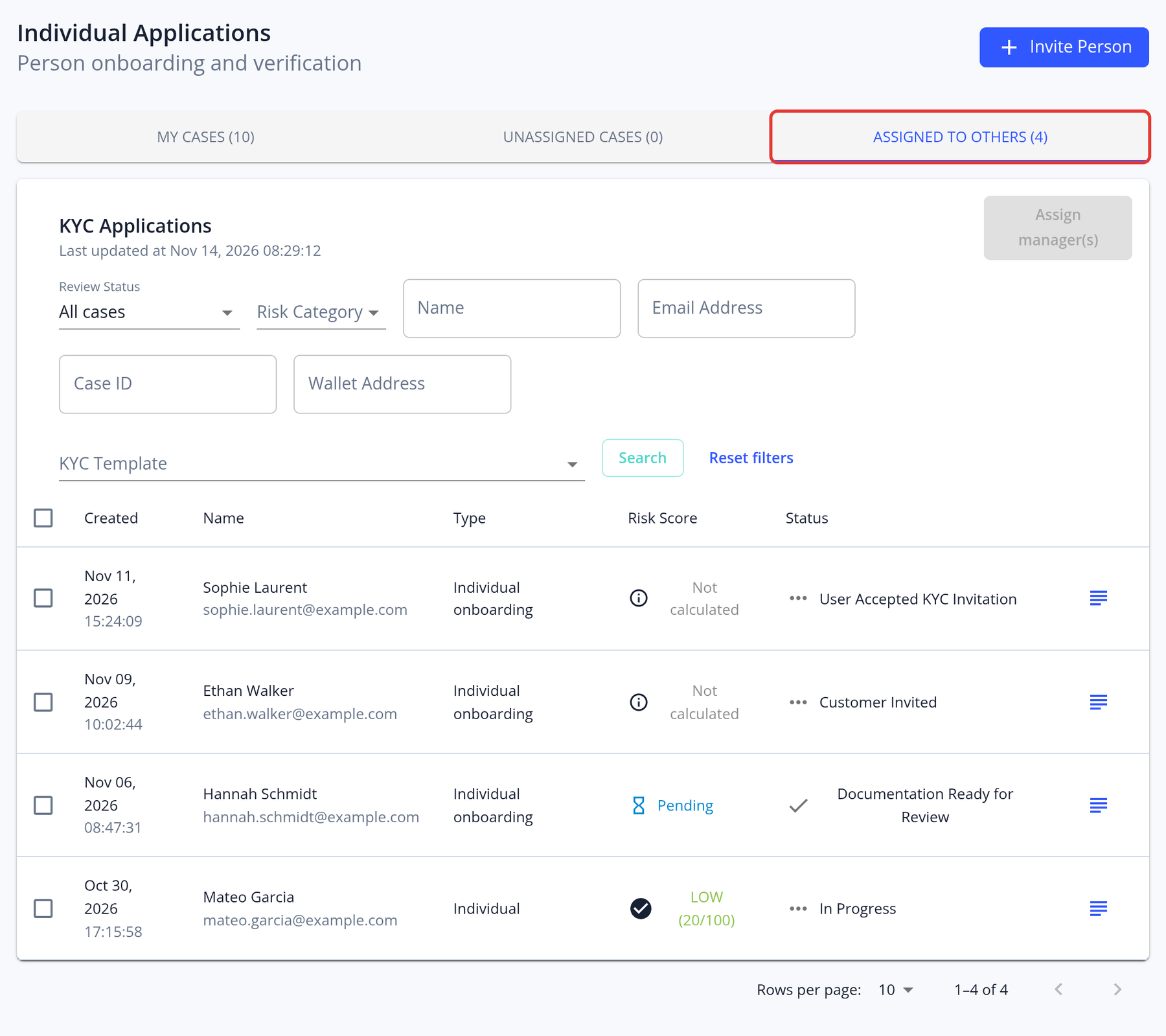
In Individual Applications or Corporate Applications, open the My Cases tab to see the applications assigned to you and check which are ready for your review. The Assigned to Others tab shows the applications assigned to other managers.
Checking the risk score
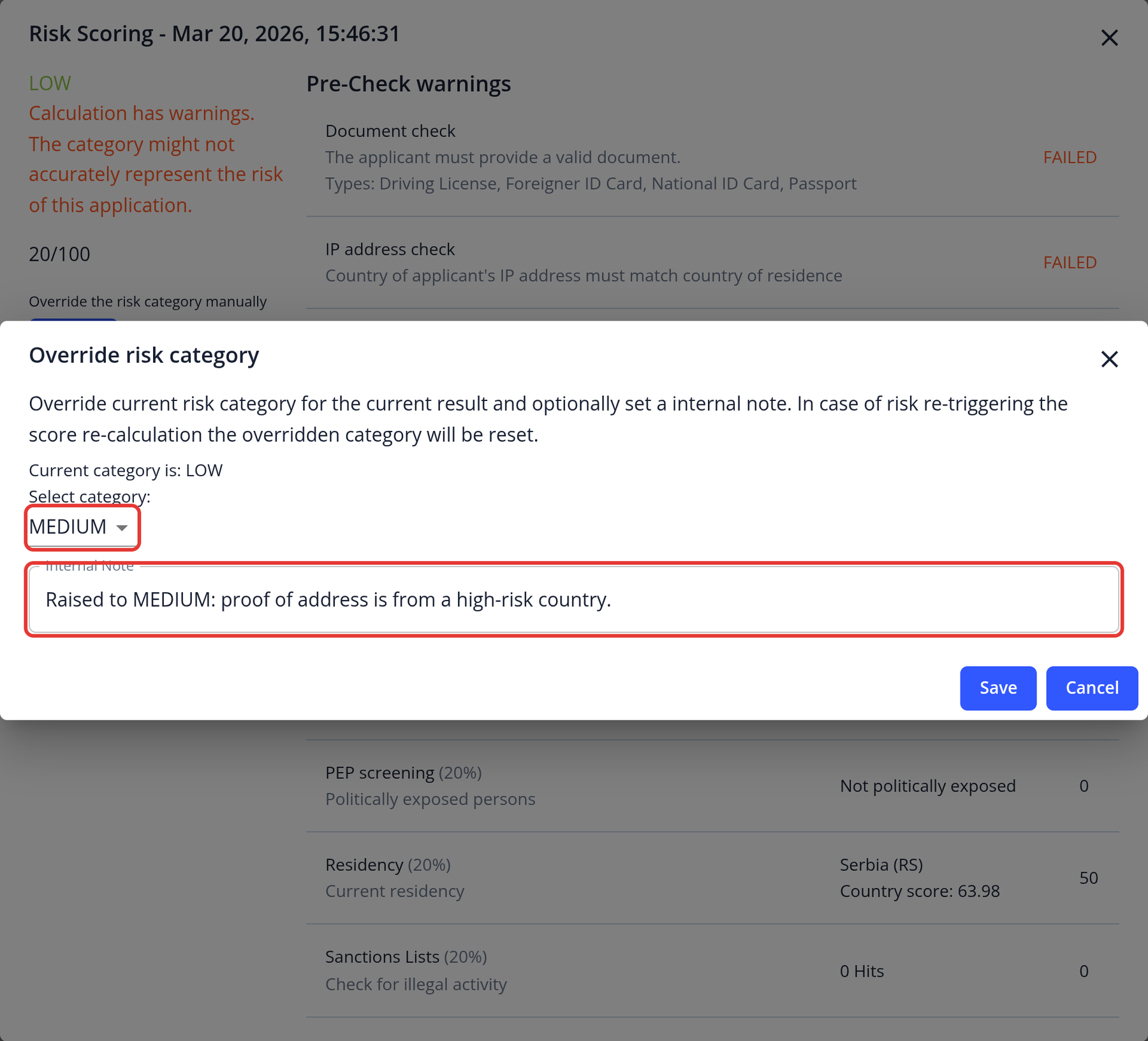
Once an application has been submitted and its risk score calculated, open the Overview section and click the risk category (LOW, MEDIUM or HIGH) to see the risk scoring details. See Risk score statuses and recalculation for what the other statuses mean.
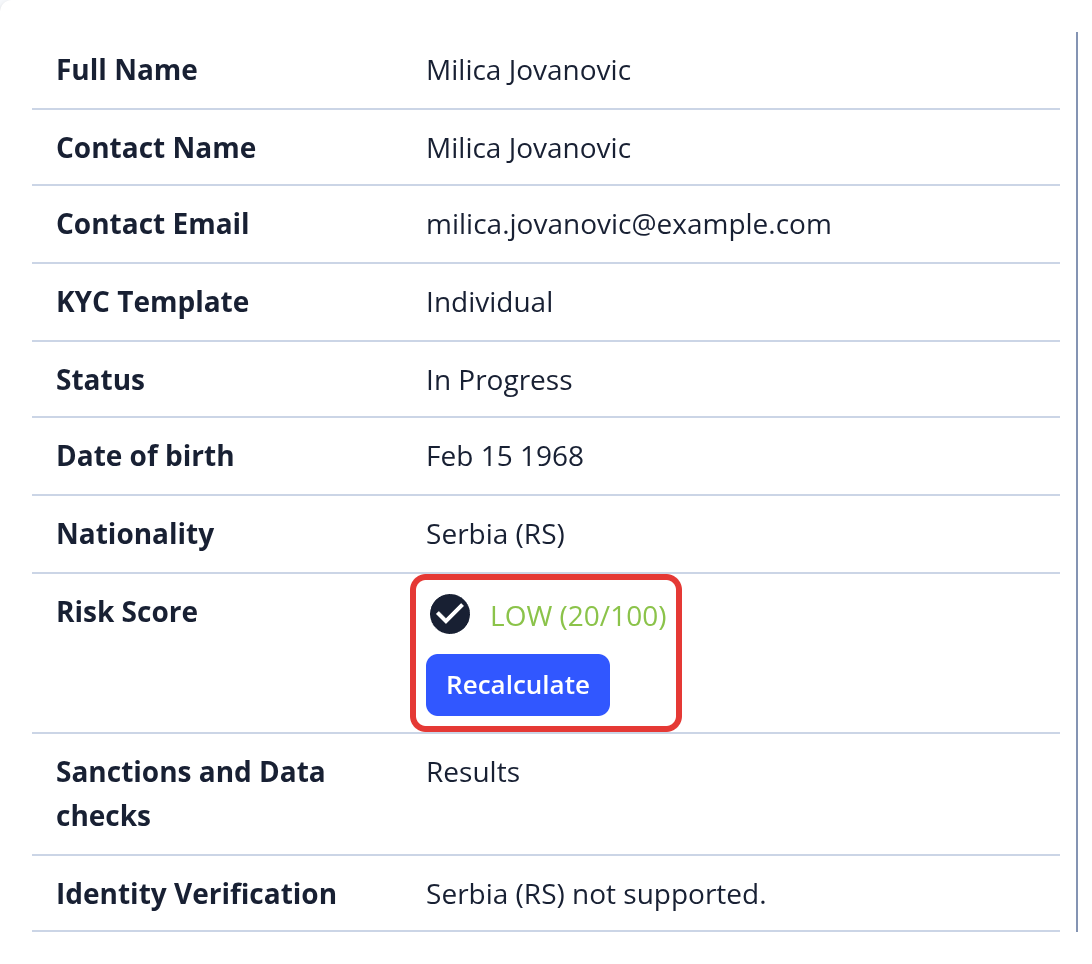
Overriding the risk category
Managers with the Manually Edit Calculated Risk Scores permission can change the risk category by hand. In the risk scoring details, click Override, select the category and, if you like, add an internal note. The override is recorded in the Audit Trail, and the next recalculation replaces it.