The application page
Open an application from the Dashboard or the application lists with View and Modify. The page has action buttons at the top and several tabs.

Actions
The buttons you see depend on the application's status, your permissions and whether you are assigned to the application.
- Assign To Me: assign yourself to the application.
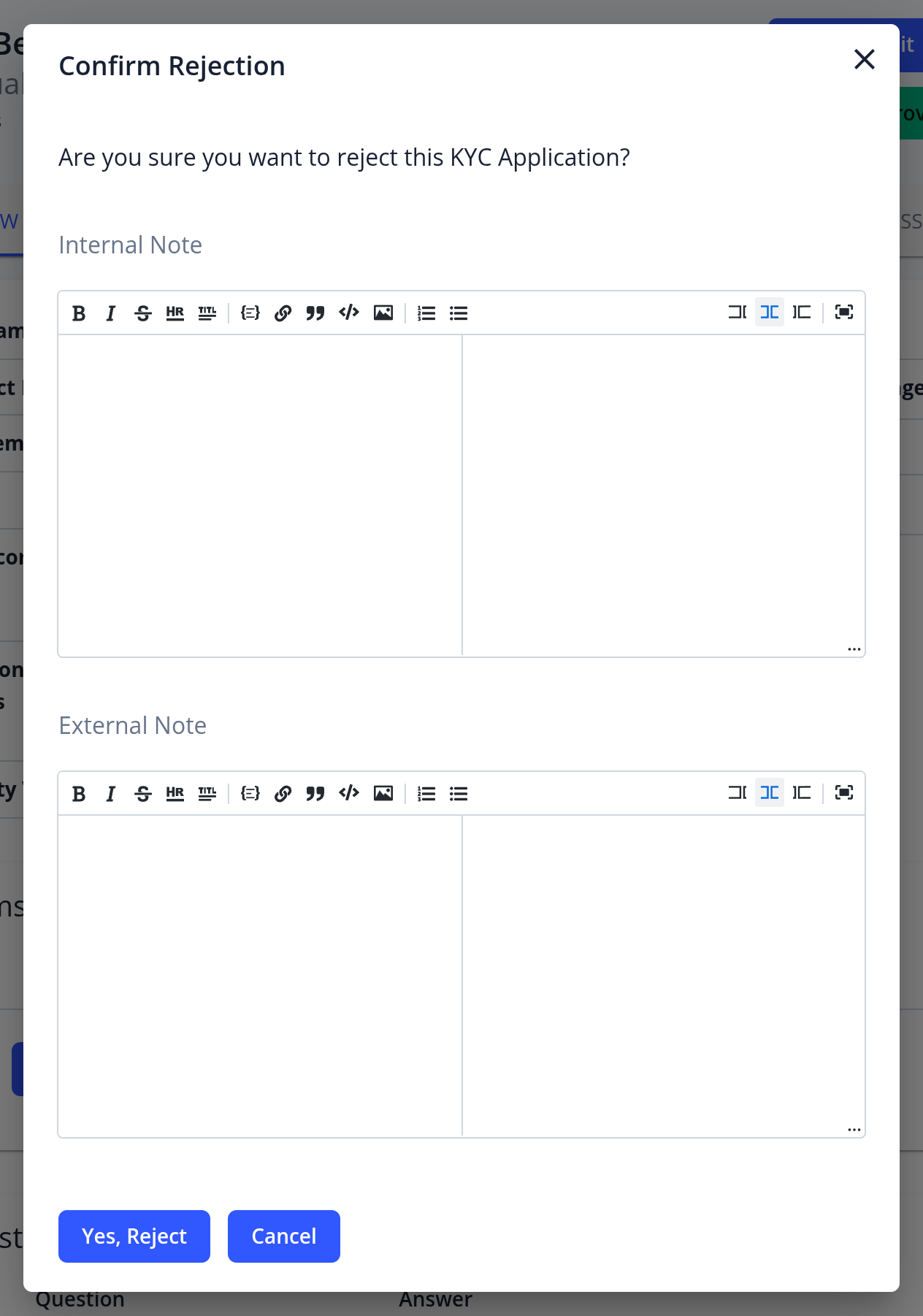
- Approve, Reject and Cancel: close the application. Each asks you to confirm, and lets you add an Internal Note (visible to managers only) and an External Note (sent to the applicant). When rejecting, you can pick a Note Template (see Note Templates). If you approve before the risk score has been calculated, or before the application has been submitted, you are asked to confirm again.
- Reopen Process: reopen a closed application. It returns to its last status before it was closed.
- Unlock: set a submitted application back to "In Progress" so the applicant can edit it again.
- Submit: mark the application as submitted ("Documentation Ready for Review") on the applicant's behalf, for example after using Easy Fill. The applicant can't edit it afterwards unless you request new items or unlock it.
- Request KYC Refresh: ask the applicant to update their KYC (when KYC Refresh is enabled).
- Invite User: invite an applicant to an application that was created without one, so they can fill it in themselves.
- PDF Report: download a PDF report of the application. Click the arrow next to it and choose Export ZIP to download the application's data and files instead.

Tabs
- Overview: the applicant's details, status, risk score, labels, next monitoring date and notes. Managers with permission can edit the Application Labels here.
- External Data: sanctions, PEP and adverse media results (see External Data results).
- Company Registry: company registry results for corporate applications (see Company Registry results).
- ID Document Verifications: ID document and selfie results (see ID document verification results). Older applications may show an ID Document Verification tab instead.
- Identity Verifications: ID data verification results (see ID data verification results). You can also start a check from the Overview with Run identity verification.
- Wallet Screening (N): wallet screening reports for the applicant's wallet addresses (see wallet screening results).
- Members (N): the members of a corporate application, such as directors, UBOs and shareholders.
- Documents (N): company documents ordered from the registry for this application.
- Messages: chat with the applicant (see Helping applicants).
- Audit Trail: the full history of the application (see Audit trail). View snapshot shows the application as it was at an earlier moment.
Tabs only appear when the related feature is enabled and relevant to the application.
At the bottom of the Overview, the Notes section has an Internal Notes tab (visible to managers only) and an External Notes tab (notes sent to the applicant). In the Questions section, Fill lets you fill in or update the application on the applicant's behalf (see Easy Fill).
Members
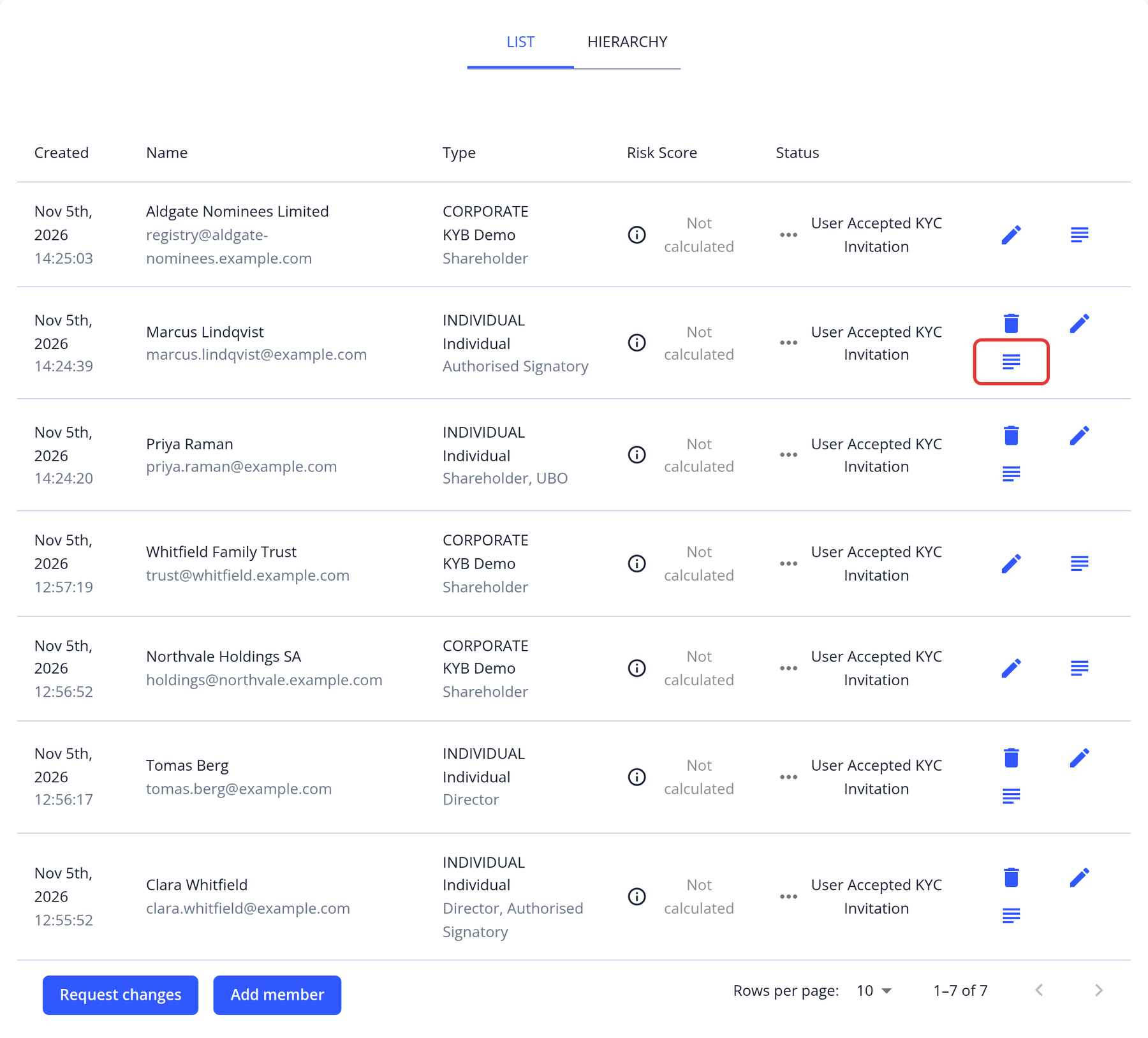
- Click View Case to open a member's own KYC application. From there, Go To Parent Application takes you back.
- With Easy Fill enabled, you can Add member, Edit member and delete members on the applicant's behalf.
- Request changes asks the applicant to update the member information.
- Where enabled, a hierarchy view shows the ownership structure.
Documents and files
- Click a document to preview it. Download All downloads all of the application's files (requires the permission to download applicant files).
- With Easy Fill enabled, Upload document uploads a file on the applicant's behalf.
Application statuses
Each application moves through different stages. The table below lists the statuses you will see in the KYC-Chain app. Every status change is recorded in the application's Audit Trail.
| Status Name | Description |
|---|---|
| Customer Invited | The applicant has been invited to the KYC Process |
| User Accepted KYC Invitation | The applicant has accepted the invitation and the terms and conditions, beginning the KYC Process |
| Customer Processing | The applicant is providing values for the requirements in their KYC Process |
| In Progress | The application has been opened for editing again, for example after a manager clicked Unlock or requested a KYC Refresh |
| Additional Items Requested | A manager (or a risk scoring pre-check) added a new requirement, or asked the applicant to re-upload, re-answer or re-fill an existing one |
| Documentation Ready for Review | The applicant (or a manager) has submitted the application. The applicant can't modify it unless a manager requests changes |
| Ready for review (member's still in progress) | The application has been submitted, but one or more of its member applications are still in progress |
| Partially Approved | The application has received some, but not all, of the approvals its KYC template requires (multi-approval only) |
| Approved | The KYC Process was approved |
| Rejected | The KYC Process was rejected |
| Cancelled | The KYC Process was cancelled |
| Manager Assigned* | A manager has been assigned to the KYC Process |
| Process Re-Opened* | The KYC Process has been re-opened. The current status is now the last non-ambiguous status from before the process was closed |
| Process Re-Opened for KYC Refresh* | The KYC Process was re-opened because a KYC Refresh was due or was requested |
| External Data Check* | Our software has run the relevant external checks for this KYC Process, such as Sanctions, AML and PEP screening and, when enabled, Company Registry, ID Document Verification and ID Data Verification |
| Manager Filled Requirement(s)* | A manager has filled in or updated one or more requirements on behalf of the applicant |
| Document Ordered* | A company registry document was ordered for this application |
| Application Labels Updated* | The application's labels were changed |
| Generate Application Report* | A PDF report of the application was generated |
| Document Expiry Monitoring* | The system checked the expiry date of the applicant's ID document |
| Wallet Screening Check* | A wallet screening report was fetched for the application |
* Statuses with a * are considered "ambiguous" in our software because they could occur at multiple points throughout the application process. The "Current Status" property of a KYC Process will show the latest status which is not considered ambiguous (so as to avoid a scenario where the current status shows "manager assigned" when the more helpful indication would be "Documentation Ready For Review"). All status records can still be viewed in the order they occurred in the Audit Trail.