Wallet screening
Enabling wallet screening in the KYC process
To collect a wallet address from applicants, add a blockchain address question to the KYC template:
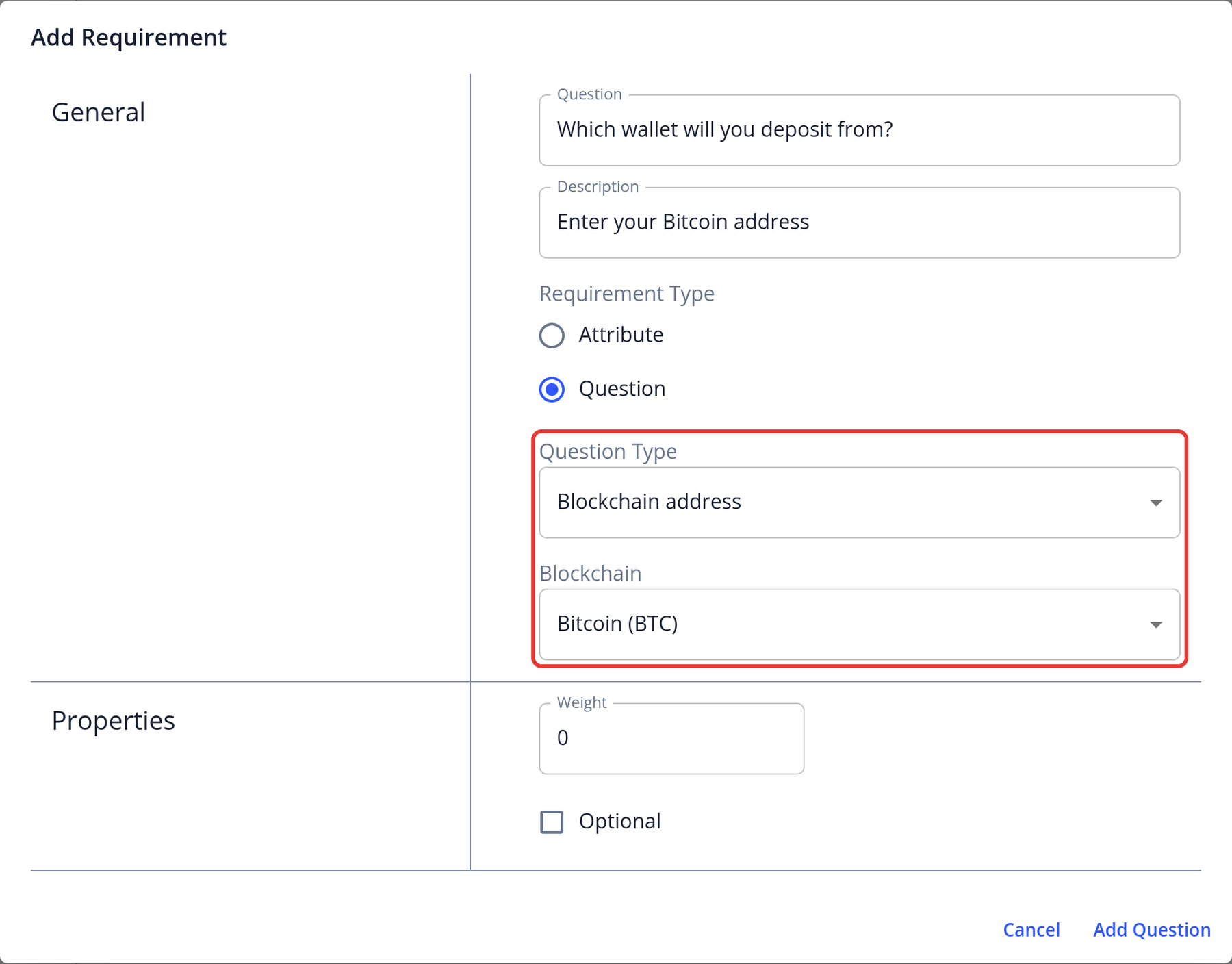
- Open the KYC template, go to the Requirements step and click Add question.
- In the Add Requirement dialog, set the Requirement Type to Question and the Question Type to Blockchain address.
- Select the blockchain, for example Bitcoin (BTC), and click Add Question.
- Save the template.
When the applicant enters a wallet address, the system checks its format. Managers can then fetch a screening report for the address, which highlights any risks associated with the wallet (see Checking wallet screening results).
Checking wallet screening results
Managers can screen the wallet addresses an applicant provides and review the results in the Wallet Screening tab of the application. A report includes:
- Risk score (from 1 to 100; a higher score means lower risk)
- Balance
- Incoming and outgoing risk
- For Enhanced reports, also the wallet profile, assets, transaction history, behavior and related entities
- Open the application you want to review
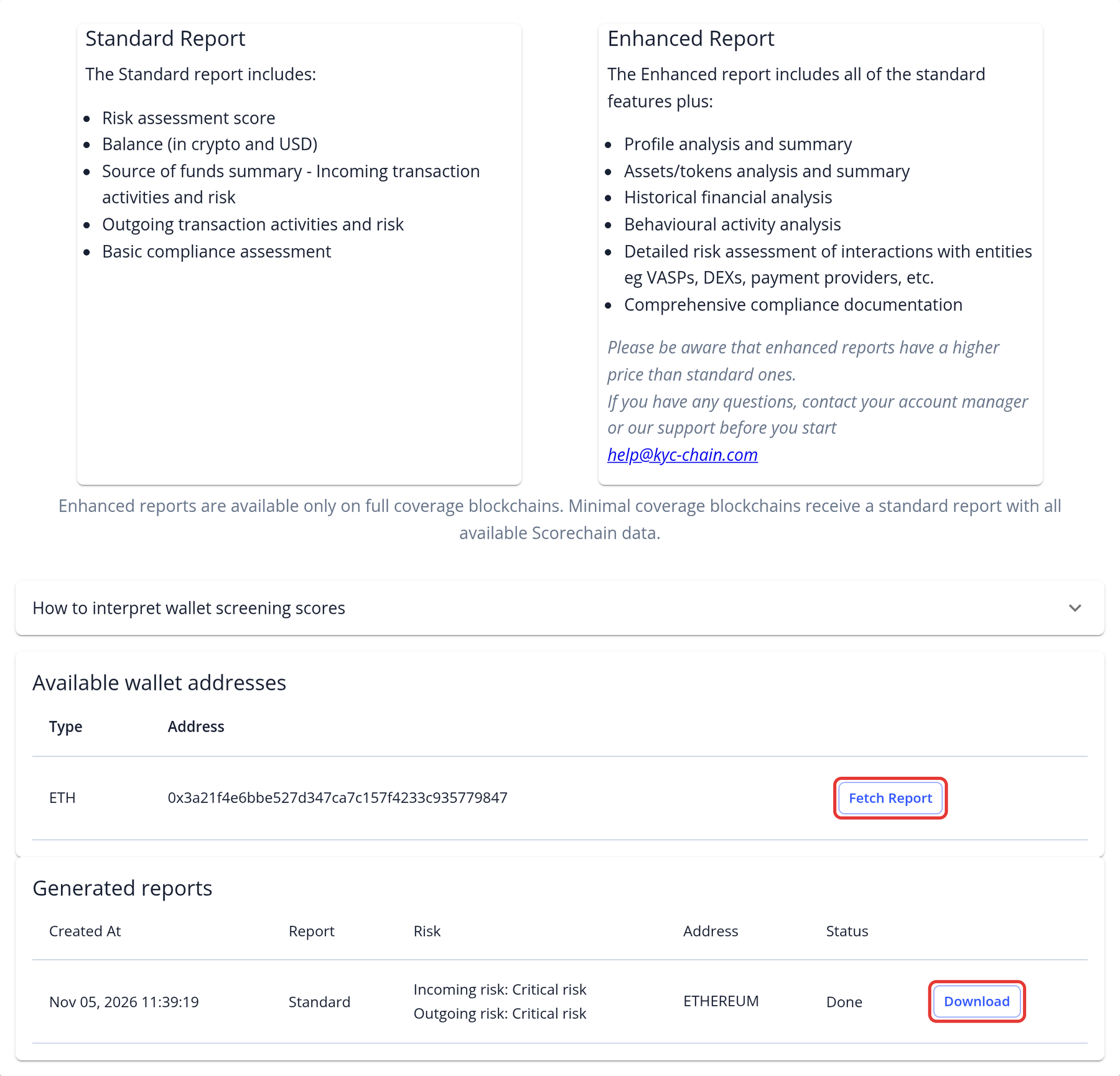
- Open the Wallet Screening tab. The applicant's addresses are listed under Available wallet addresses.
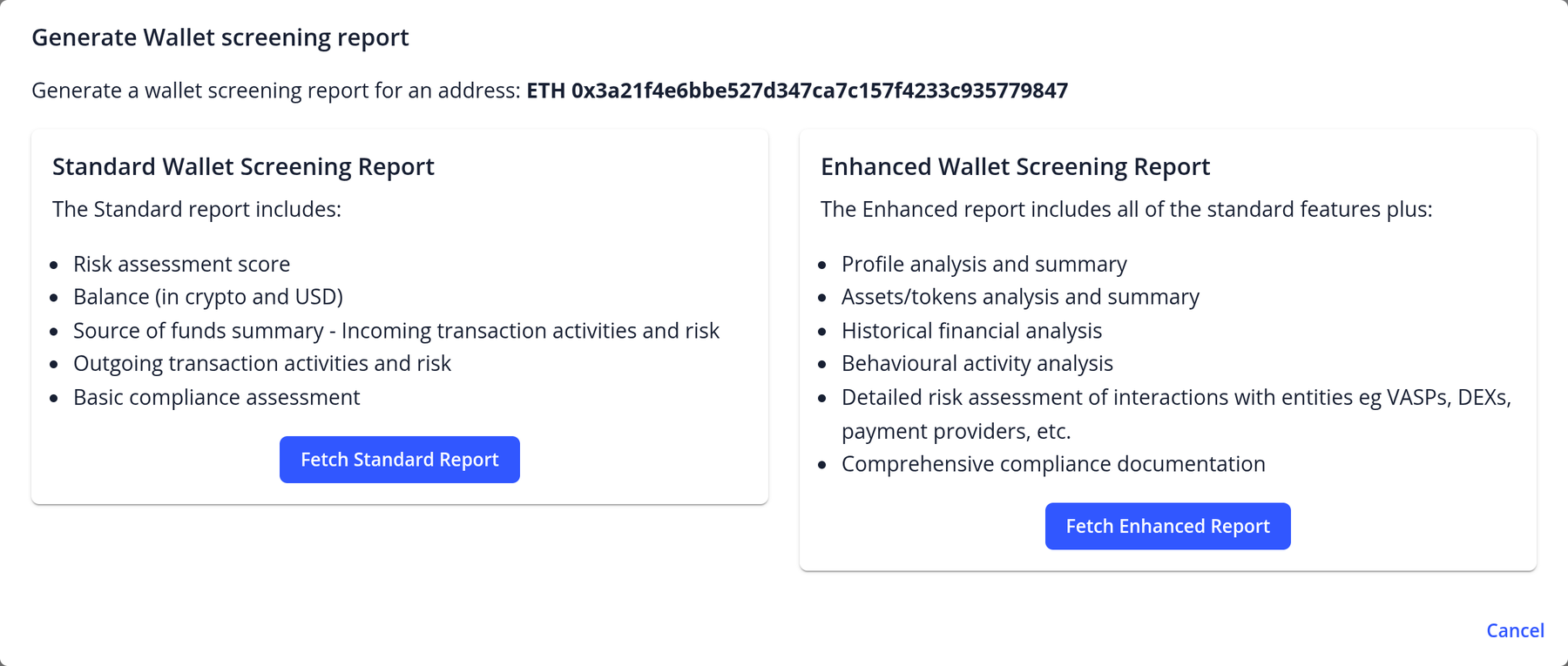
- Click Fetch Report next to an address, then choose Fetch Standard Report or Fetch Enhanced Report. The price of each report is shown. Enhanced reports are only available for fully supported blockchains.
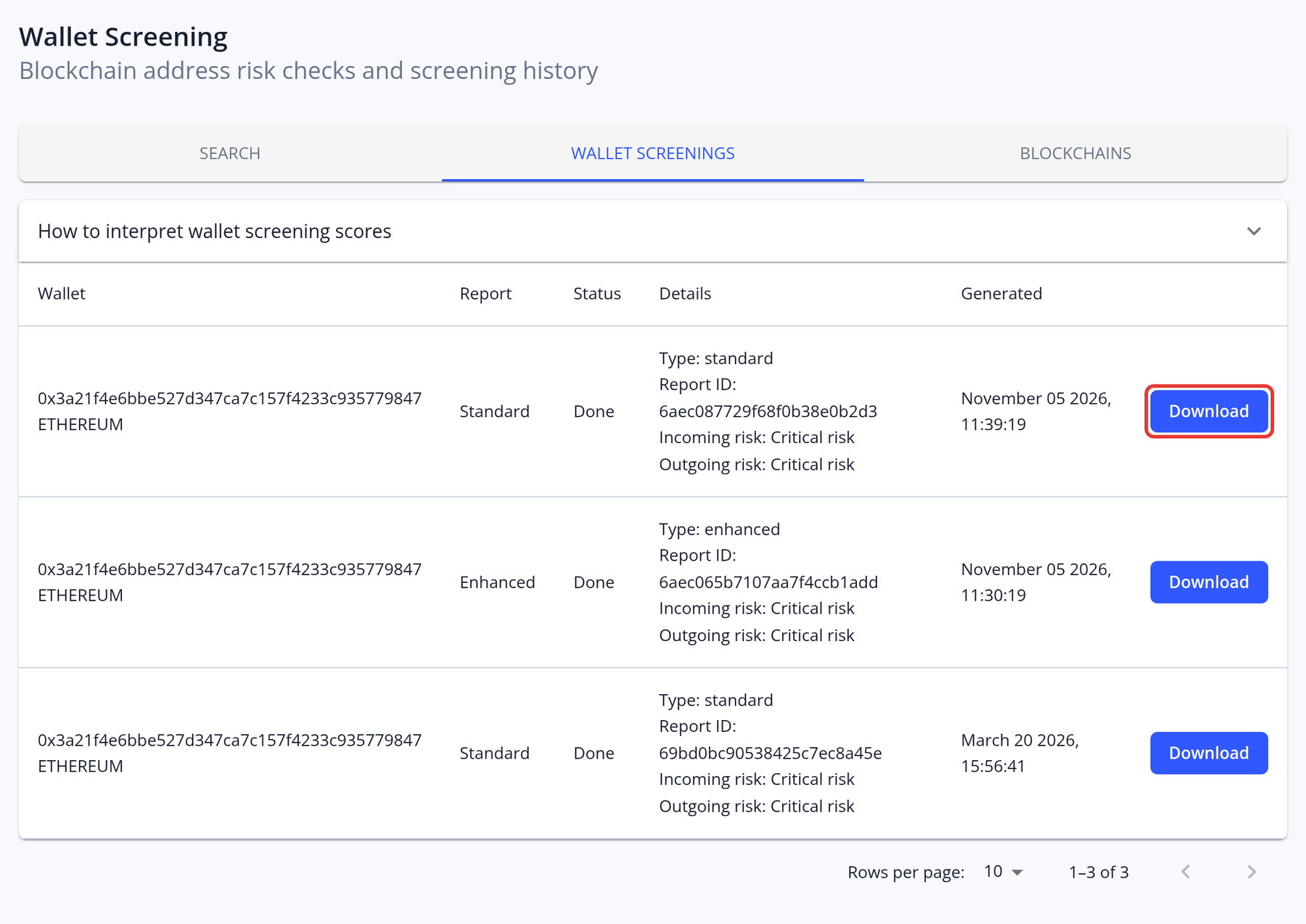
- The report appears under Generated reports. Click Download to save it as a PDF.
Each fetched report is charged. To get an updated report later, fetch it again; this creates a new, charged report. Downloading an existing report is free.
Running a quick wallet check without a KYC process
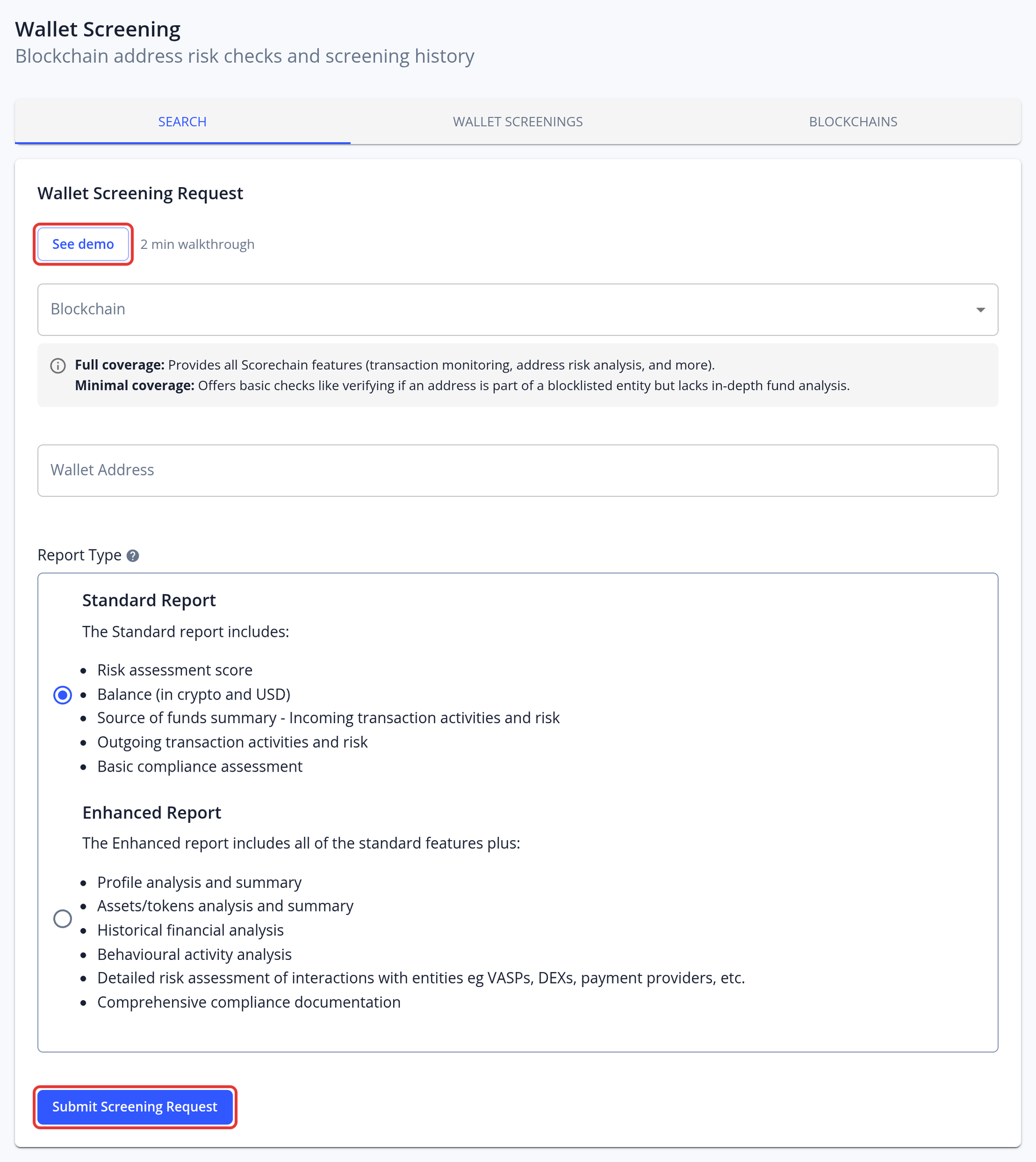
- Click Wallet Screening in the left menu
- On the Search tab, complete the required fields:
- Select the Blockchain
- Enter the Wallet Address
- Choose the report type: Standard Report or Enhanced Report. The price of each is shown. Enhanced reports are only available for fully supported blockchains.
- Click SUBMIT SCREENING REQUEST
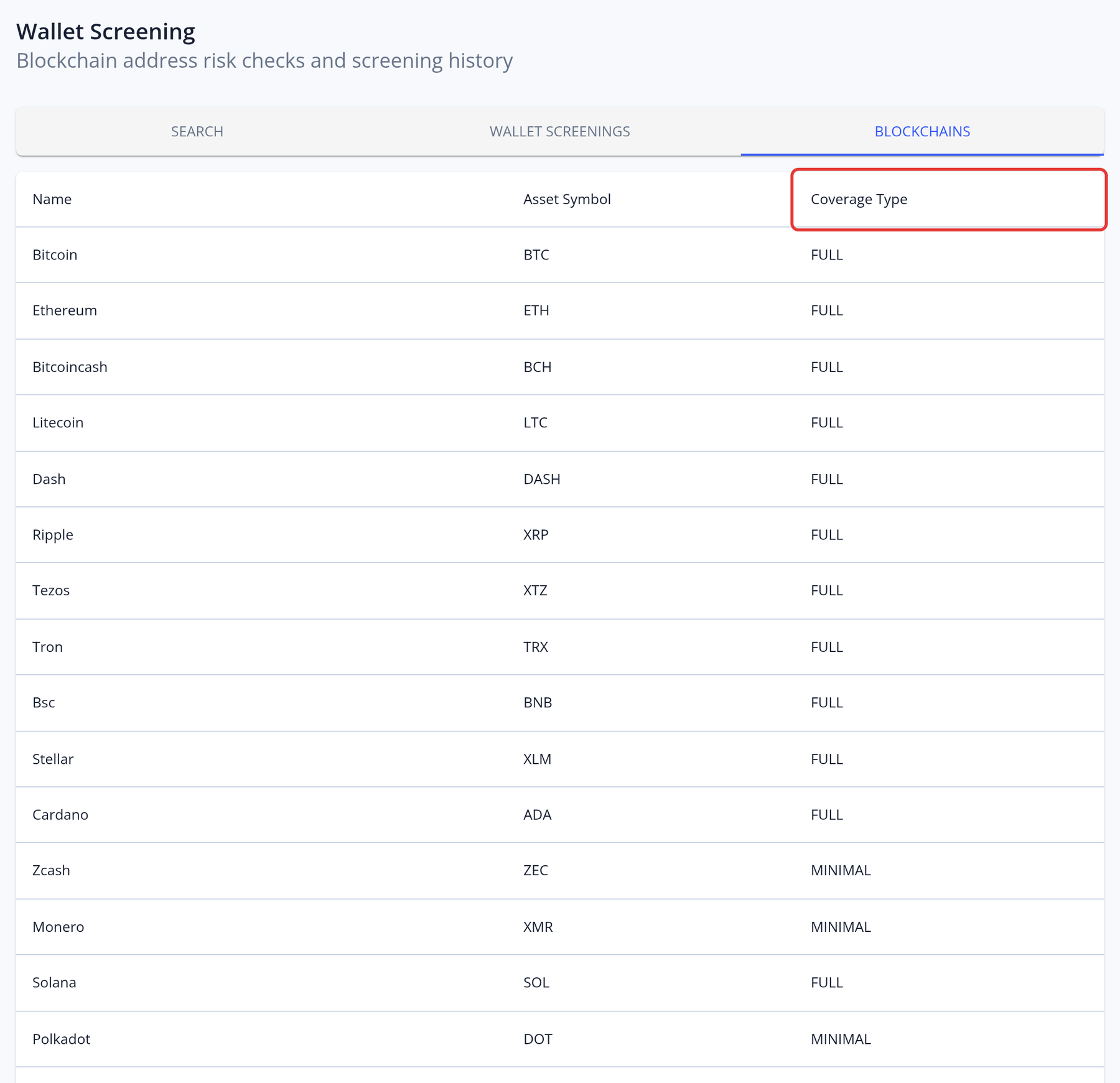
You can view and download the results on the Wallet Screenings tab. The Blockchains tab lists the supported blockchains and their support level: fully supported blockchains offer Standard and Enhanced reports, the others offer Standard reports only. Click See demo to see an example report.
Standard vs Enhanced reports:
- Standard Report: the risk score (from 1 to 100; a higher score means lower risk), the balance, and the incoming and outgoing risk.
- Enhanced Report: everything in the Standard Report, plus the wallet's profile, assets, transaction history, behavior and related entities.
Each report is charged, including when the wallet address is not found. The prices are shown on the form.