Search databases
The Search Databases page lets managers run screening checks without creating a KYC process. Which databases are searched depends on the services enabled for your instance, such as sanctions, PEP and adverse media screening, and company registry search. If you don't see Search Databases in the left menu, none of these services is enabled for your instance.
- Open Search Databases in the left menu. The page has three tabs: Search Form, Search List and Document Orders.
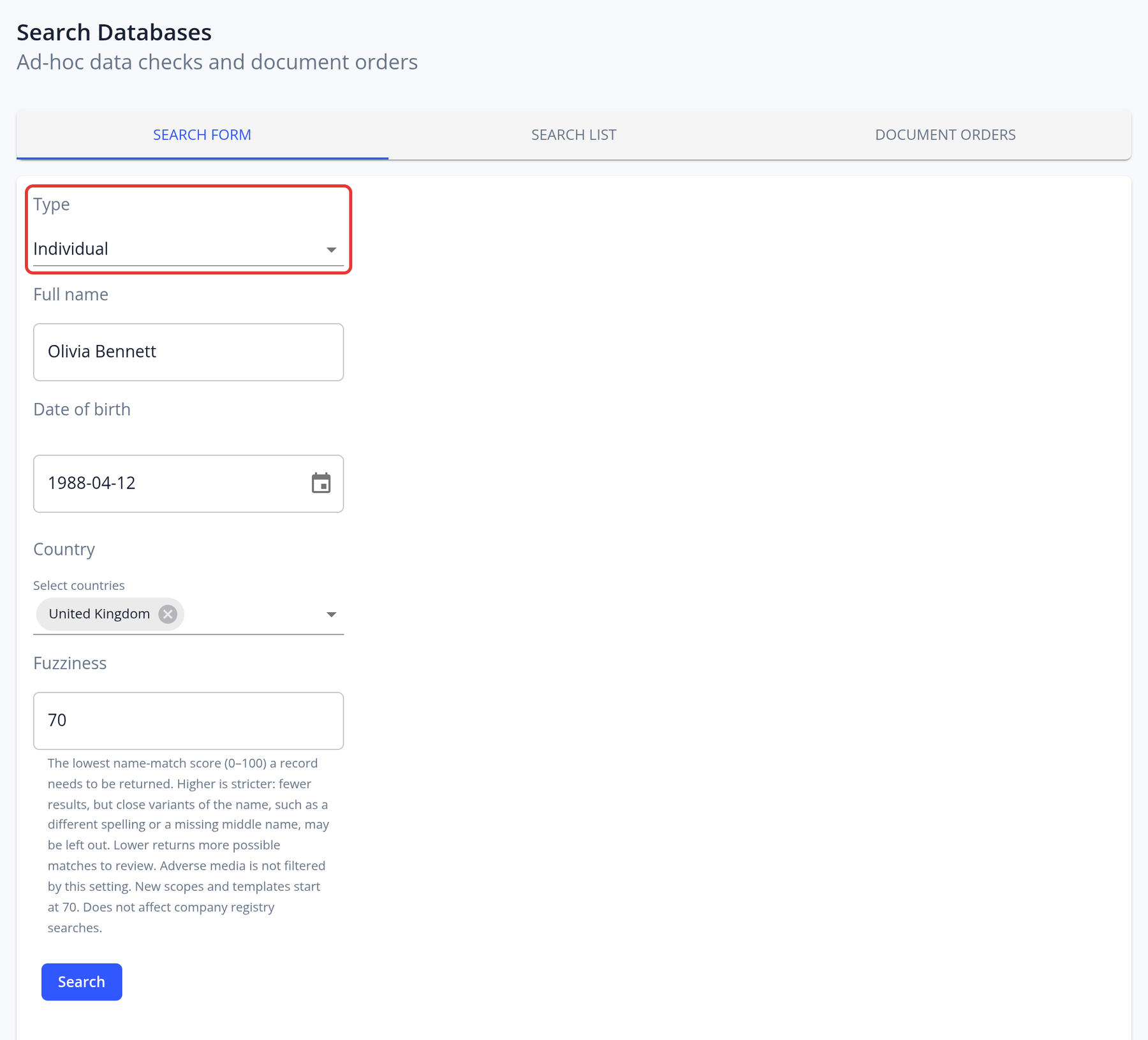
- On the Search Form tab, choose the Type: Individual, Entity ( search by name ) or Entity ( search by company number ).
- Enter the full name, entity name or company number. You can also enter the date of birth, one or more countries, the US state (shown for US company searches) and the Fuzziness (0-100). Fuzziness is the lowest name-match score a record needs to be returned: a higher value is stricter and returns fewer results, a lower value returns more possible matches to review. It doesn't filter adverse media or company registry searches. New scopes and templates start at 70.
- Run the search.
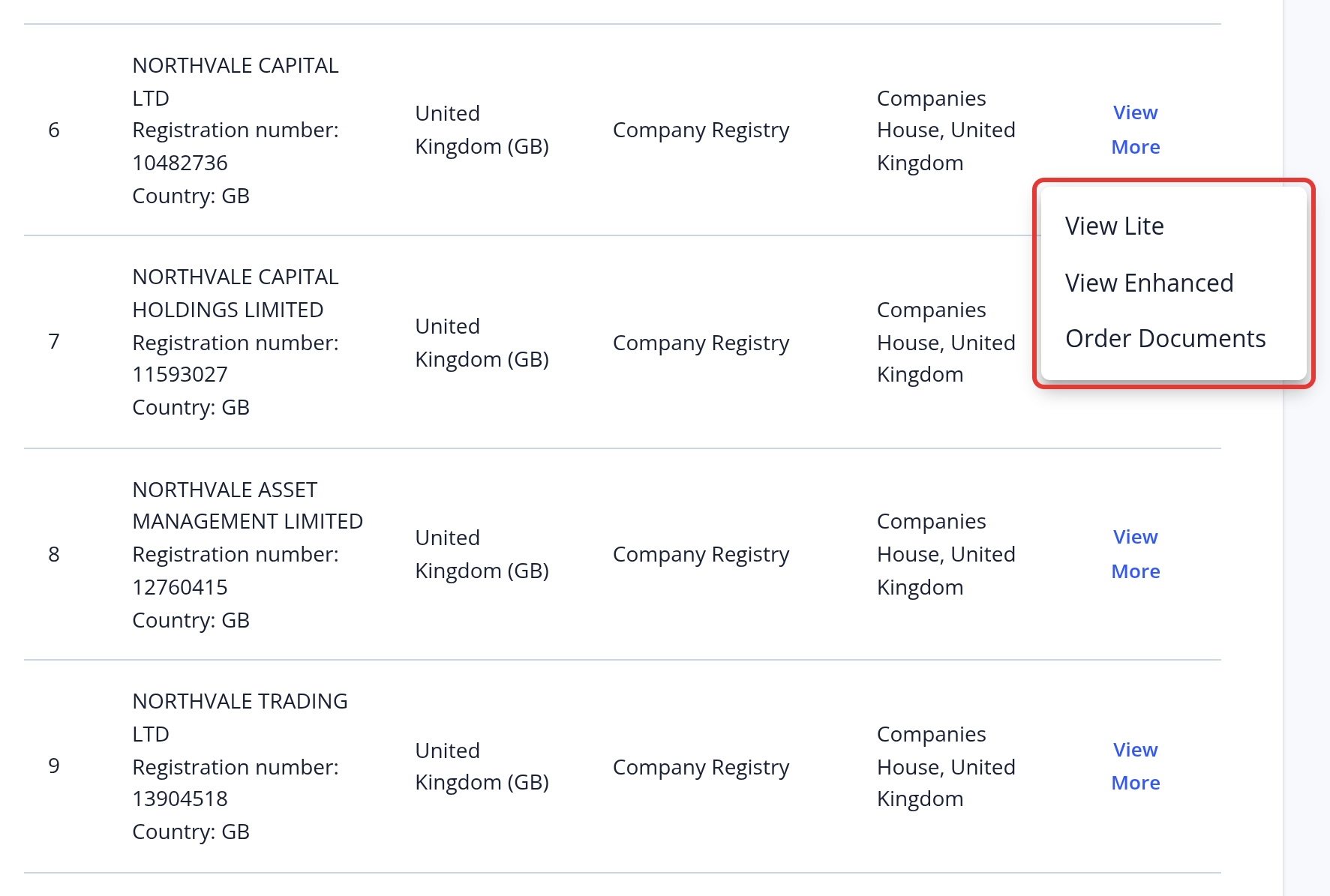
To see the full details of a match, click View More:
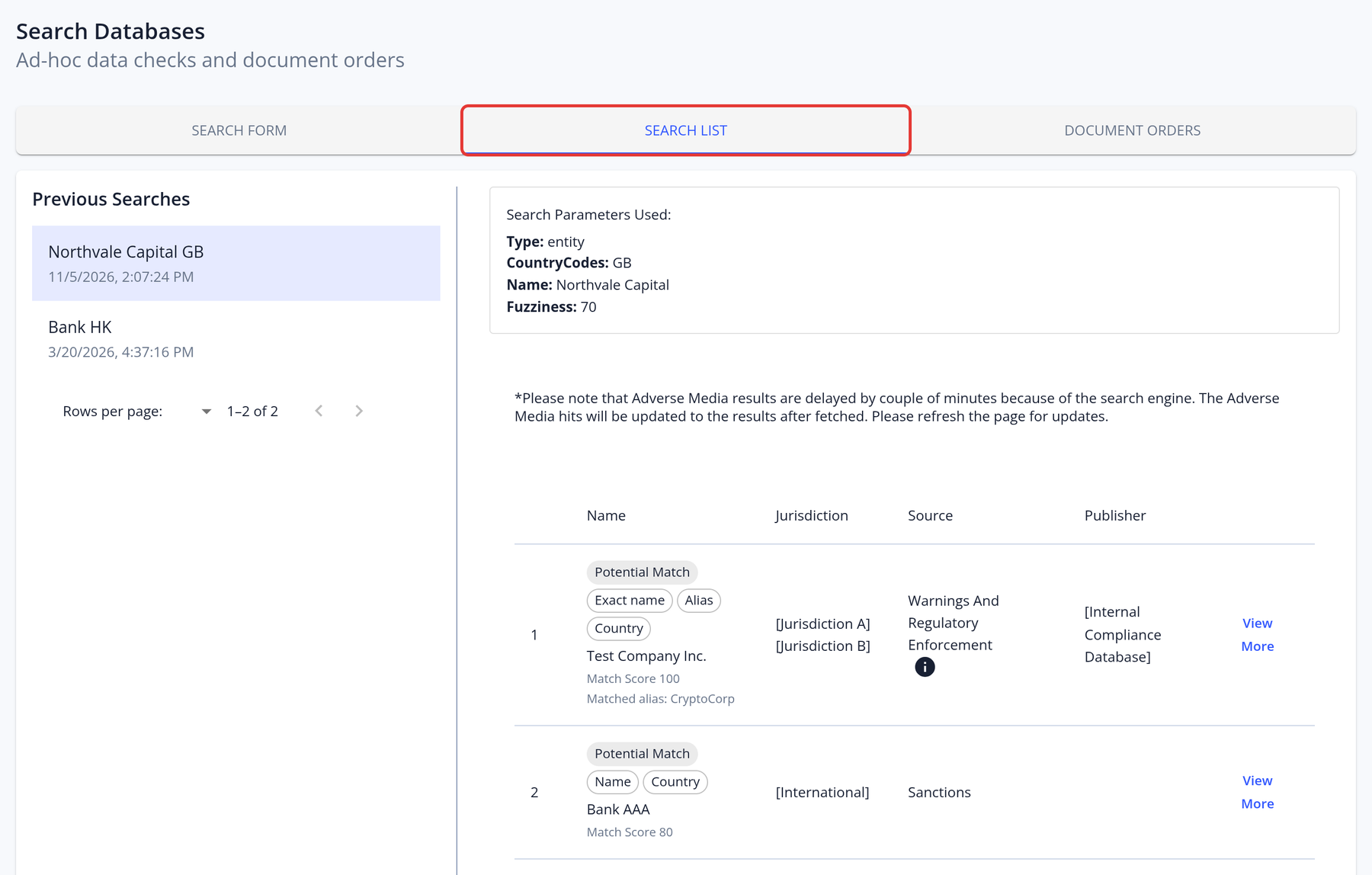
To access completed searches and their results:
- Click Search Databases in the left navigation menu
- Select the Search List tab
- View a complete history of all previous searches and their results
This lets you track and review all previous screenings in one place.
To order official company documents:
If company registry search with document ordering is enabled for your instance (it is included in the Pro plan), you can order official documents from the company registry. What's available (search, company profiles, official documents) depends on the company's jurisdiction: see KYC and AML coverage by country. When you choose a country on the Search Form, the form also shows what's available there.
- Search for the company as an Entity on the Search Form tab.
- On the company's result, click View More. Choose View Lite or View Enhanced to see the company profile, or Order Documents to see the documents available for that company. Prices are shown next to the options.
- In the documents list, check the Description, Price and Delivery Time, choose a document and confirm the order.
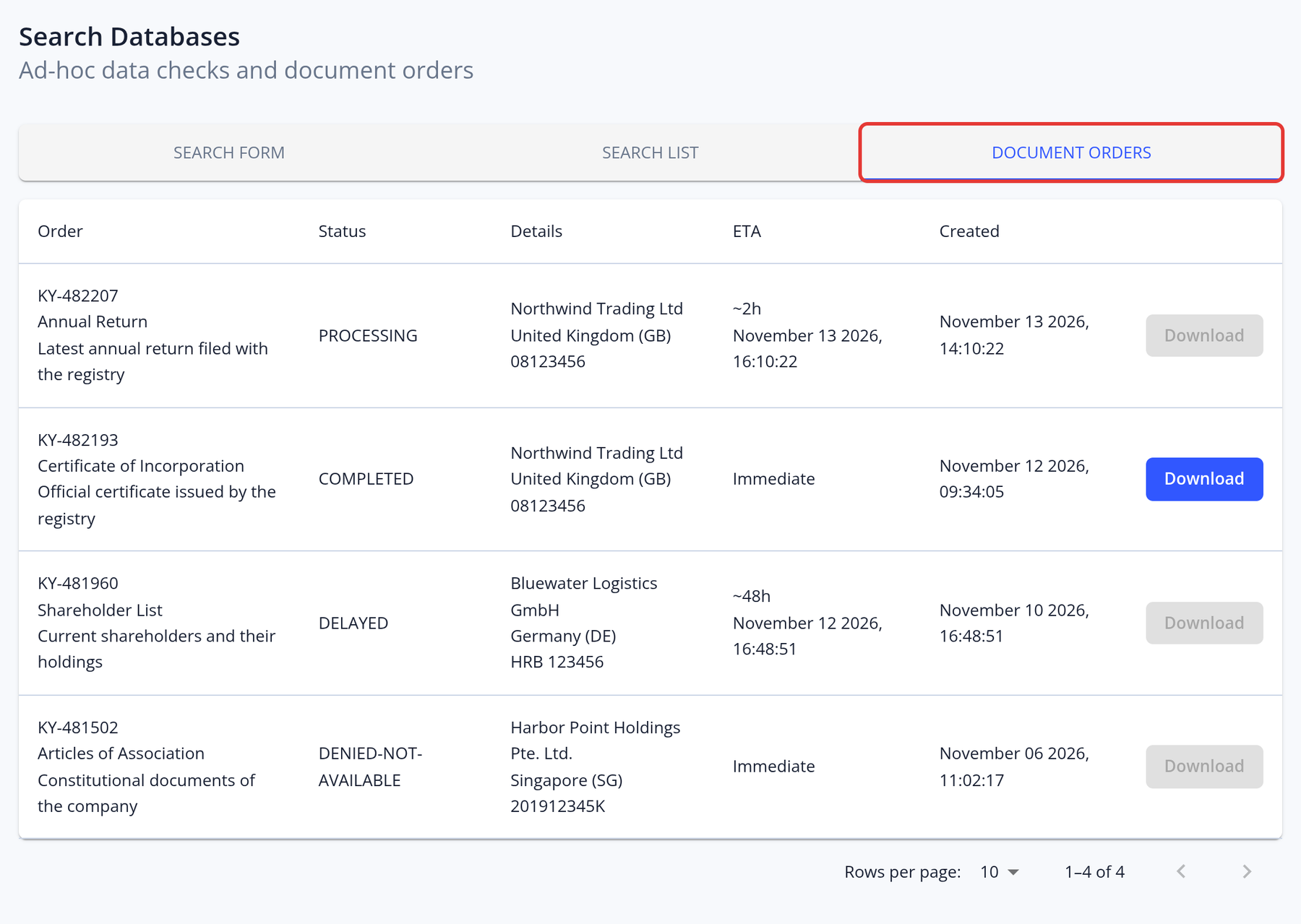
- Follow your orders on the Document Orders tab, which shows each order's status (PROCESSING, DELAYED, COMPLETED, FAILED or DENIED-NOT-AVAILABLE), the company, the estimated delivery time (ETA) and the order date. You receive a "Document Order Processing Complete" email when the documents are ready; then click Download on the order.
Viewing company profiles and ordering documents are charged. For corporate applications, documents ordered for the application appear in its Documents tab.