Risk scoring
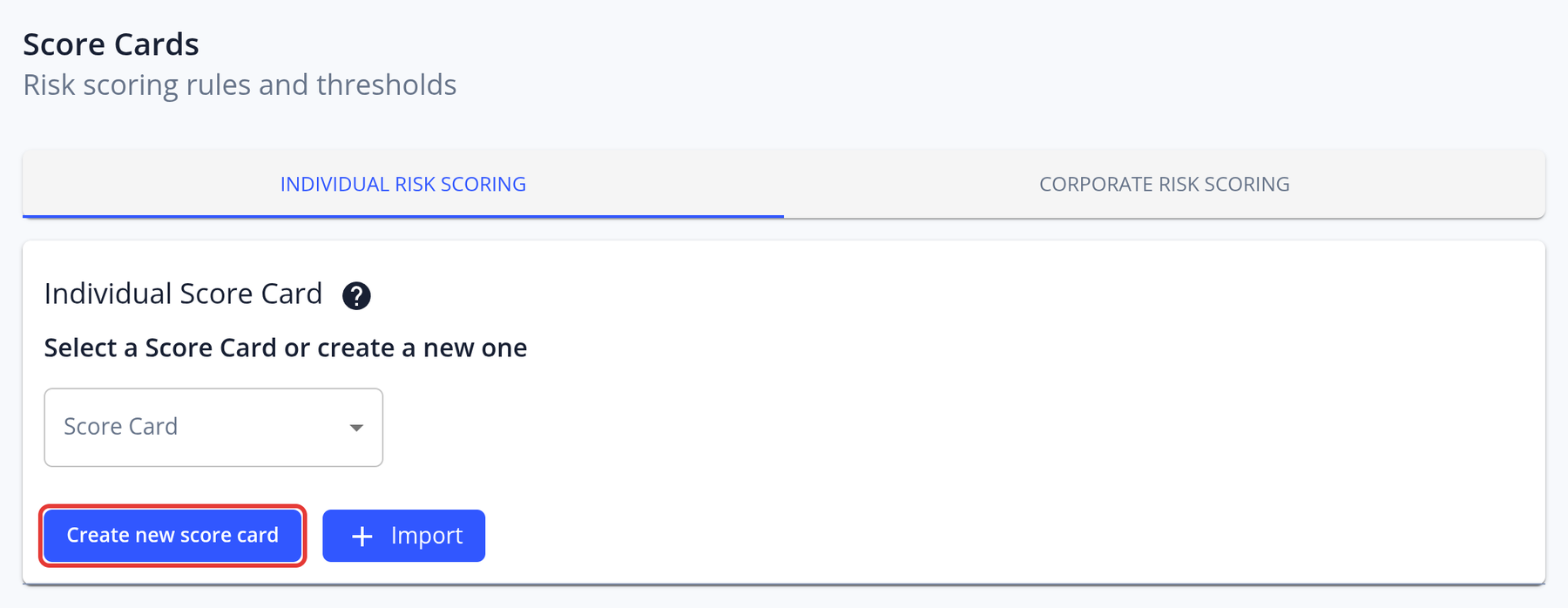
The Score Cards tab allows managers to configure multiple Risk Score Cards which each have customized parameters, and which can be assigned to KYC Templates so that KYC Processes using that template will automatically have their risk score calculated upon submission:
Managing score cards
Open Score Cards in the left menu. You need the View & Edit Risk Score Cards permission. Risk scoring is enabled for your instance by our team; if you don't see the menu item, contact your account manager.
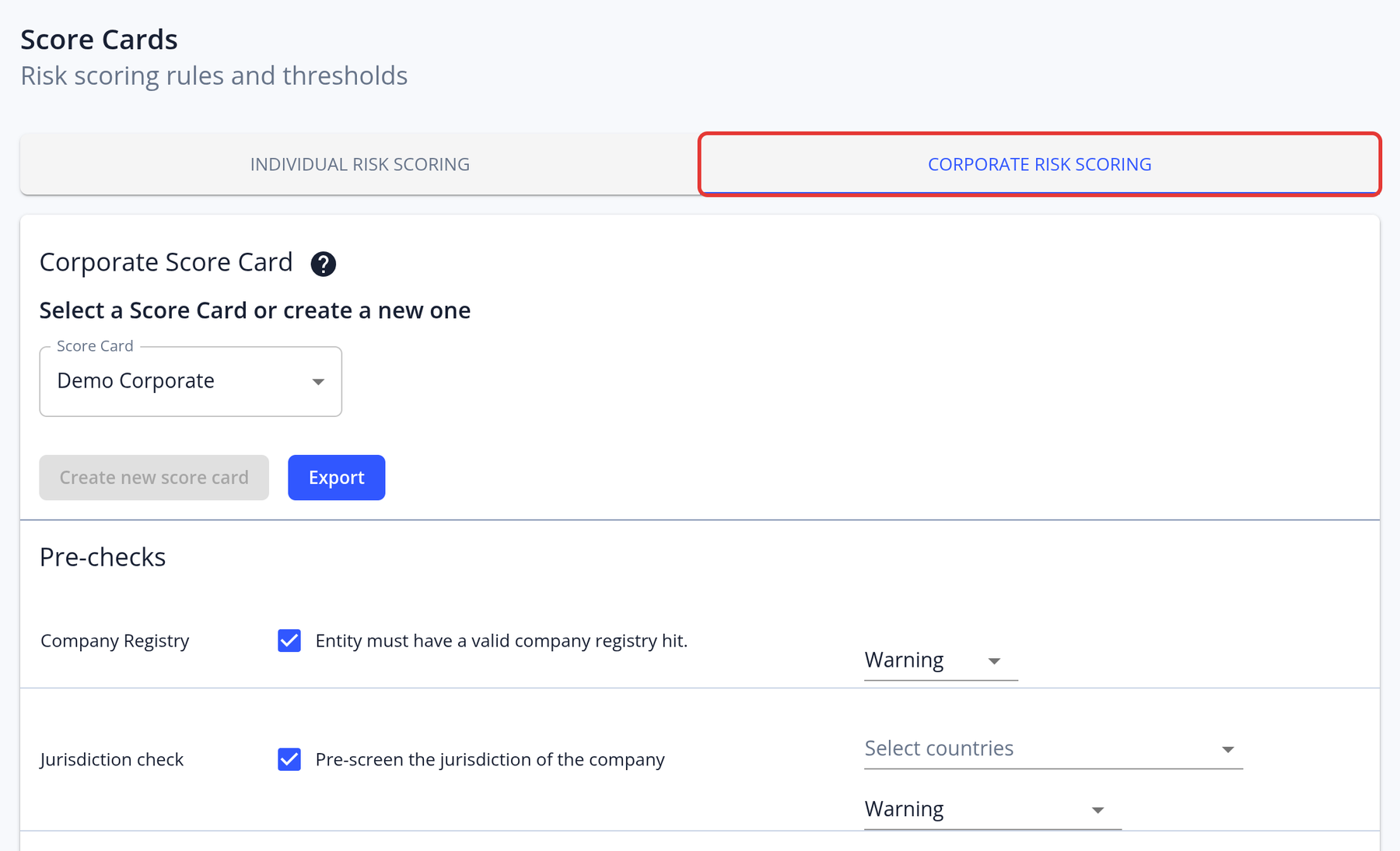
- The page has two tabs: Individual risk scoring and Corporate risk scoring.
- Click Create new score card to add a card. New cards start with the default settings listed below.
- Export downloads the selected card as a JSON file. Import (shown when no card is selected) creates a copy of an exported card, named "(imported)". Use export and import to duplicate a card.
- Score cards can't be deleted or renamed in the app.
- Changes to a score card apply to all future calculations, including recalculations of existing applications.
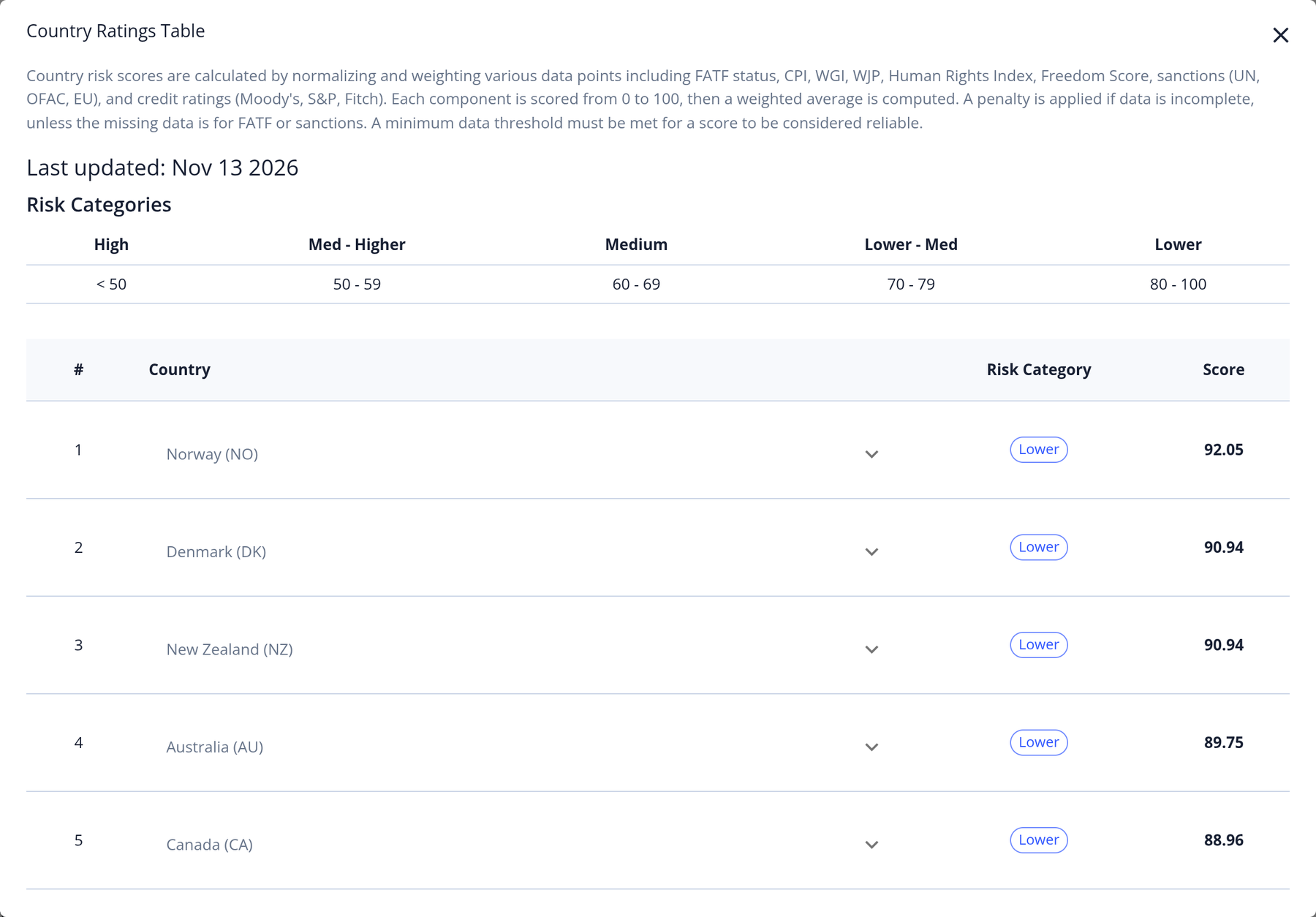
- Country-based parameters use KYC-Chain's country risk table, which is updated automatically. Click the info icon next to Low Risk Countries, Medium Risk Countries or High Risk Countries to open the Country Ratings Table with each country's score. Contact support if you need a rating changed.
Default settings of a new score card (all can be changed):
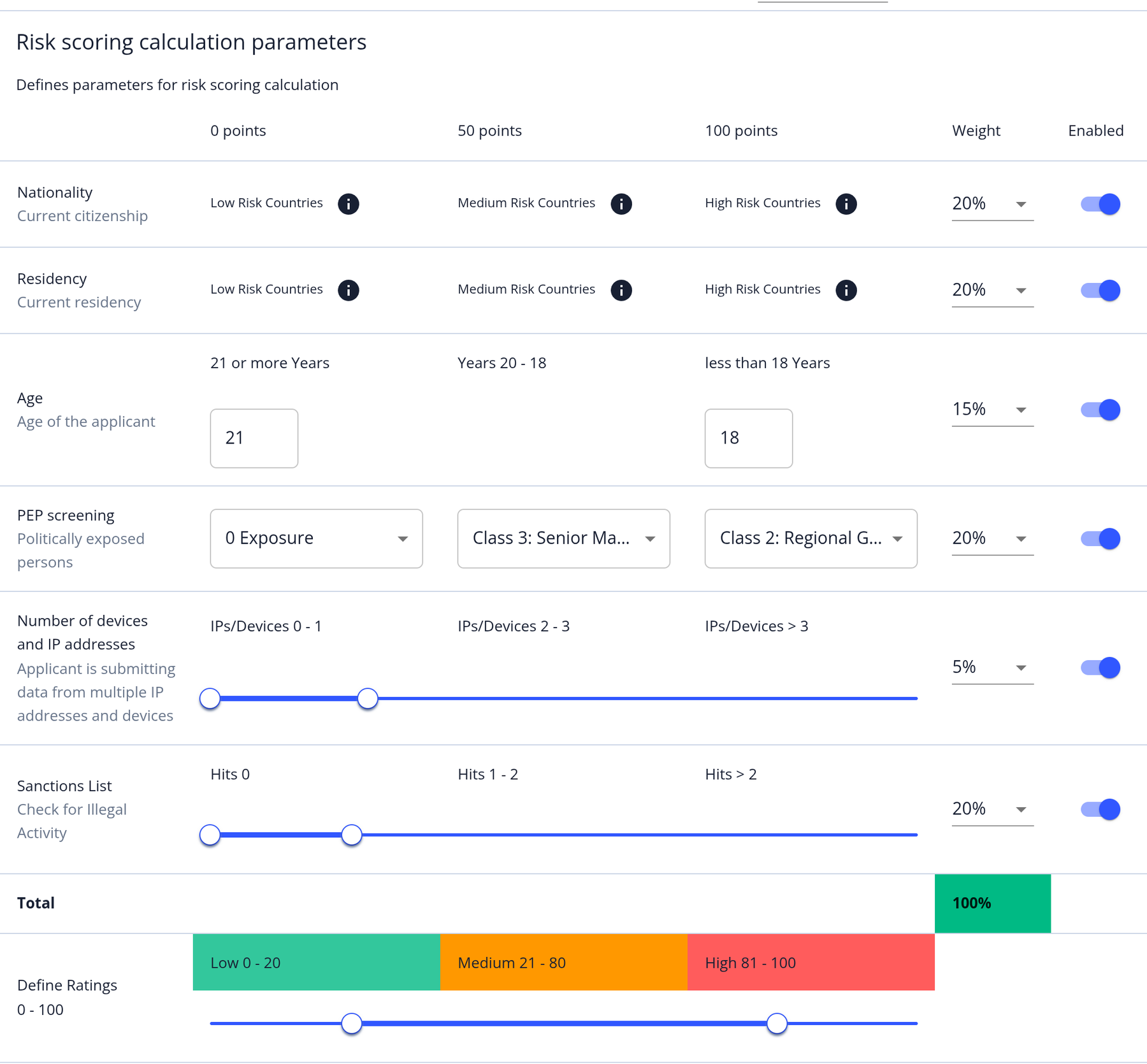
- Individual weights: Nationality 20%, Residency 20%, Age 15%, PEP Screening 20%, Number of devices and IP addresses 5%, Sanctions List 20%.
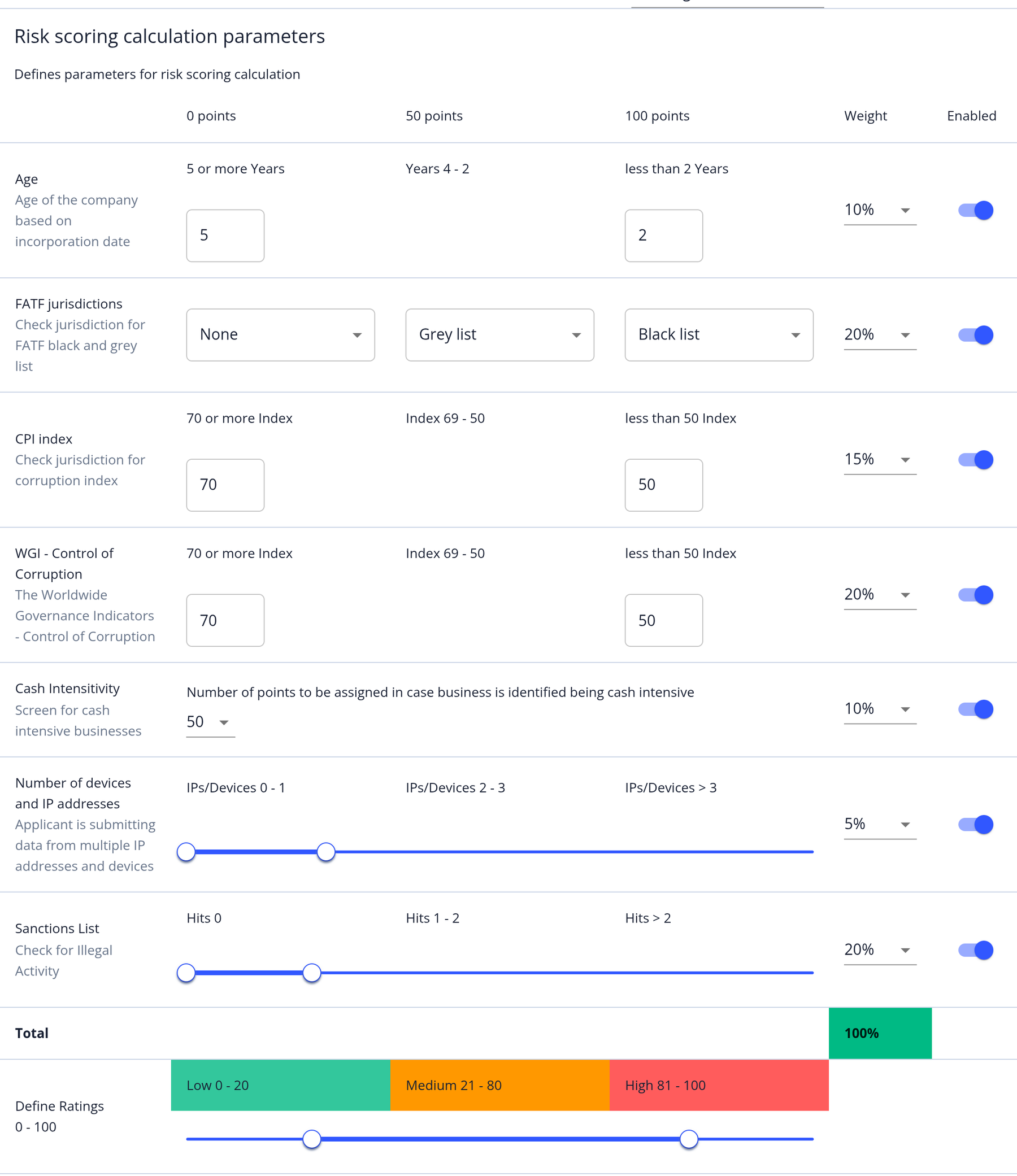
- Corporate weights: Age 10%, FATF jurisdictions 20%, CPI index 15%, WGI - Control of Corruption 20%, Cash Intensitivity 10%, Number of devices and IP addresses 5%, Sanctions List 20%.
- Age (individual): 21 or older is Low, 18 to 20 is Medium, under 18 is High.
- Age (corporate): 5 years or older is Low, 2 to 4 years is Medium, under 2 years is High.
- Number of devices and IP addresses: 1 is Low, 2 is Medium, 3 or more is High.
- Sanctions List: no confirmed hits is Low, 1 hit is Medium, 2 or more hits is High.
- PEP Screening: class 3 and 4 PEPs are Medium, class 1 and 2 PEPs are High.
- CPI index and WGI - Control of Corruption: a score above 70 is Low, 50 to 70 is Medium, below 50 (or no data) is High.
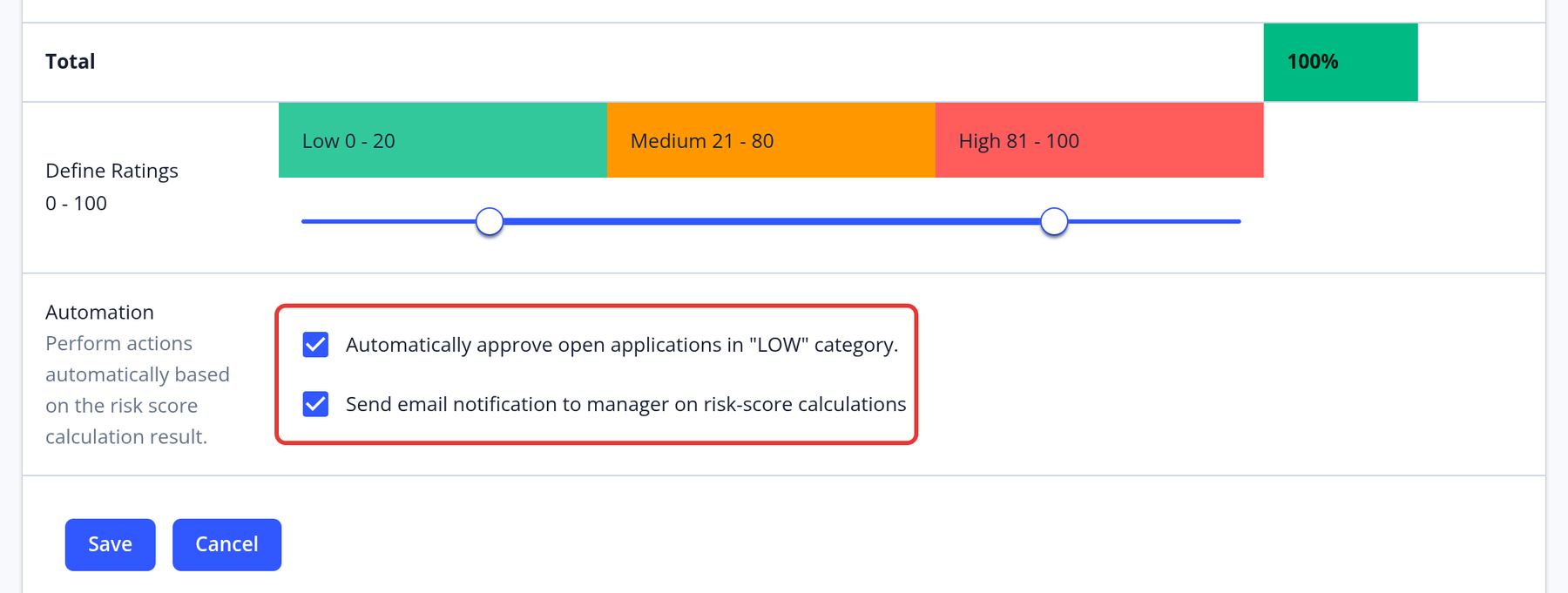
- Risk ranges: Low 0–20, Medium 21–80, High 81–100.
Pre-checks
Pre-checks can be individually enabled or disabled for any risk score card. Each pre-check relates to a specific requirement in the KYC Template, so that requirement must be present for the pre-check to work.
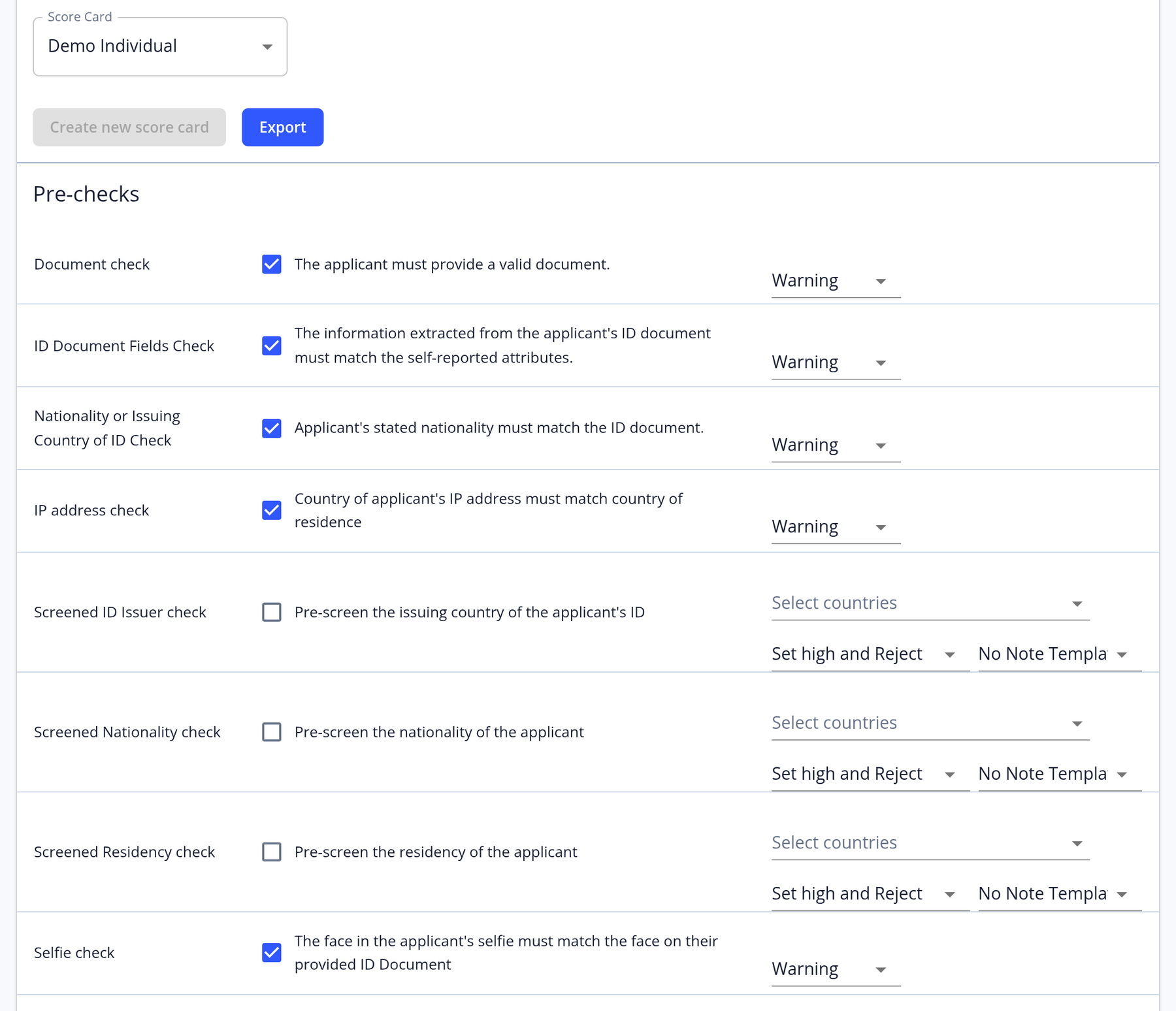
Individual score card pre-checks
- Document check: Will check that the applicant's ID document (passport, national ID card, driving license or foreigner ID card) was verified successfully. This requires a Document verification flow type other than "Disabled" on the KYC template's Verification step.
- ID Document Fields check: Will check if the information extracted from the applicant's ID document matches the self-reported attributes.
- Nationality or Issuing Country of ID check: Will check if the applicant's stated nationality matches the ID document. The pre-check won't work if the Nationality attribute is not required on the KYC template.
- IP address check: Will check if the applicant's IP address matches their stated country of residence.
- Screened ID Issuer check: Will pre-screen the issuing country of the applicant's ID against a configurable list.
- Screened Nationality check: Will pre-screen the nationality of the applicant against a configurable list. The pre-check won't work if the Nationality attribute is not required on the KYC template.
- Screened Residency check: Will pre-screen applicant's country of residence, pre-check won't work if the Country of residence attribute is not required on the KYC template.
- Selfie check: Will check that the selfie (and the passive liveness check, if used) passed. This requires a Document verification flow type that collects a selfie, such as "Collect ID document and selfie".
Corporate score card pre-checks
- Company Registry check: Passes when the company registry search returned exactly one result that isn't marked as a false positive, or when at least one result has been confirmed.
- Jurisdiction check: Will pre-screen the jurisdiction of the company against a configurable list.
Actions when a pre-check fails
Managers choose the action that is taken when a pre-check fails:
- Warning: Show a warning next to the risk score. The warning doesn't change the risk score, but a failed warning prevents automatic approval.
- Set medium / Set high: Set the application's overall risk category to Medium or High, whatever the calculated score. The category ranges are not applied in this case.
- Request: Automatically ask the applicant to submit the failed requirement again. Only available for the Document check and the Selfie check. At most one request is made per calculation, and the ID document is re-requested only once per application.
- Set medium and Reject / Set high and Reject: Set the risk category and automatically reject the application. Only available for the Screened ID Issuer, Screened Nationality and Screened Residency checks (and the corporate Jurisdiction check). You can choose a note template, whose text is sent to the applicant as the rejection note.
The other pre-checks offer Warning, Set medium and Set high. If a pre-check can't run, for example because ID data is missing, its action is not applied.
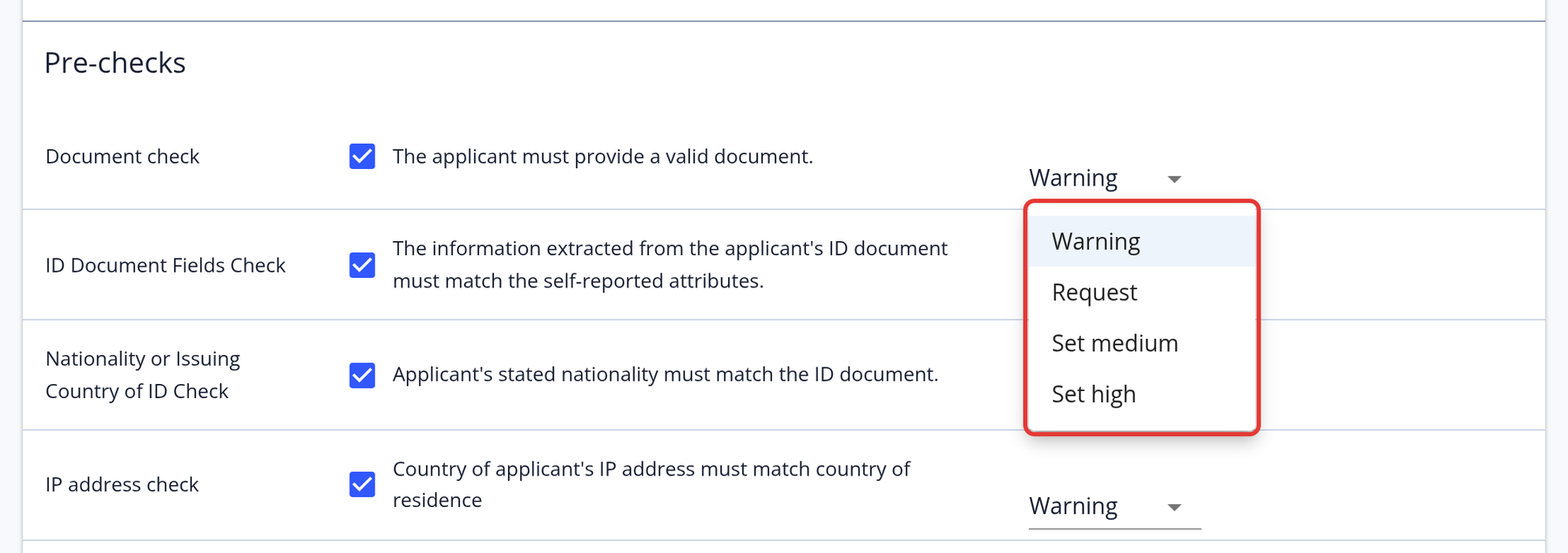
Corporate pre-checks use the same actions as individual ones, except Request, which isn't available on corporate score cards. The Company Registry check offers Warning, Set medium and Set high. The Jurisdiction check also offers Set medium and Reject and Set high and Reject.
Risk scoring parameters
Parameters can be individually enabled or disabled, and their weights can be adjusted so that the sum of all active parameter weights is 100%.
Individual parameters
- Nationality: The nationality entered by the applicant is scored based on the pre-set list of country risk scores. The nationality attribute must be required in the KYC Process.
- Residency: The country of residence entered by the applicant is scored based on the pre-set list of country risk scores. The Country of Residency attribute must be required in the KYC Process.
- Age: The applicant's age is determined using the Date of Birth attribute and the score is applied based on the parameters configured by the manager. The Date of Birth attribute must be required in the KYC Process.
- PEP Screening: The most severe class of confirmed PEP (Politically Exposed Persons) exposure for the applicant is scored according to the configuration in the score card.
- Number of devices and IP addresses: Risk score depends on the number of IP addresses and devices detected by the system.
- Sanctions List: The number of confirmed sanctions hits for the applicant are placed on the scale configured by the manager and scored accordingly.
Corporate parameters
- Age: The Company's age is determined using the "Date of Incorporation" attribute and the score is applied based on the parameters configured by the manager. The Date of Incorporation attribute must be enabled on the Individual or Corporate template.
- FATF jurisdictions: Checks the jurisdiction against the FATF (Financial Action Task Force) black and grey lists. By default, black list jurisdictions are High risk and grey list jurisdictions are Medium risk; this can be changed per score card. A jurisdiction that isn't in the country table is rated High.
- CPI index: Checks jurisdiction for corruption index, risk score calculation relies on the CPI (Corruption Perceptions Index) levels. Every jurisdiction receives its own score.
- WGI - Control of Corruption: Calculation of risk score relies on the WGI (Worldwide Governance Indicators)'s scores. Each jurisdiction receives its own score.
- Cash Intensitivity: This parameter screens for cash intensive businesses and is determined using the "business types" attribute.
- Number of devices and IP addresses: Risk score depends on the number of IP addresses and devices detected by the system.
- Sanctions List: The number of confirmed sanctions hits for the entity are placed on the scale configured by the manager and scored accordingly.
Please note that the PEP and Sanctions parameters only use results that a manager has reviewed in the "External Data" tab. Every PEP result must be marked as confirmed or false positive. For sanctions, confirm at least one result, or mark all of them as false positives. Until then, the risk score shows "AML review pending". Each time you mark results, the risk score is recalculated.
How the risk score is calculated
Points per risk level. Each enabled parameter is rated as Low, Medium or High risk:
- Low Risk: 0 points
- Medium Risk: 50 points
- High Risk: 100 points
Weights. Each parameter has a weight, set in steps of 5%. The weights of all enabled parameters must add up to 100%, otherwise the score card can't be saved.
Total score. Each parameter contributes points × weight. The contributions are added up and rounded to a whole number between 0 and 100. A parameter that can't be evaluated, for example when no IP or device data is available, contributes 0.
Risk category. Each score card defines its own Low, Medium and High ranges with the Define Ratings 0 - 100 slider. New score cards start with Low 0–20, Medium 21–80 and High 81–100. If a pre-check with a Set medium or Set high action fails, that category is used instead.
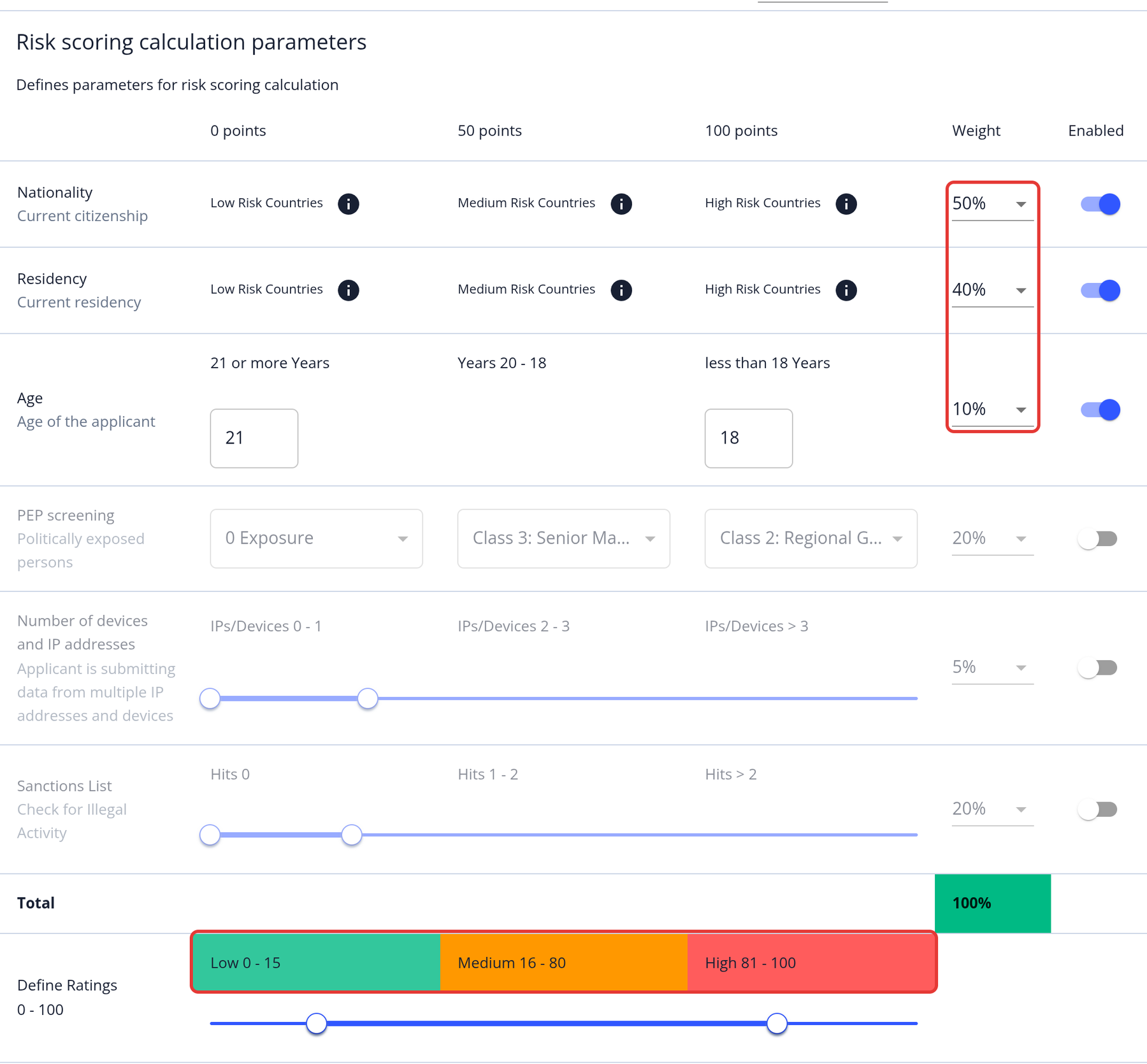
Example (the score card in the screenshot below: Nationality 50%, Residency 40%, Age 10%; Low 0–15, Medium 16–80, High 81–100):
| Parameter | Weight | Risk level | Points | Contribution |
|---|---|---|---|---|
| Nationality | 50% | High | 100 | 50 |
| Residency | 40% | Medium | 50 | 20 |
| Age | 10% | Low | 0 | 0 |
| Total | 100% | 70 |
A total of 70 falls in this card's Medium range (16–80), so the application is rated MEDIUM.
Automatic approvals
When Automatically approve open applications in "LOW" category. is enabled, applications that receive a Low risk score are approved automatically, as long as every pre-check passed. Closed applications are not affected. The system adds the internal note "Application automatically approved". If the template requires more than one approval, the automatic approval counts as one of them:
Risk scoring notifications
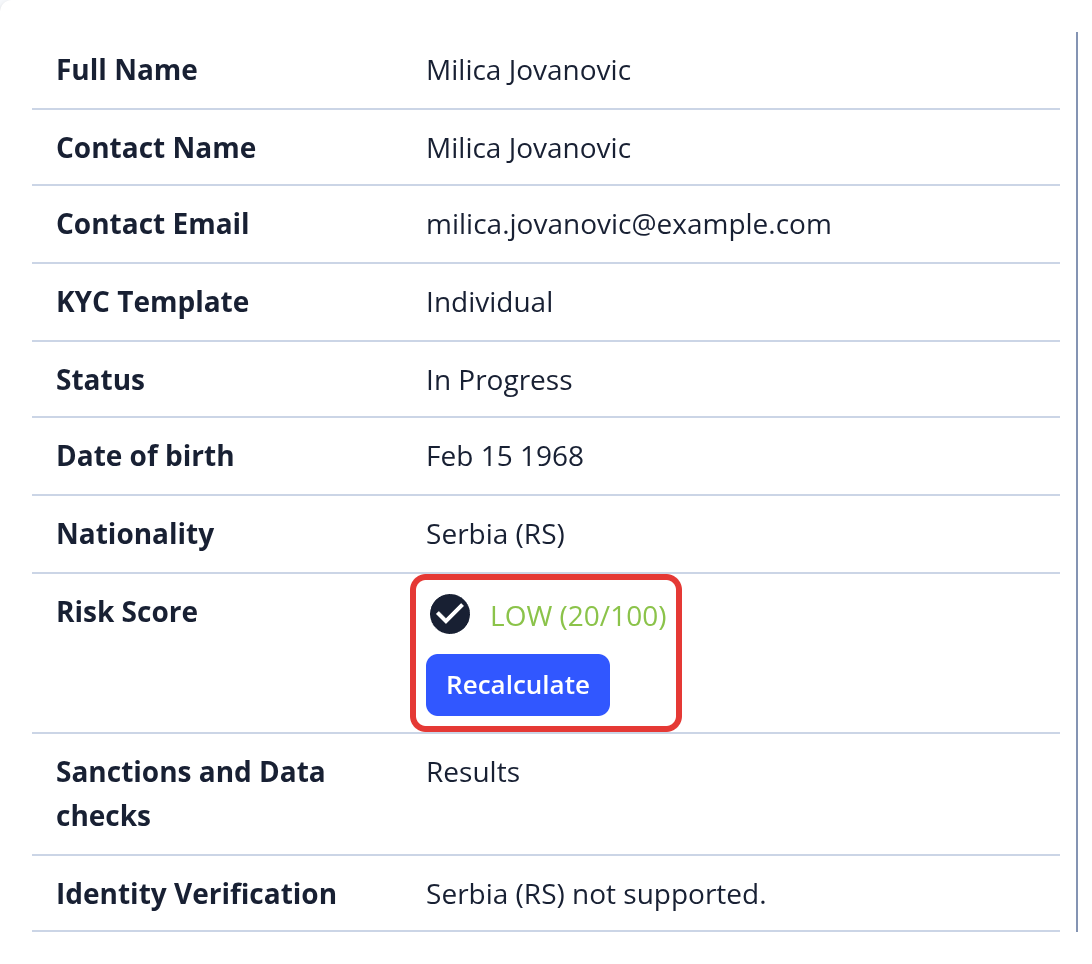
When Send email notification to manager on risk-score calculations is enabled, the managers assigned to the application receive an email whenever its risk score is calculated, or when the calculation stops because attributes are missing or AML results need review. You can check the risk score and its details in the application's Overview section:
Risk score statuses and recalculation
The Risk Score row in the application's Overview shows the risk category, or one of these statuses:
- No score card: the KYC template has no score card.
- Not submitted: the application hasn't been submitted yet.
- Not calculated or Pending: the score hasn't been calculated yet.
- Calculating…: the calculation is in the queue and will be processed shortly.
- Missing attributes: some attributes the score card needs are missing. Request them from the applicant.
- AML review pending: the AML results must be reviewed in the External Data tab first.
- Waiting for AML check: the AML check hasn't finished yet.
- ID verification pending: the ID verification is still being processed.
- New ID requested: a pre-check asked the applicant for a new ID document.
- Selfie check failed, ID check failed, Restricted country or IP/residency mismatch: a pre-check failed. Click the status to see the details.
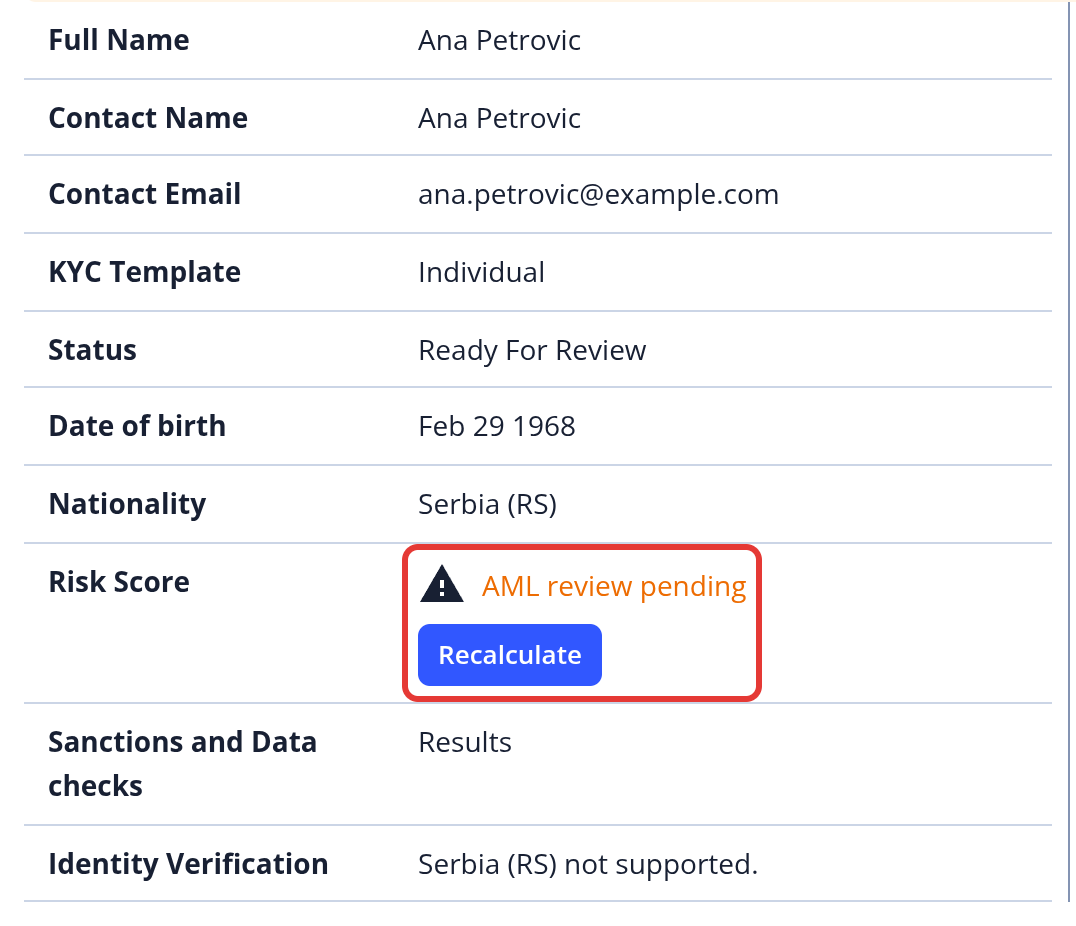
A result can become out of date, for example when ongoing monitoring finds new AML results. Click Calculate or Recalculate in the Risk Score row to run the calculation again. The button is disabled when the template has no score card, the application hasn't been submitted, or attributes are missing.
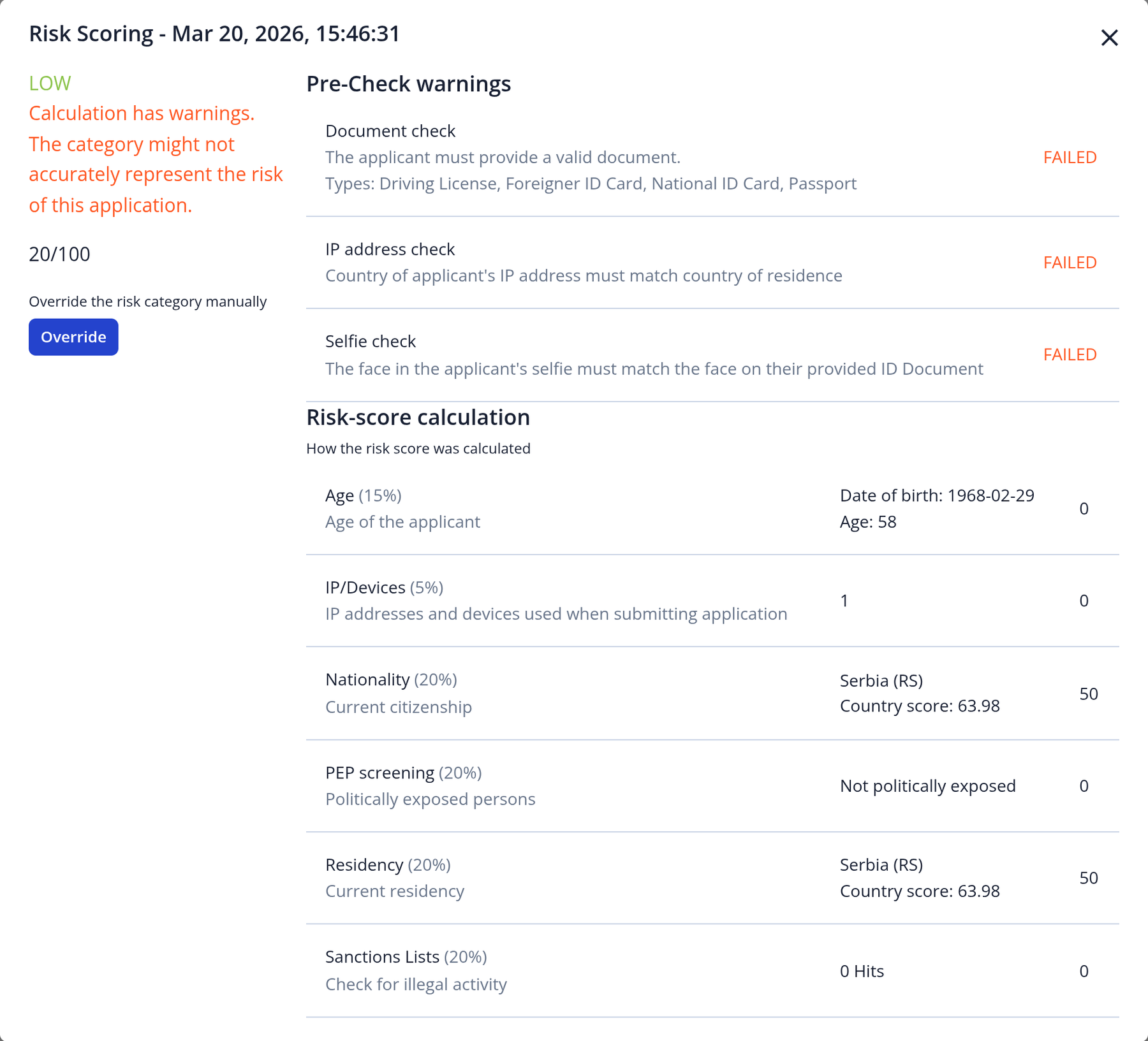
Click the risk category to see the details: the pre-check results (PASSED or FAILED), each parameter with its weight, value and points, the previous result if the category changed, and the scores of the application's members. Member scores are shown for information only and don't change the parent application's score.
To find applications by risk, use the Risk Category filter (LOW, MEDIUM, HIGH or NOT CALCULATED). Managers with the Manually Edit Calculated Risk Scores permission can override the category (see Overriding the risk category). The override is recorded in the Audit Trail, and the next recalculation replaces it.