Ongoing AML monitoring
Ongoing AML monitoring keeps your applicants' AML results up to date by running the screening again at regular intervals.
How it works:
- An application is checked again when its last AML check is older than the interval set for its risk category. Applications without a risk score use the Default Interval (No Risk Score). The system looks for due checks every few hours.
- Monitoring doesn't wait for approval. Every application that has an AML check result is monitored, except Cancelled and Rejected applications.
- Monitoring only runs in live mode, for templates with AML data checks enabled, when ongoing monitoring is enabled for your instance.
- Managers receive an email when monitoring finds changes for an application.
- Each monitoring check is charged.
To set this up:
- Go to KYC Templates and open a template
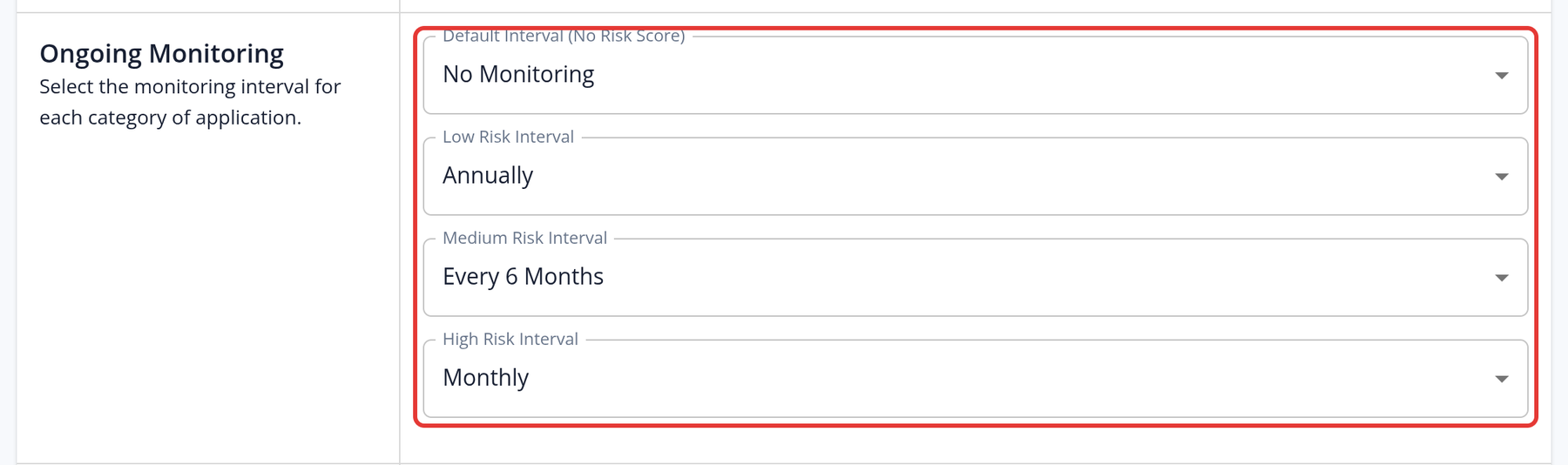
- Go to the Compliance step and find Ongoing Monitoring
- Choose an interval for the Default Interval (No Risk Score), Low Risk Interval, Medium Risk Interval and High Risk Interval: No Monitoring, Daily, Weekly, Monthly, Every 6 Months or Annually
- Click Save & Next
Interval changes apply to existing applications that use the template, not only to new ones.
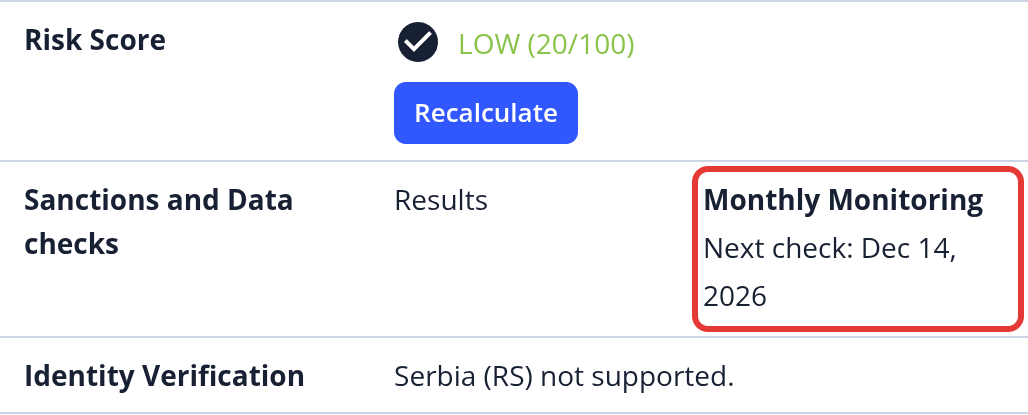
The Overview section of an application shows when the next AML check is going to happen:
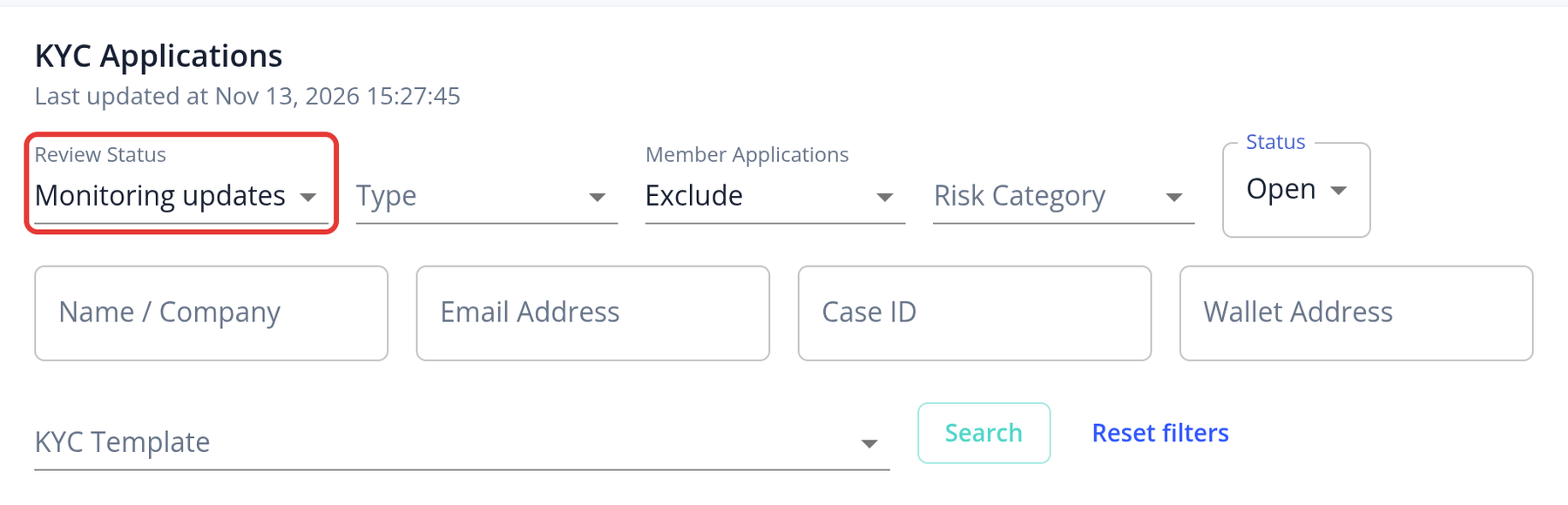
To review the changes found by monitoring, set the Review Status filter on the dashboard to Monitoring updates.
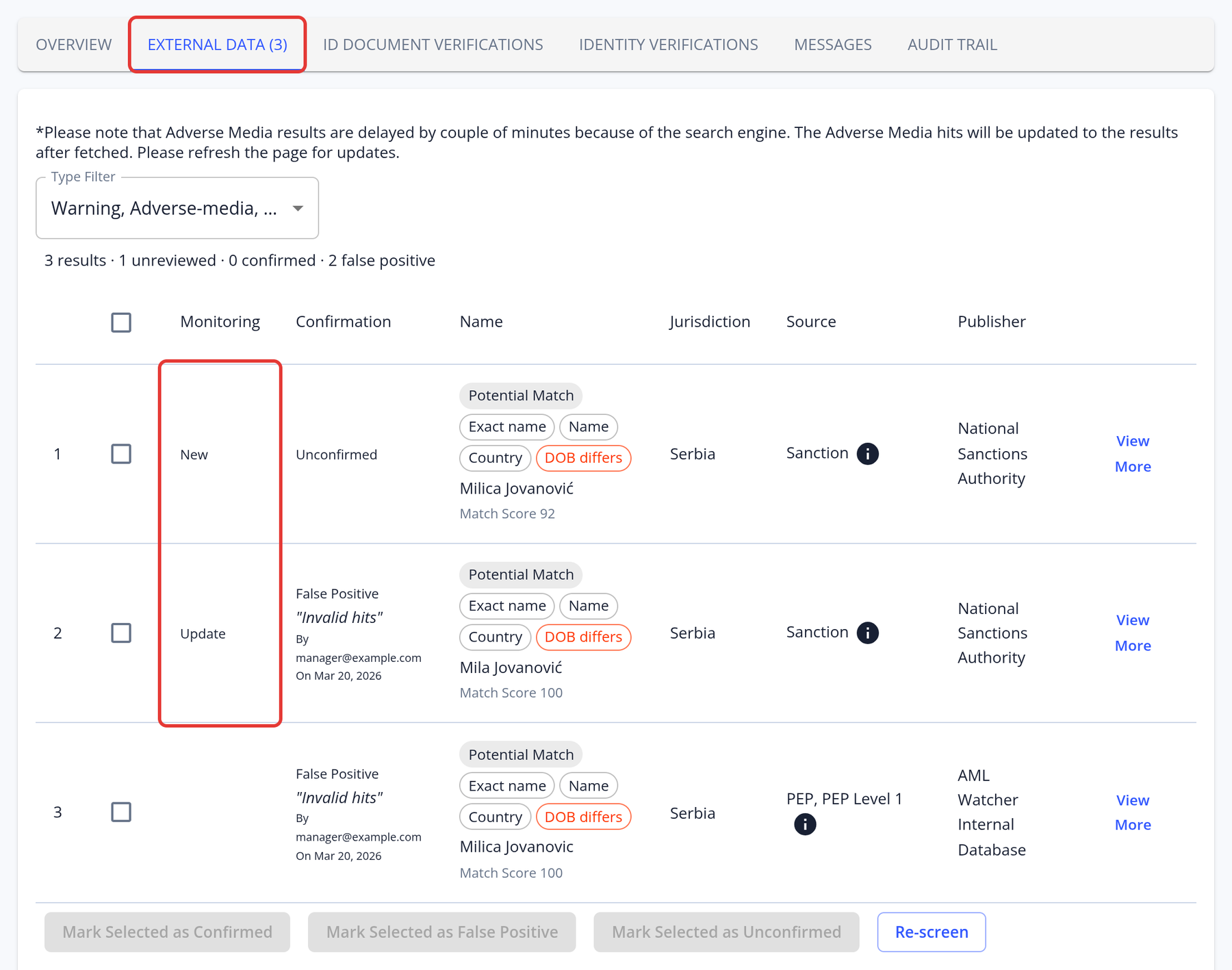
In the application's External Data tab, the Monitoring column compares each result with the previous check: New (a new hit), Update (the hit's data changed) or Removed (the hit is no longer returned; shown for information only). Review the new and updated results with Mark Selected as Confirmed, Mark Selected as False Positive or Mark Selected as Unconfirmed; this clears the monitoring update. If the monitoring check returned no results at all, click Acknowledge AML update instead.