ID document and ID data verification
ID document and selfie verification
ID document verification is set up on the Verification step of an individual KYC template, in the Document verification section.
ID document verification checks whether the uploaded passport, ID card, driver's license, temporary driver's license or residence permit is genuine. The system captures, extracts, and analyzes the ID data to authenticate government-issued identity documents.
Selfie check asks the applicant to take a photo of themselves, which is compared with the photo on their ID document to confirm it's the same person.
Passive liveness check confirms that a real person is in front of the camera, without asking the applicant to perform any actions.
Select flow type decides what applicants are asked for:
- Disabled - No ID document verification.
- Collect ID document - The ID document only.
- Collect ID document and selfie - The ID document and a selfie, which is compared with the document photo.
- Collect ID document and selfie with passive liveness check - As above, plus a passive liveness check.
- Send document uploads to verification if configured - Verifies the ID documents that applicants upload as document requirements, when ID Document Verification is ticked on the requirement.
Strictness sets how a failed verification affects the application. There are 3 levels:
- Optional requirement - Applicant may choose to skip
- Required - Failed verification won't stop the application
- Strict requirement - Failed verification will stop the application
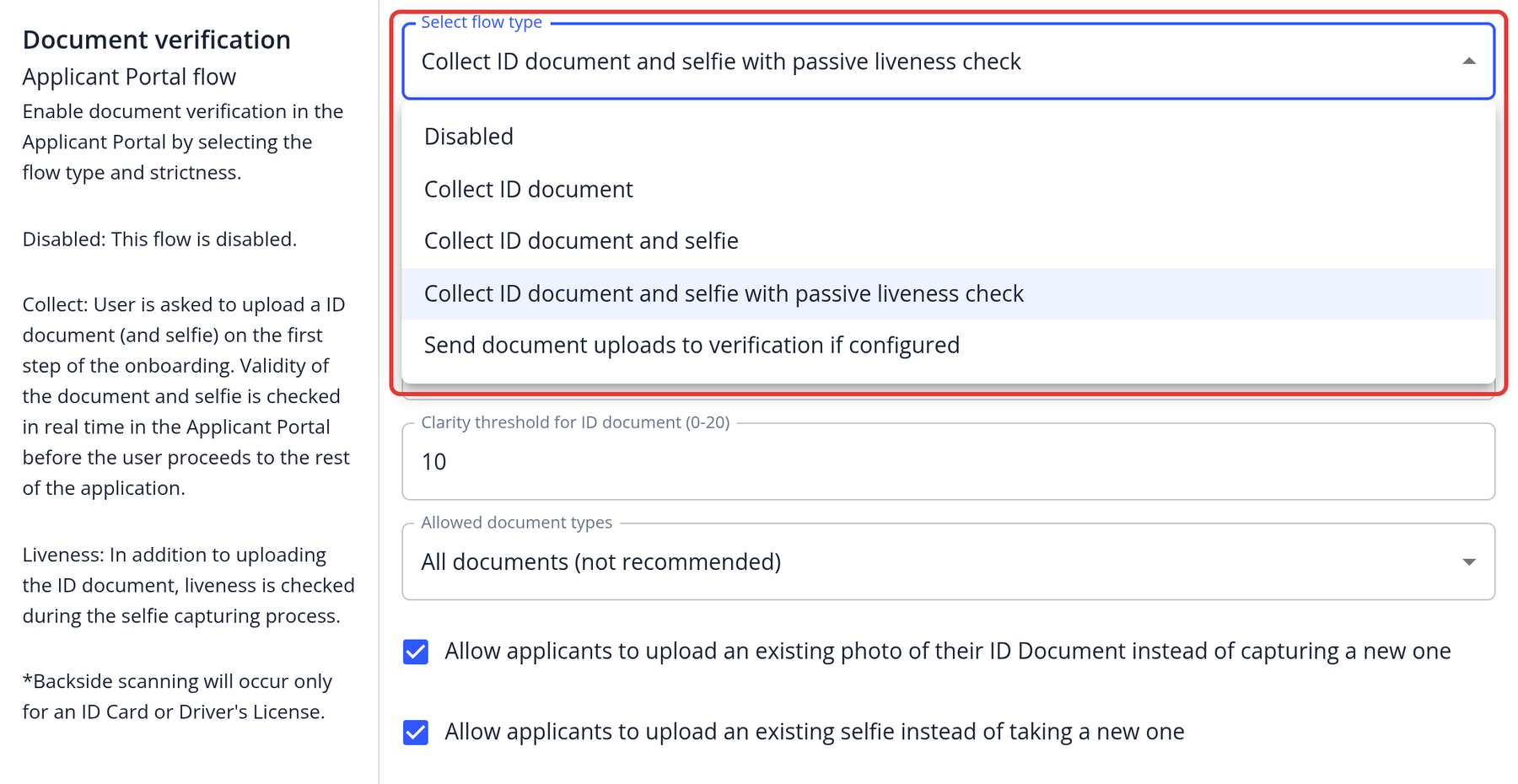
Number of attempts allowed sets how many tries the applicant has to capture their document (and selfie) with the device camera. The default is 3.
Similarity threshold for selfie comparison (from 0-100%) sets the minimum similarity between the selfie and the photo on the ID document for the selfie to be accepted. The default is 50%.
Clarity threshold for ID document (0-20) sets how sharp the document image must be. The default is 10.
Allowed document types decides which documents are accepted:
- Fully Supported Documents (Recommended) - The system only accepts ID documents that it can fully verify.
- Fully and Partially Supported Documents - The system also accepts some document types that it can only partially analyze and verify.
- All documents (not recommended) - The system accepts any ID document, even ones it can't verify for authenticity. This is the default, so consider changing it.
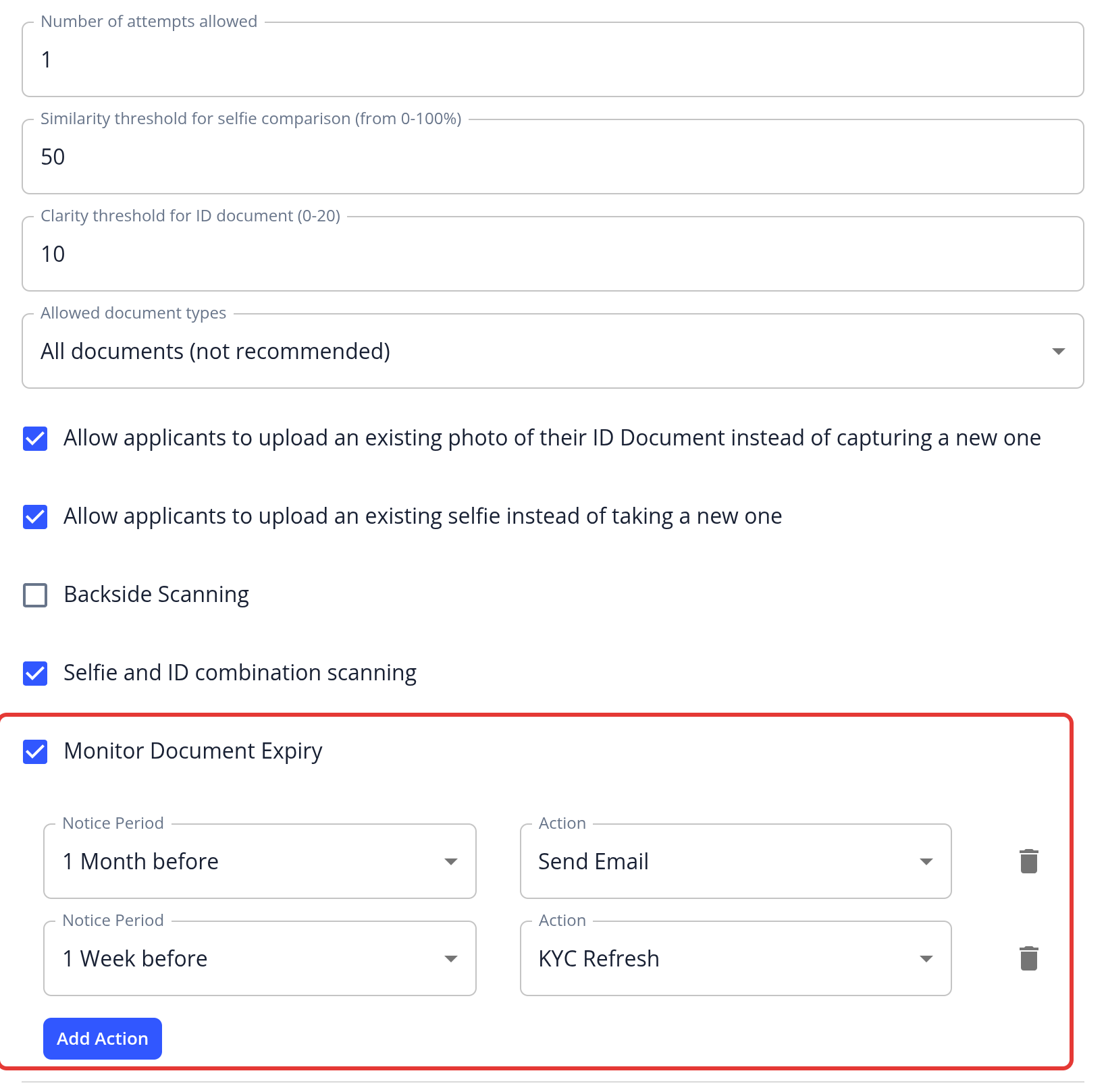
Options:
- Allow applicants to upload an existing photo of their ID Document instead of capturing a new one and Allow applicants to upload an existing selfie instead of taking a new one (not available on the Basic and Pro plans)
- Backside Scanning: Also scan the back of national ID cards and driver's licenses (when enabled for your instance)
- Selfie and ID combination scanning: Ask the applicant for a selfie while holding their ID document next to their face (when enabled for your instance)
- Monitor Document Expiry: See Document Expiry Monitoring
ID data verification
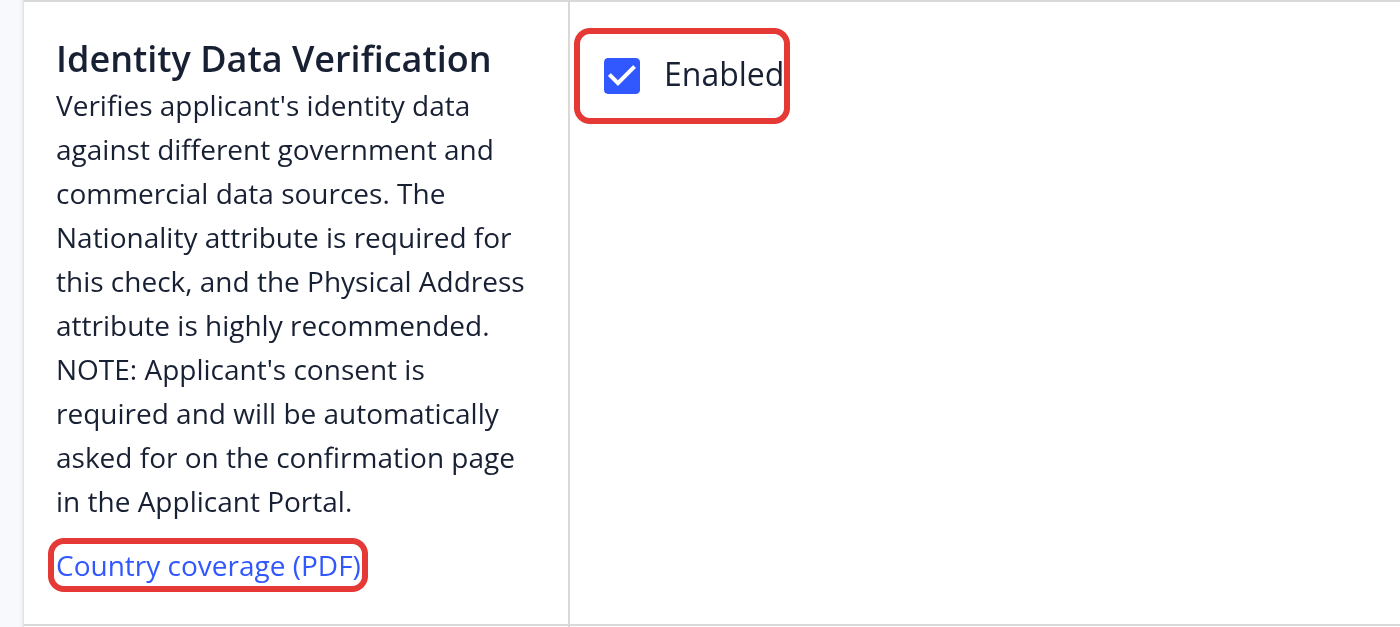
This feature checks the applicant's identity data, such as name, date of birth, address and national ID number, against government and commercial data sources. It is available for individual templates in the supported countries; the Country coverage (PDF) link in the section lists them, and KYC and AML coverage by country shows the database checks for each country. The Nationality attribute is required, and the physical address attribute is highly recommended. Applicants are asked for their consent automatically.
- Go to KYC Templates
- Open the template
- Go to the Compliance step and, under Identity Data Verification, tick Enabled
- Click Save & Next