Member requirements
Applications can have members, such as directors, UBOs and shareholders. On the Members step of a KYC template, you choose which KYC template each member gets.
- Go to KYC Templates and open the template.
- Go to the Members step and tick Enable members. On corporate templates, you can also tick Ask members for ownership percentage.
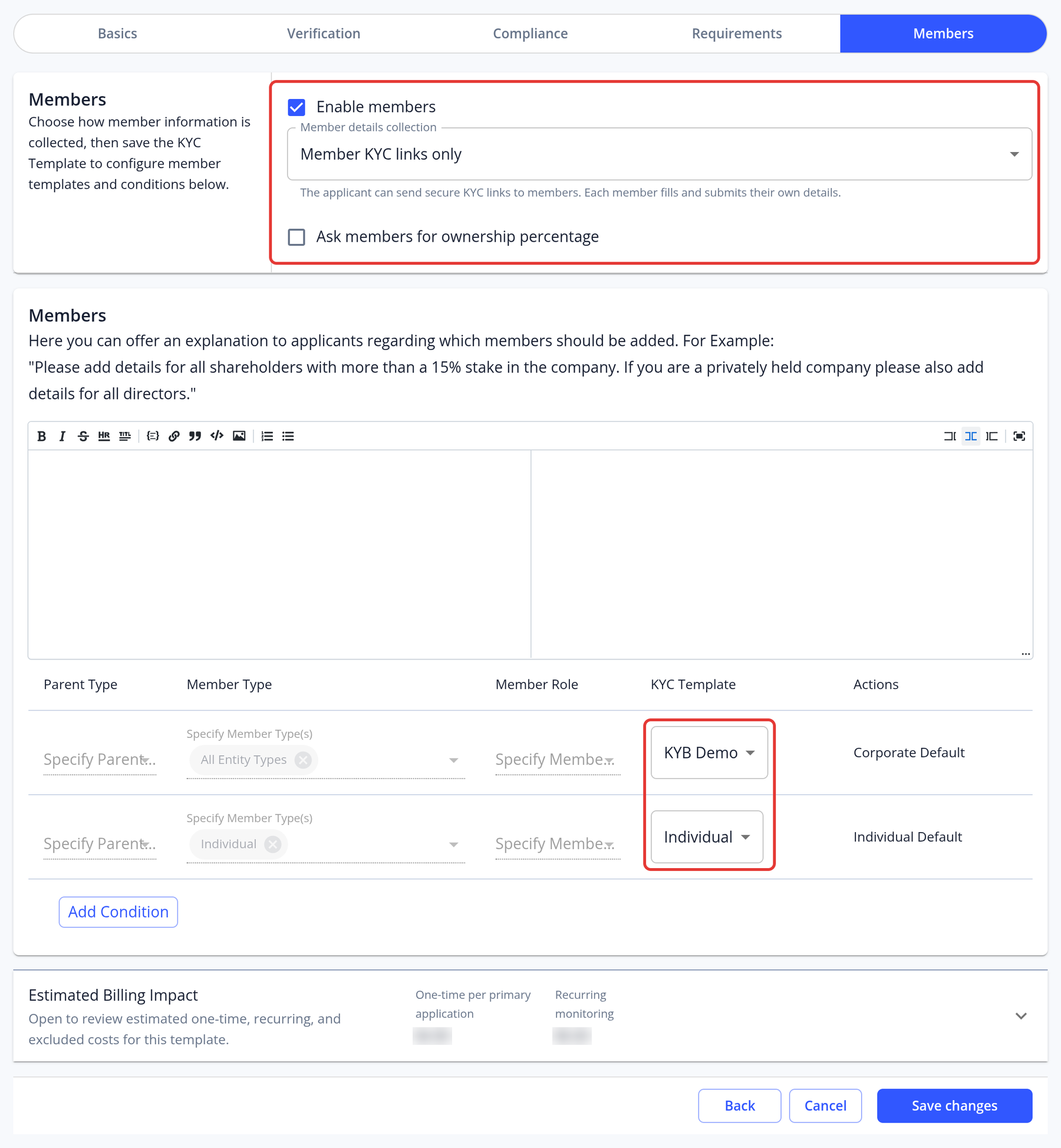
- In the conditions table, choose the default KYC templates in the Individual Default and Corporate Default rows. Only active templates of the matching type are listed.
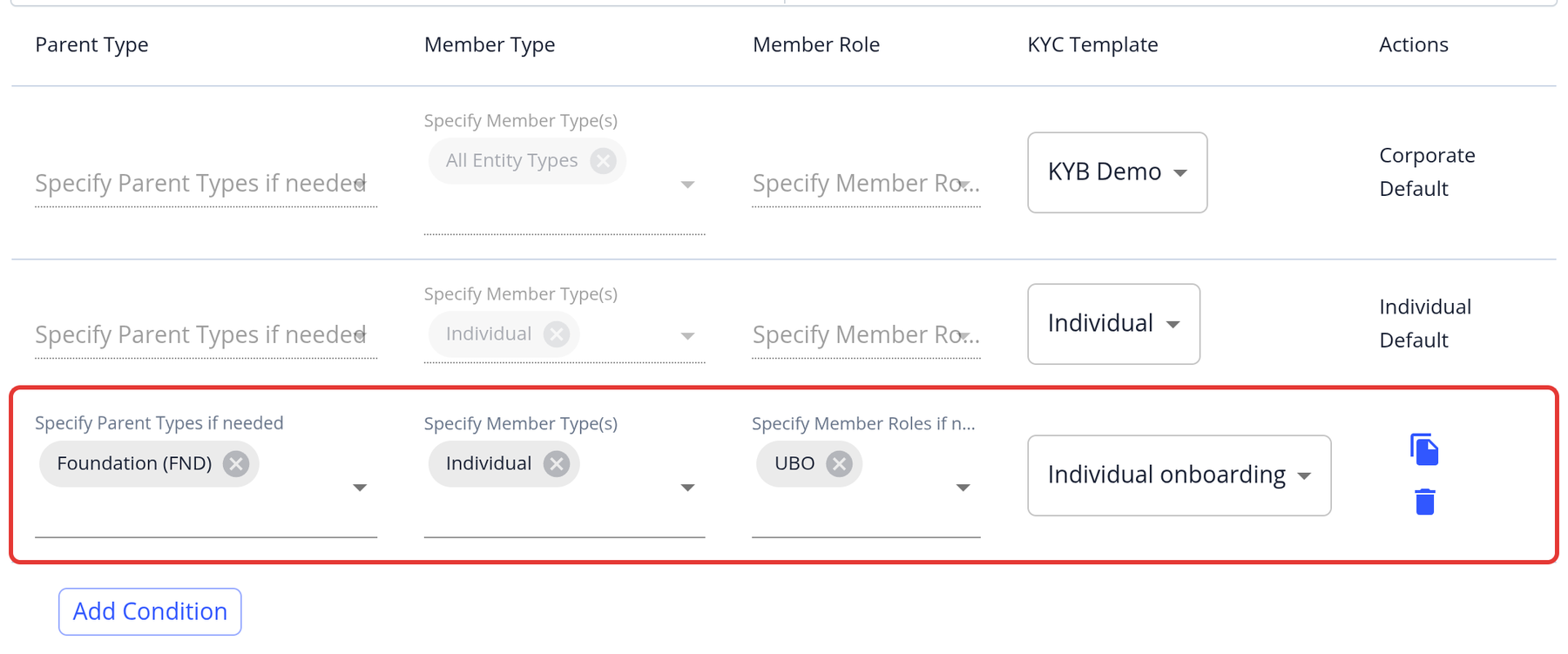
Note: On corporate templates, you can assign a different member template depending on the company's legal entity type and the member's role:
- (Optional) Click Add Condition. Choose the Member Type (individual or corporate members), the parent's legal entity type(s), the member role(s), and the KYC template to use. For example, a condition with the parent type Foundation, the member type individual, the member role UBO and an individual KYC template assigns that template to individual UBOs of foundations. To assign a corporate template to corporate UBOs, create a similar condition with the corporate member type and a corporate template.
- Click Save changes.